Resources & Tutorials
57 step-by-step guides to master every feature of RPAS WILCO.
No tutorials found
Try a different search term or browse by category.
Mobile App
Guides for the RPAS WILCO iOS & Android app.
Mobile Download the App & Create an Account
Download the App & Create an Account
Get started with RPAS WILCO on your mobile device.
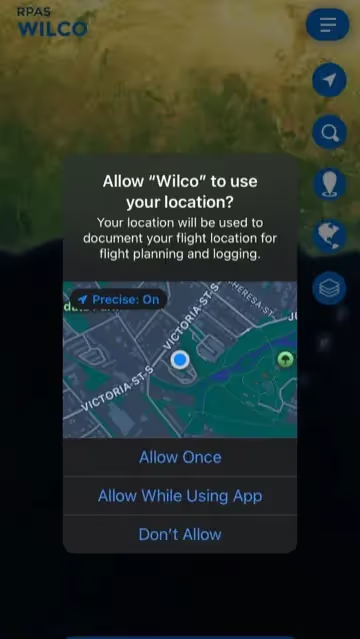
- 1
Open the RPAS Wilco app on your phone.
- 2
On the sign-in page, click "Sign Up" if you don't have an account yet.
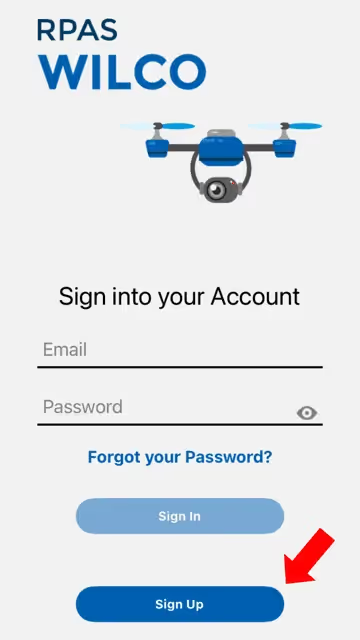
- 3
Sign up by entering your email and password.
Note: A password strength checker is in place. Make sure your password is at least 8 characters long and includes uppercase, lowercase, numbers, and symbols.
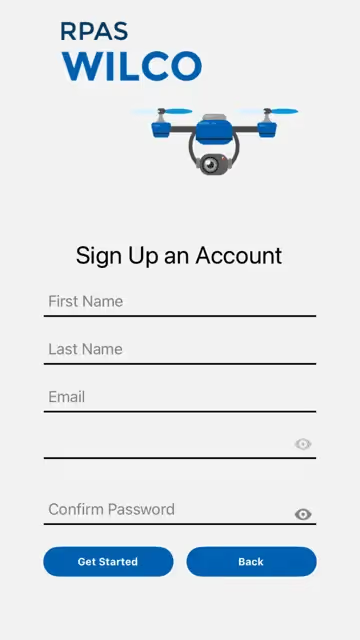
- 4
When prompted, allow location access ("Allow While Using App") to enable RPAS Wilco's location-based features.
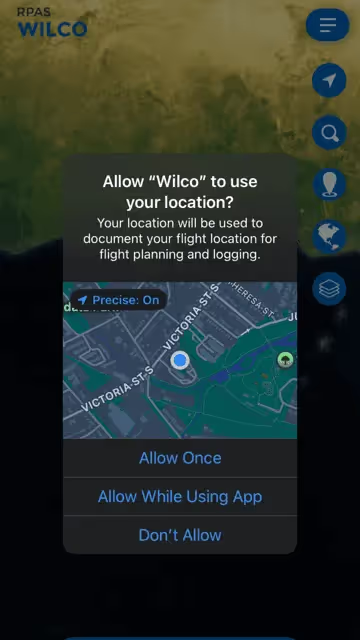
- 5
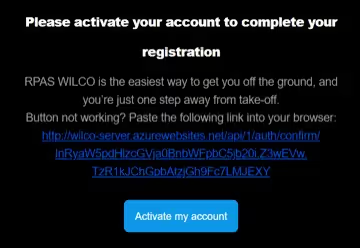
Check your email for an activation message from AIM Robotics. Click "Activate My Account" in the email.
Note: If you don't see the email, check your spam folder.
- 6
You're all set! You can now sign in and start using RPAS Wilco.
Mobile Add a Drone
Add a Drone
Register a new drone to your account.
- 1
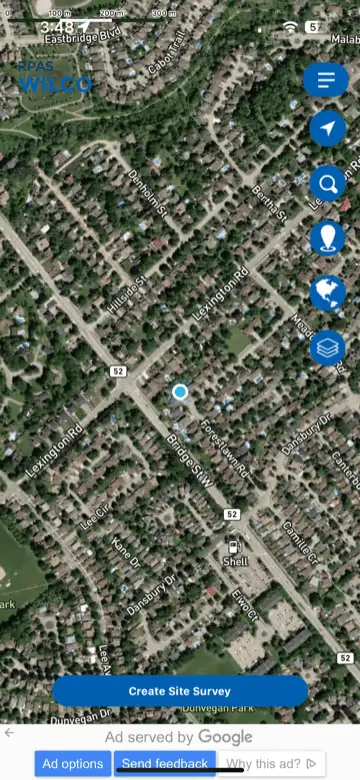
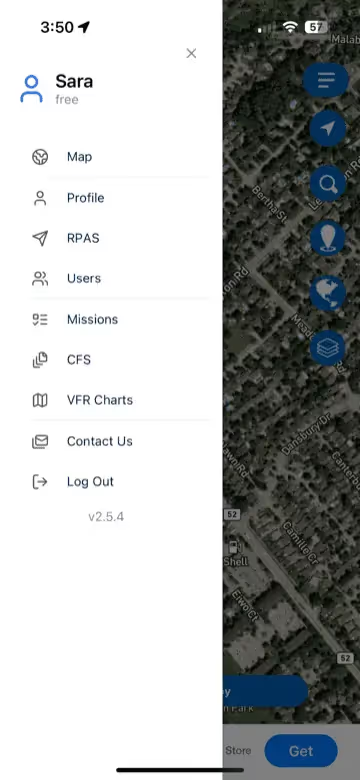
Open the sidebar menu (☰) and select "RPAS".
- 2
Tap the "Add" button in the top left corner.
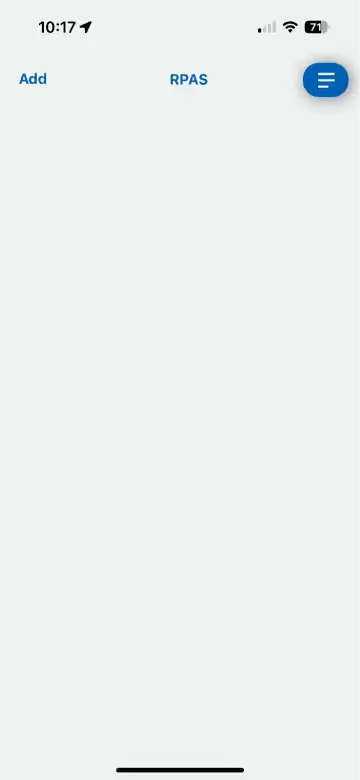
- 3
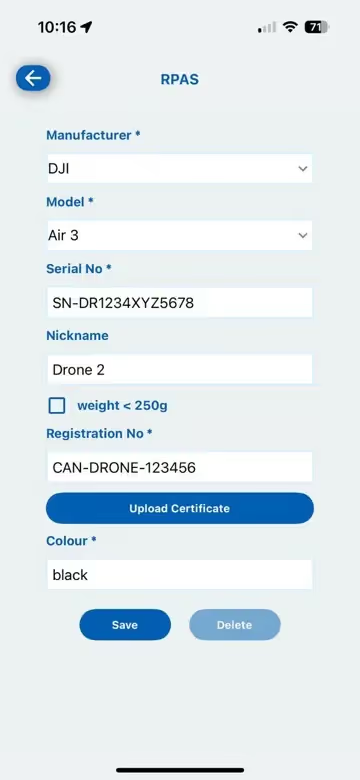
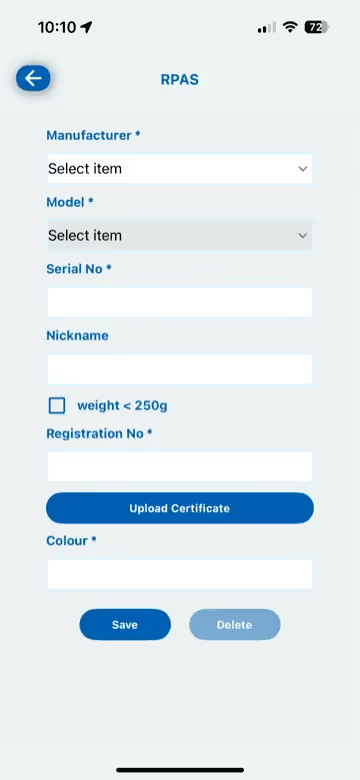
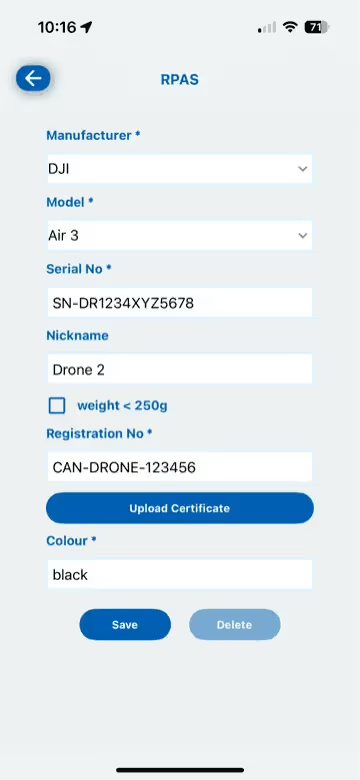
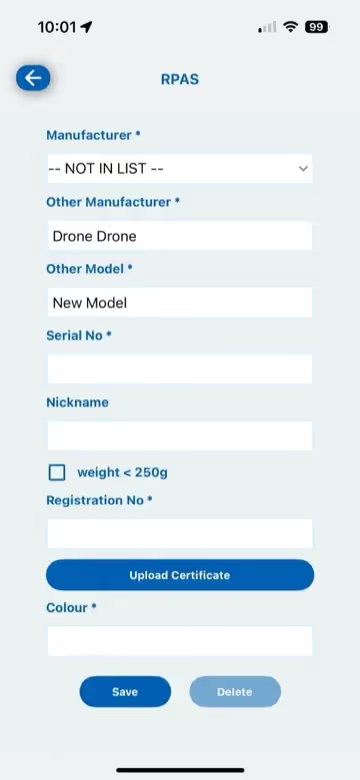
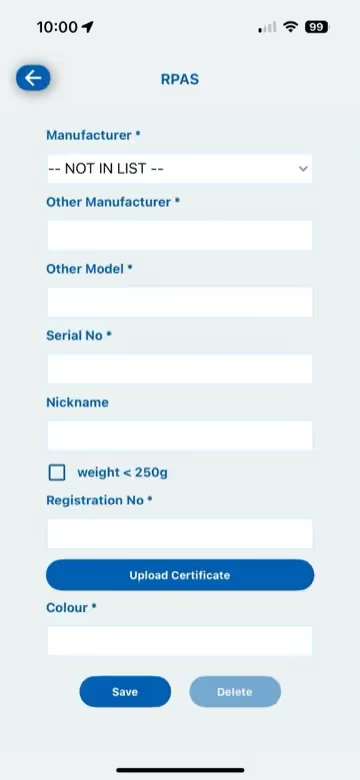
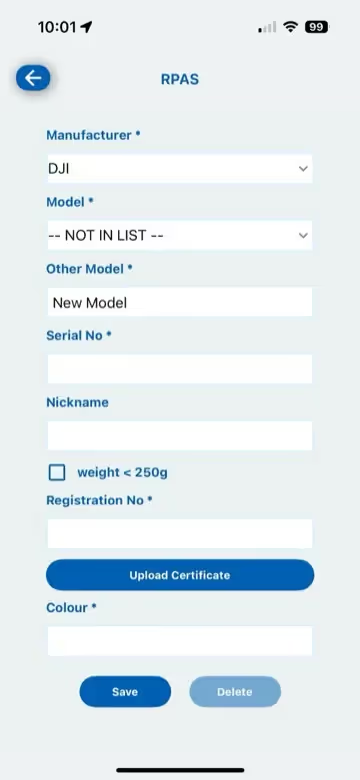
Enter your drone details: Manufacturer, Model, Serial Number, Nickname, Registration Number, and Colour.
Note: If your drone's make or model is not listed, you can create a custom entry. This is useful for mini-drones that don't require Transport Canada registration.
- 4
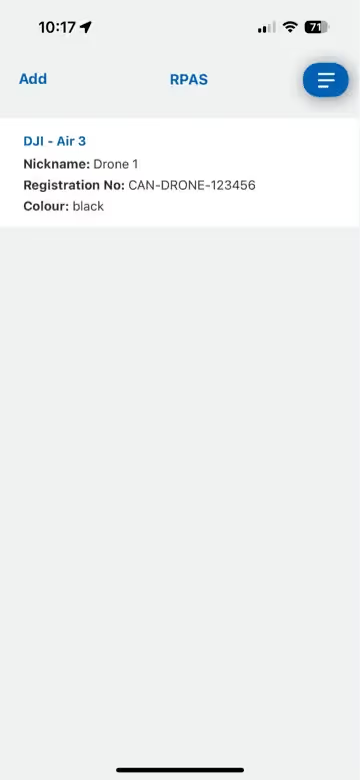
Tap "Save" to confirm your drone details.
Mobile Delete a Drone
Delete a Drone
Remove a drone from your account.
- 1
Open the sidebar menu (☰) and select "RPAS".
- 2
Tap on the drone you would like to delete.
- 3
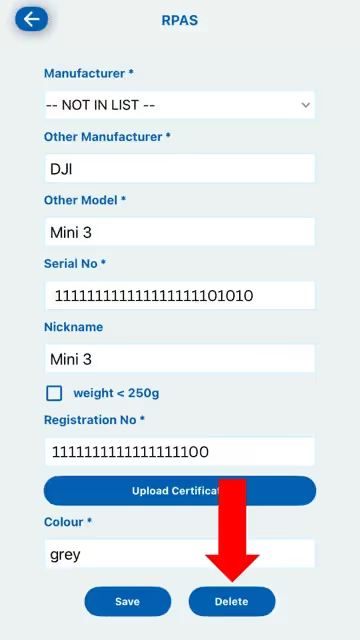
Click "Delete" in the bottom right corner.
Mobile Video Add Team Members (Pilot, VO, PO)
Add Team Members (Pilot, VO, PO)
Add pilots, visual observers, and payload operators.
- 1
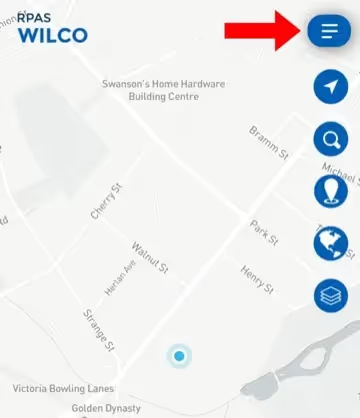
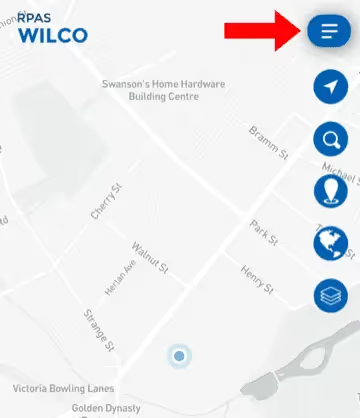
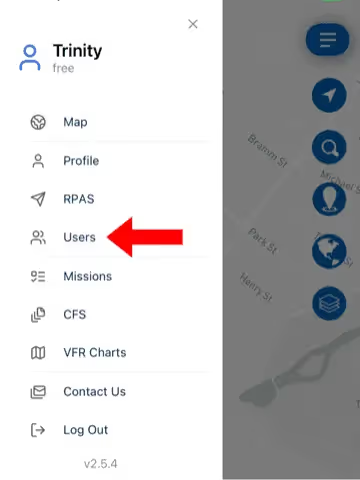
Open the sidebar (☰) and select "Users".
- 2
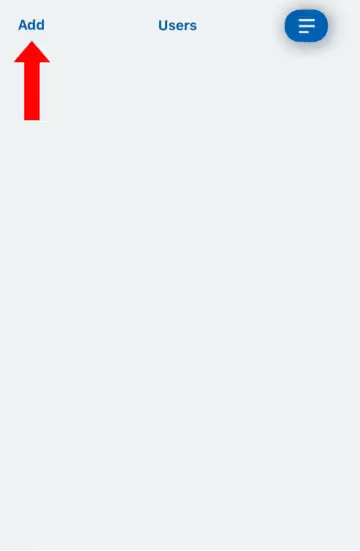
Tap "Add" in the top left corner.
- 3
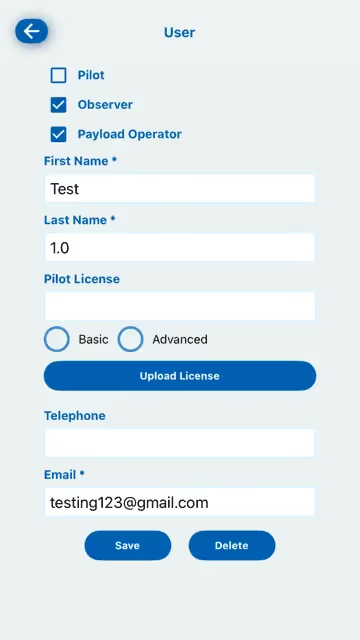
Fill in the user's name, email, and other information. Select their role (Pilot, Visual Observer, or Payload Operator) and click "Save".
Note: Free and Pro users can add only one pilot per account. To add multiple pilots, an Enterprise Plan is required.
Mobile Edit or Delete Team Members
Edit or Delete Team Members
Update or remove team member information.
- 1
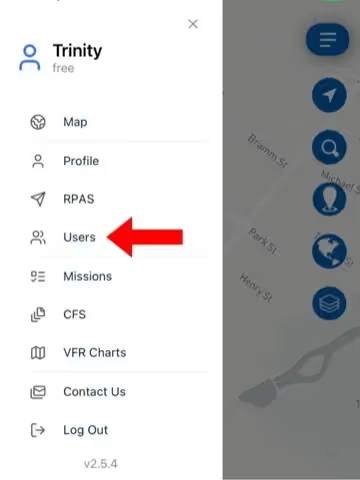
Open the sidebar (☰) and select "Users".
- 2
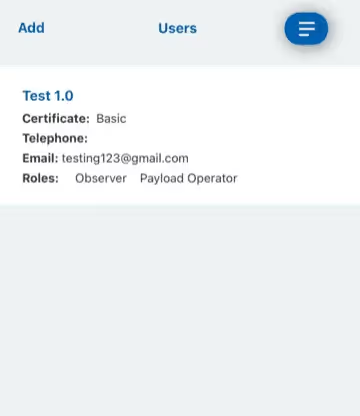
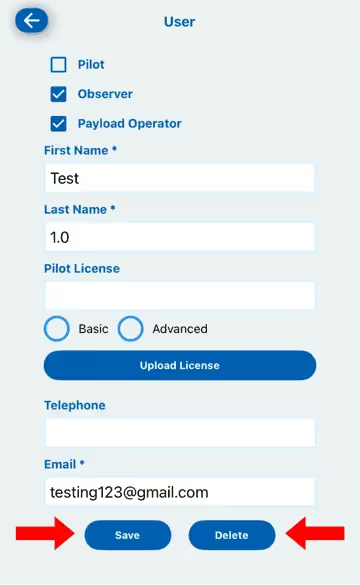
To edit: Tap the user's name, update their details, and press "Save".
- 3
To delete: Tap the user's name and select "Delete".
Mobile Video Create a Site Survey / Start a Mission
Create a Site Survey / Start a Mission
Create a new site survey and configure mission details.
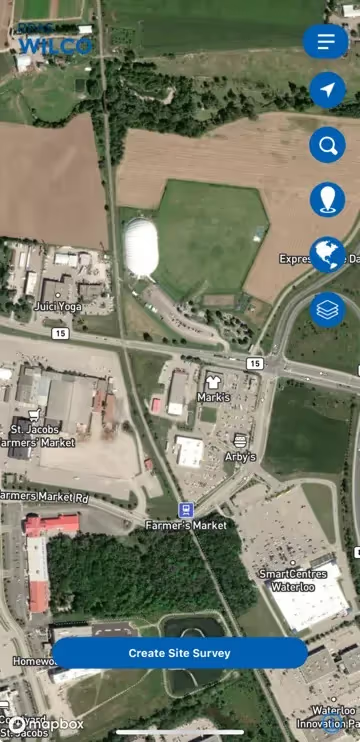
- 1
Tap the "Create Site Survey" button at the bottom of the homepage.
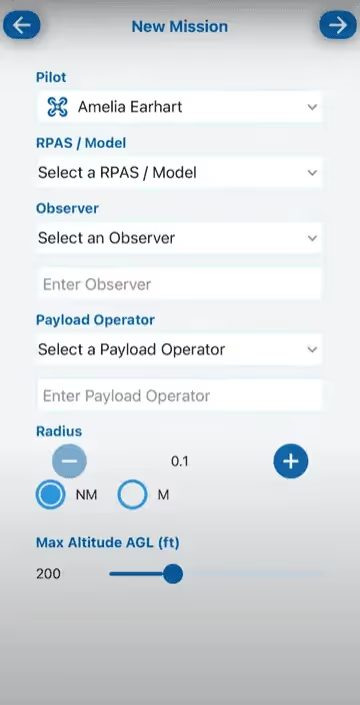
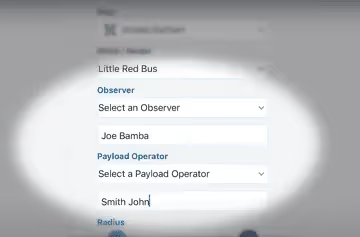
- 2
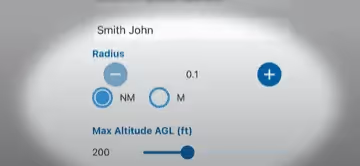
Enter mission information: Pilot, Drone & Model, Observer, Payload Operator, Mission Radius, and Maximum Altitude (ft).
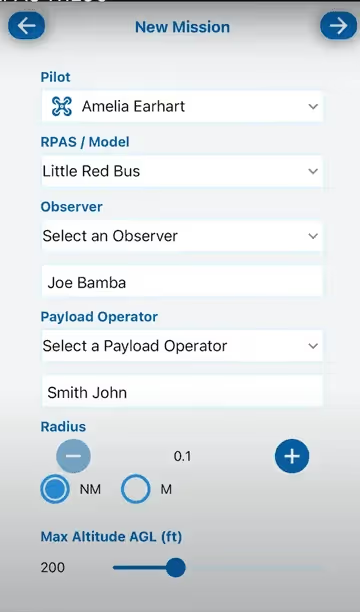
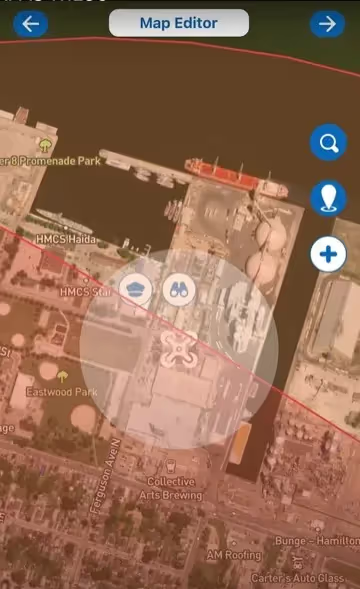
- 3
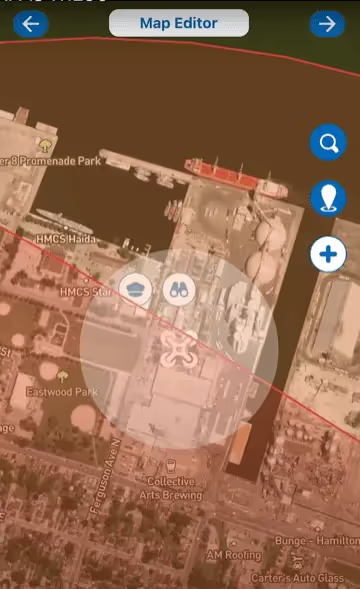
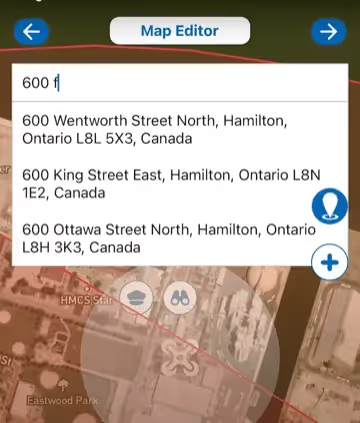
Tap the arrow to proceed to the map editor. Enter the address or GPS coordinates and place your team markers.
Note: You can add obstacle markers to indicate hazards near the operation site.
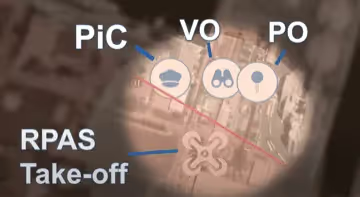
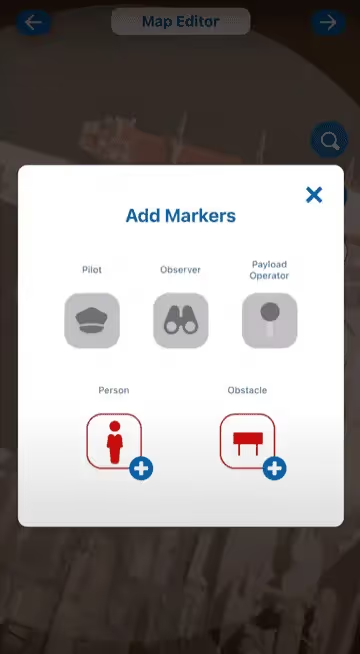
- 4
Confirm the snapshot of the operation layout, then set mission name, start/end time.
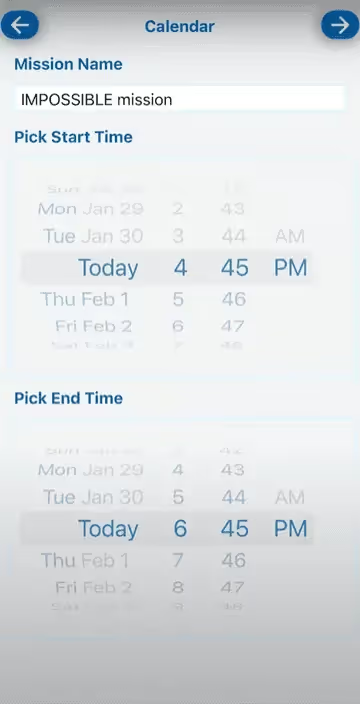
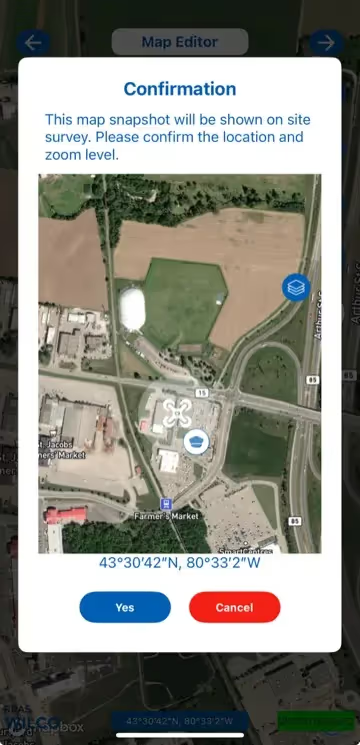
- 5
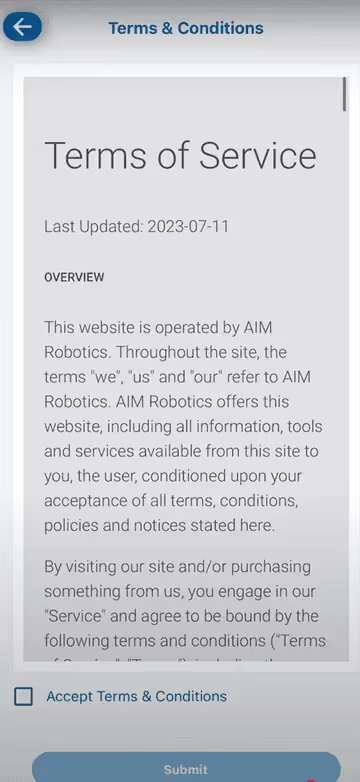
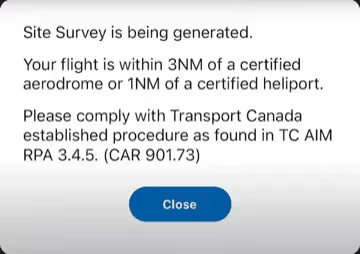
Agree to the Terms and Conditions. Your site survey will begin generating automatically.
- 6
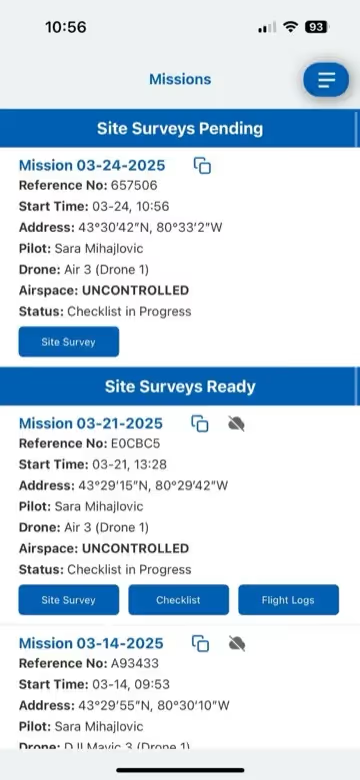
View your survey under sidebar > "Missions" to see Pending and Ready Site Surveys.
Mobile View Past Missions, Flight Logs & Checklists
View Past Missions, Flight Logs & Checklists
Access records from previous missions.
- 1
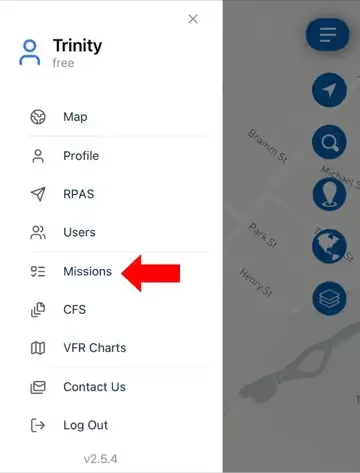
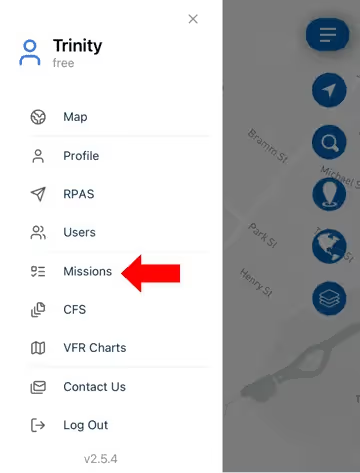
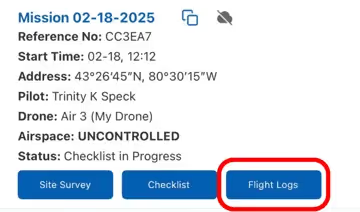
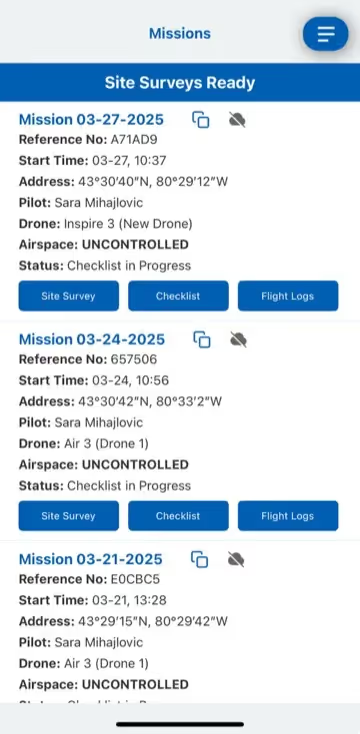
Open the sidebar (☰) and select "Missions" to view all past missions.
- 2
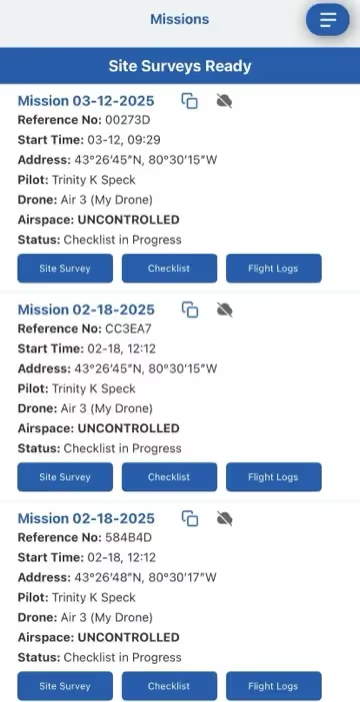
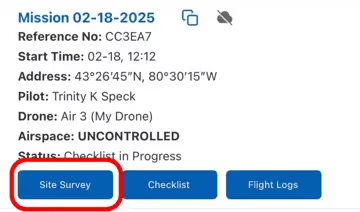
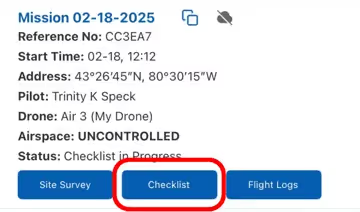
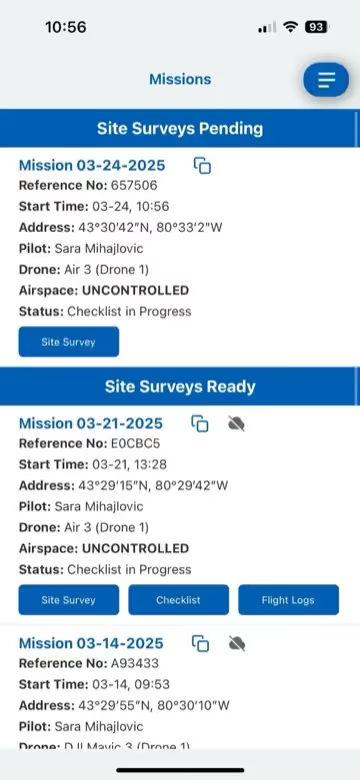
Tap the corresponding blue box to access Site Surveys, Checklists, or Flight Logs for a specific mission.
Note: Free users can only access past missions from the last 7 days. Pro and Enterprise users have unlimited access.
Mobile View Aeronautical Charts (VFR & CFS)
View Aeronautical Charts (VFR & CFS)
Access VFR and CFS charts through the mobile app.
- 1
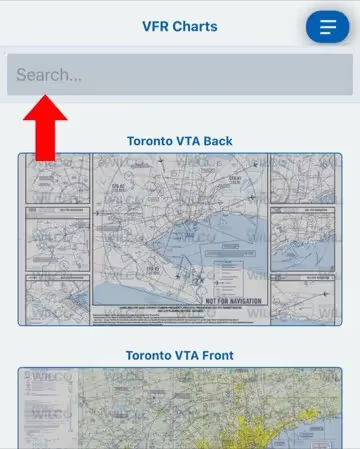
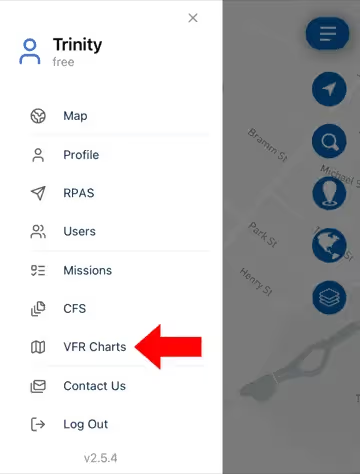
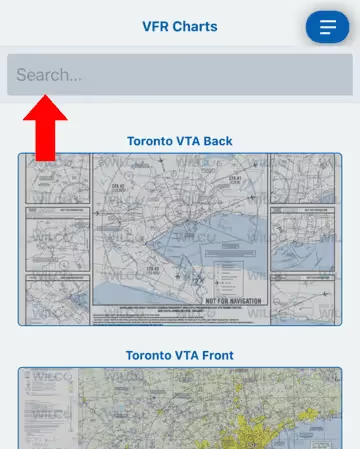
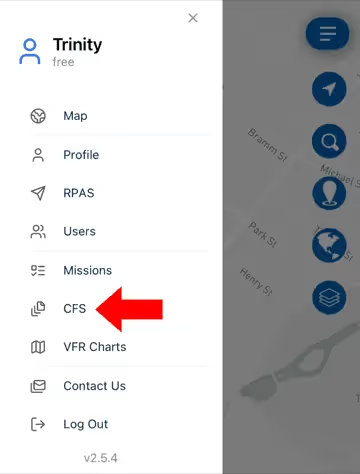
Open the sidebar (☰) and select "VFR Charts" or "CFS" to view charts.
- 2
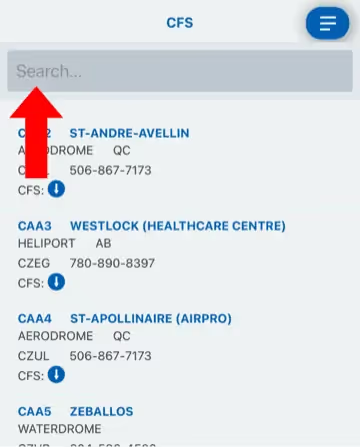
Use the search bar to find a specific chart by name. Tap to open and zoom/navigate.
Note: Free members can only access mission-relevant CFS charts. Upgrade to Pro or Enterprise for full access.
- 3
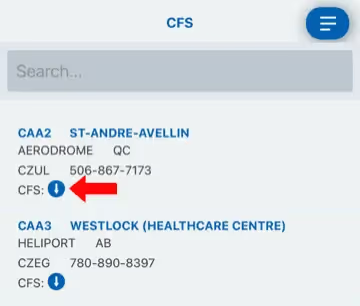
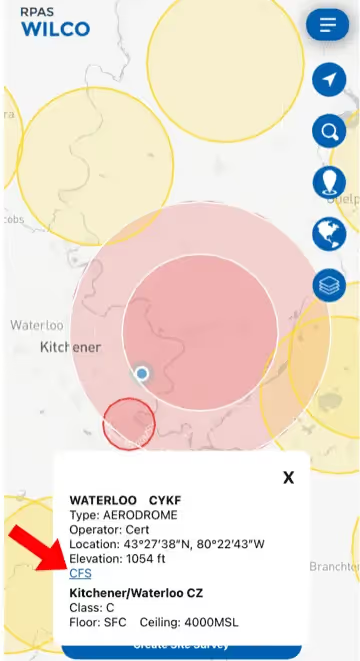
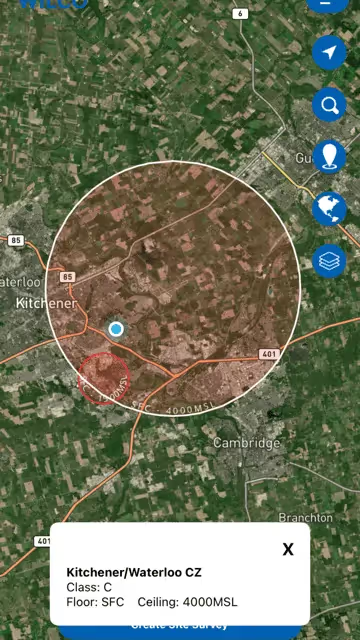
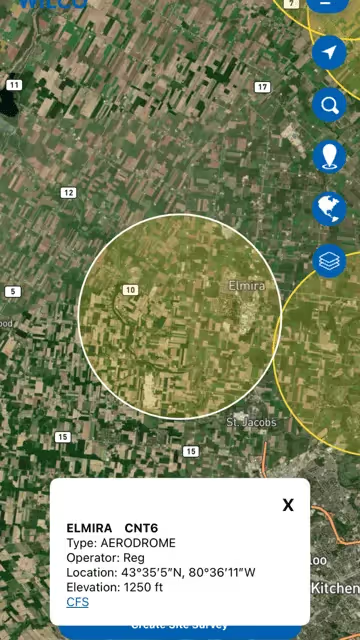
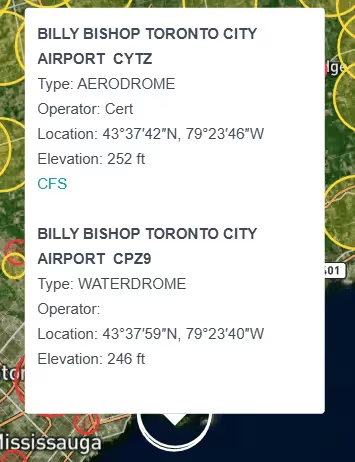
Pro tip: Tap on an aerodrome on the airspace map to access its linked CFS chart directly.
Mobile Use the Checklist
Use the Checklist
Complete pre-flight, mid-flight, and post-flight checks.
- 1
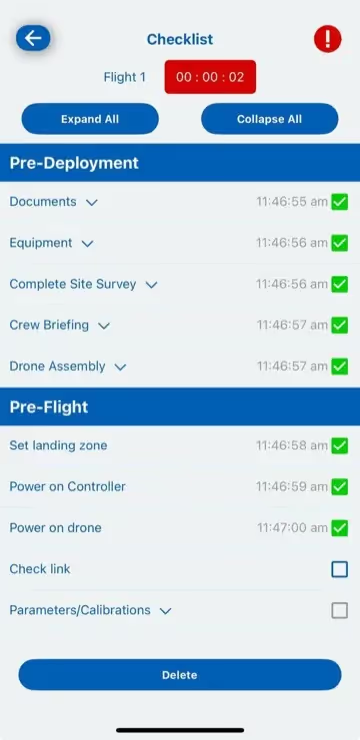
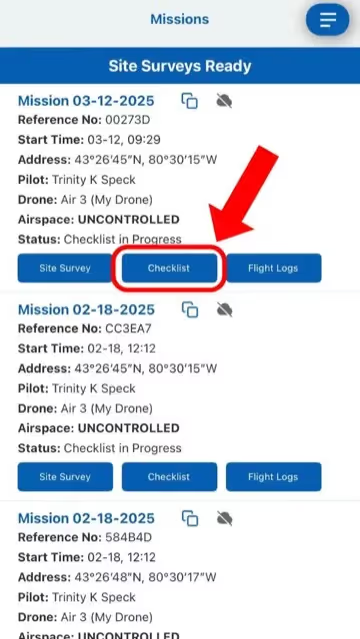
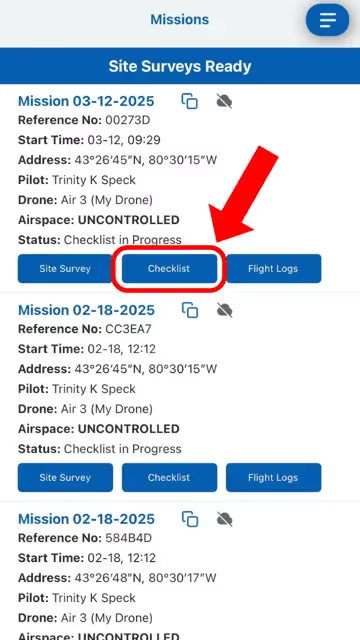
Open sidebar > "Missions" tab. Under "Site Surveys Ready", click the checklist button.
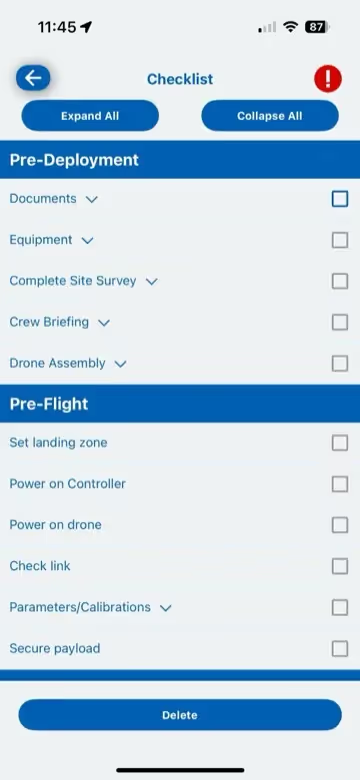
- 2
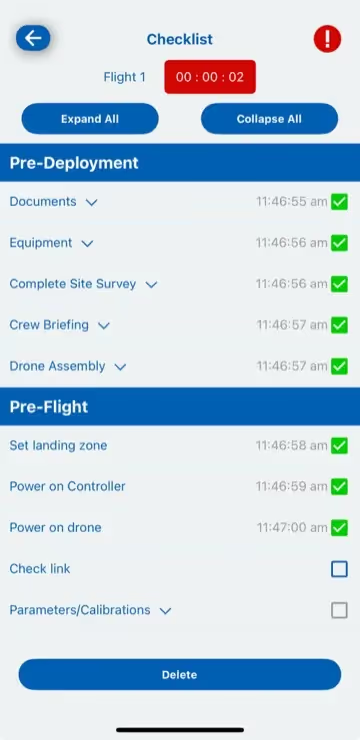
Check off "Power on Drone" to begin — RPAS WILCO will automatically start tracking your flight time.
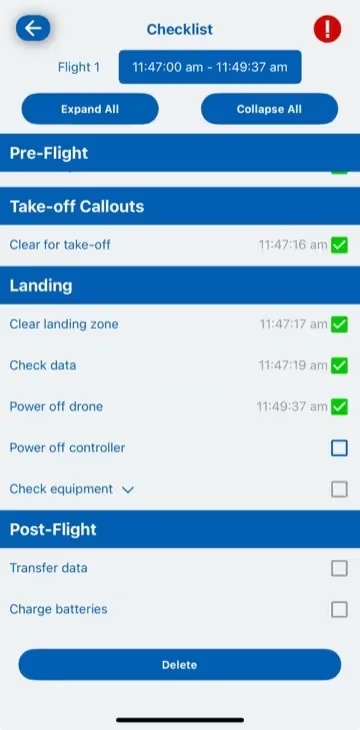
- 3
After landing, click "Power Off Drone" — flight time will be automatically logged.
Mobile Create Manual Flight Logs
Create Manual Flight Logs
Manually input flight log entries.
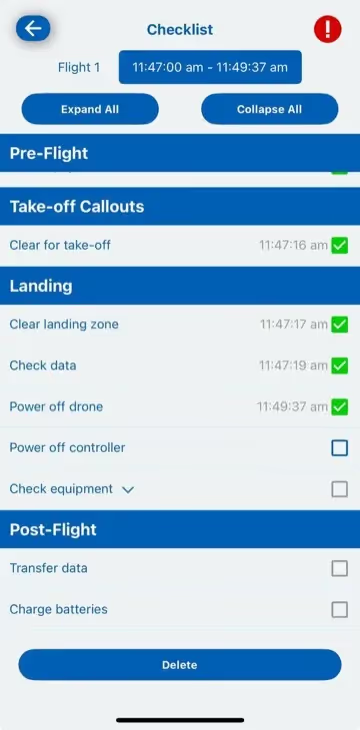
- 1
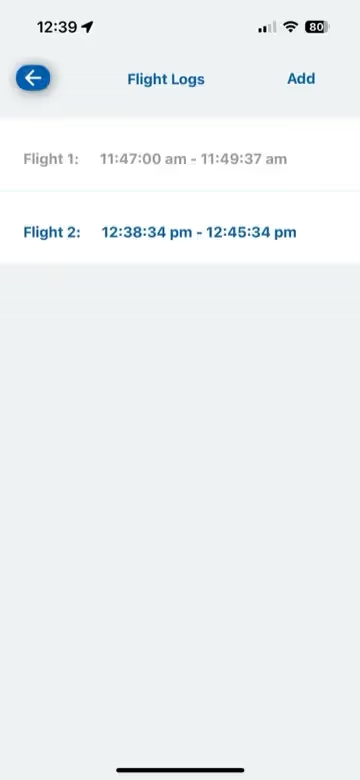
Open sidebar > "Missions" tab. Under "Site Surveys Ready", click "Flight Logs".
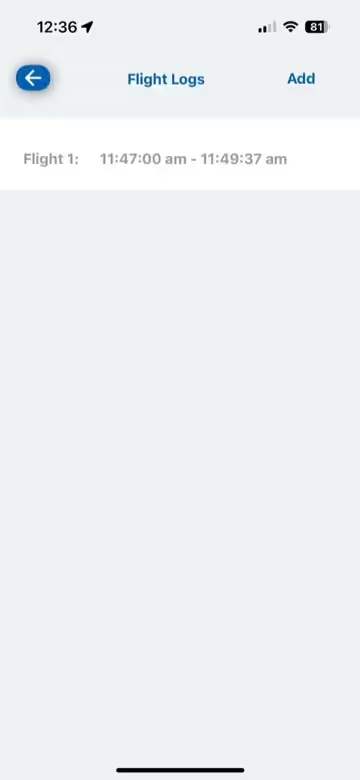
- 2
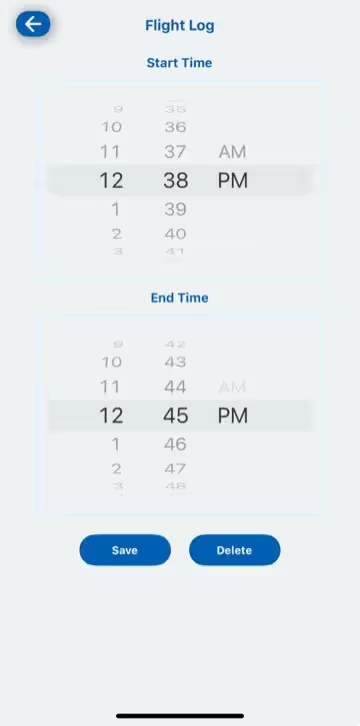
Click "Add" to manually enter your flight log with start and end times.
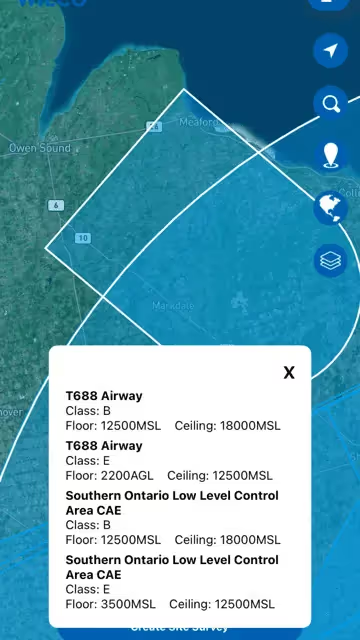
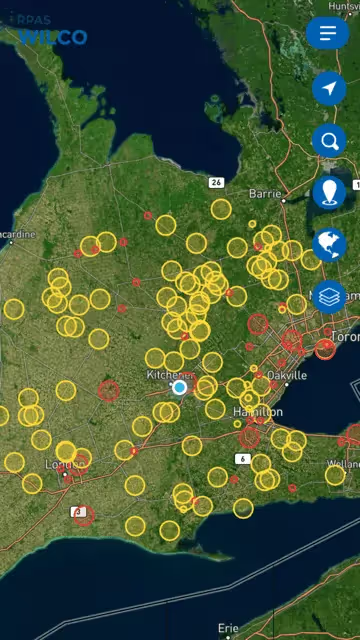
Mobile Use the Interactive Airspace Map
Use the Interactive Airspace Map
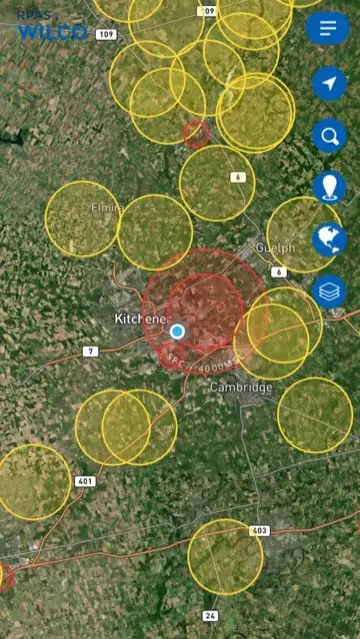
Navigate the airspace map with layers, legend, and search.
- 1
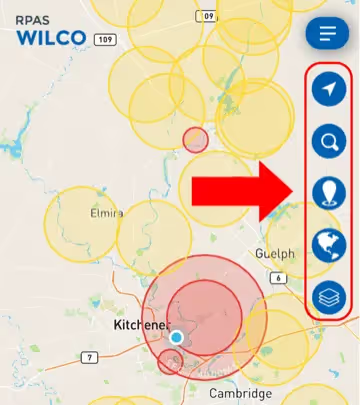
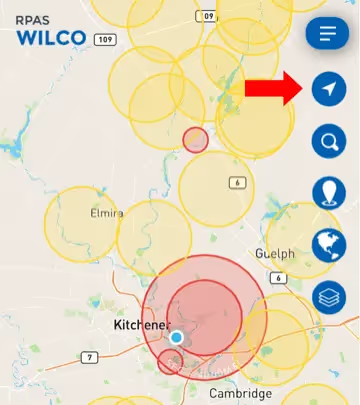
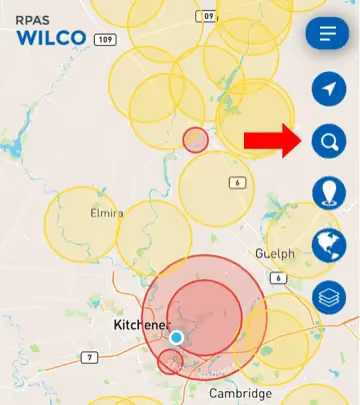
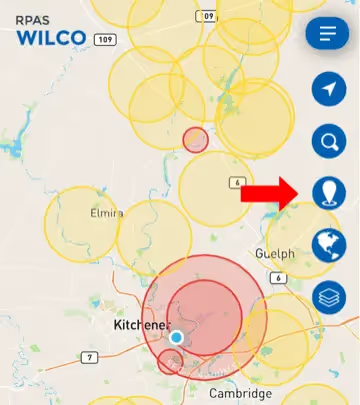
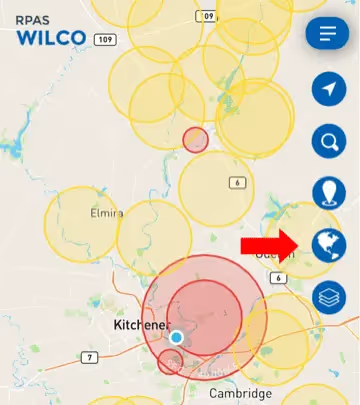
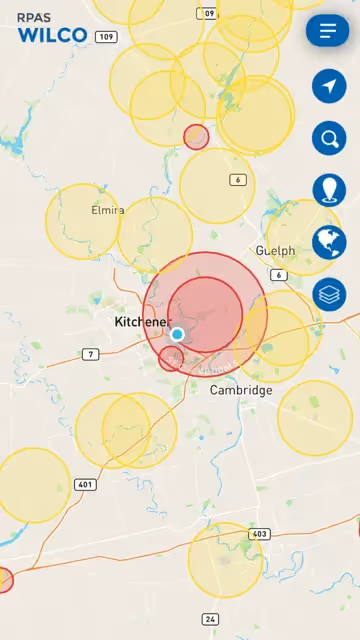
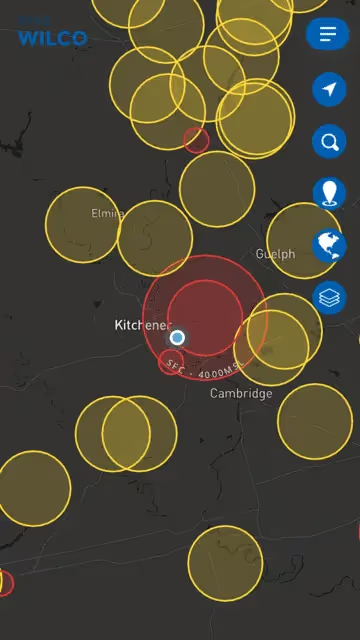
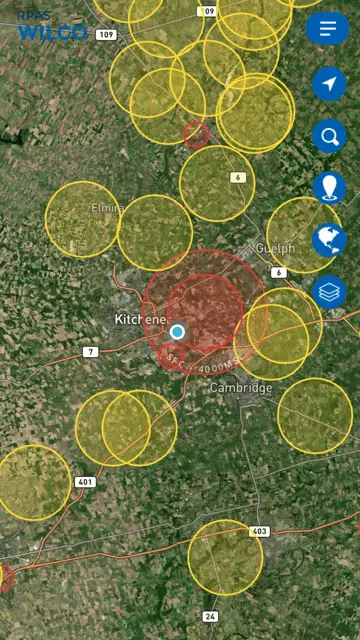
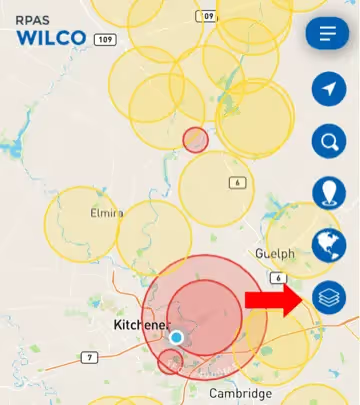
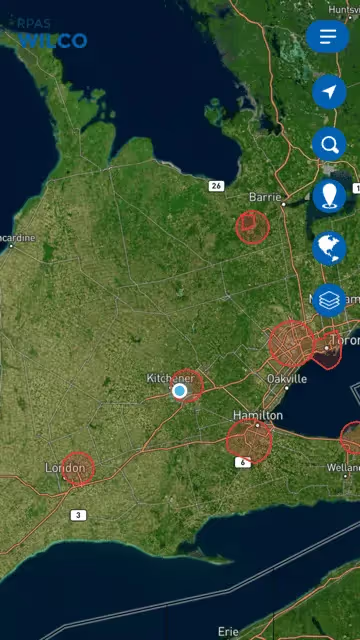
Below the sidebar icon (☰), find five icons: Location Finder, Address Search, Coordinate Search, View Modes, and Legend.

- 2
Use Address Search (magnifying glass) to jump to a location, or Coordinate Search (pin) for GPS coordinates.
- 3
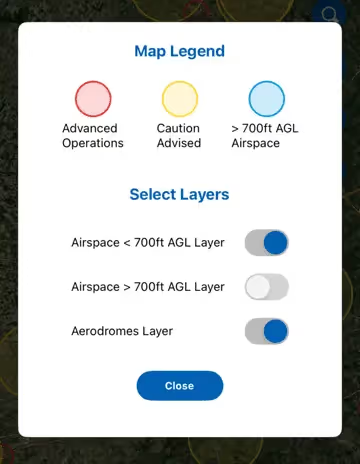
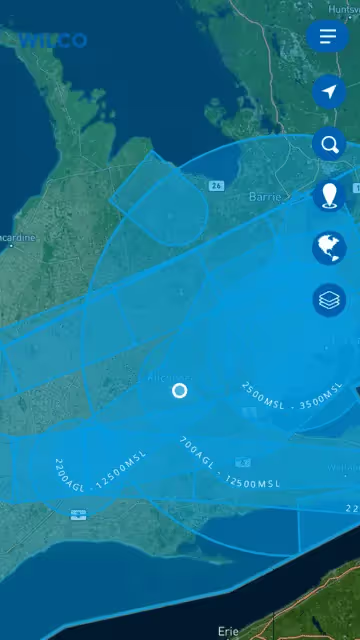
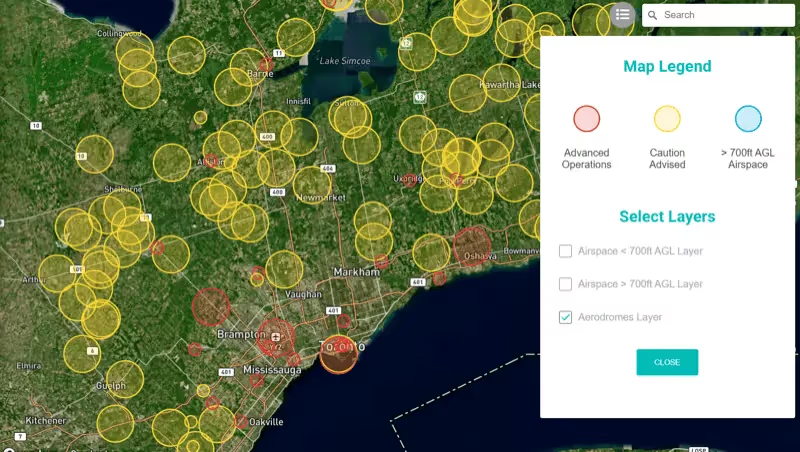
Open Legend (papers icon) to view colors/symbols and toggle map layers: Airspace < 700 ft AGL, Airspace > 700 ft AGL, and Aerodromes.
Mobile Edit Profile & Change Password
Edit Profile & Change Password
Update your account details and password.
- 1
Open the sidebar (☰) and select "Profile".
- 2
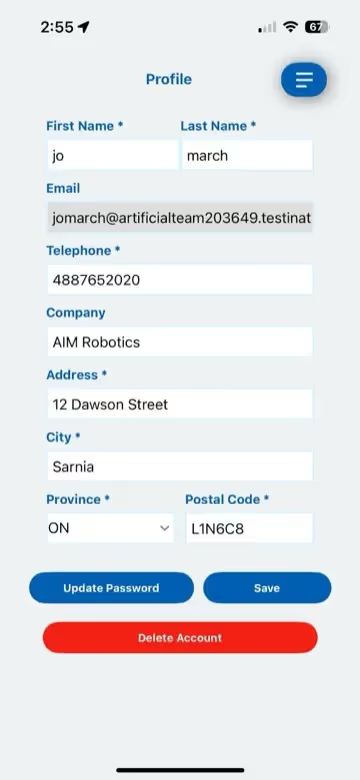
Update your details: Name, Phone Number, Company, Address, City, Province, Postal Code.
- 3
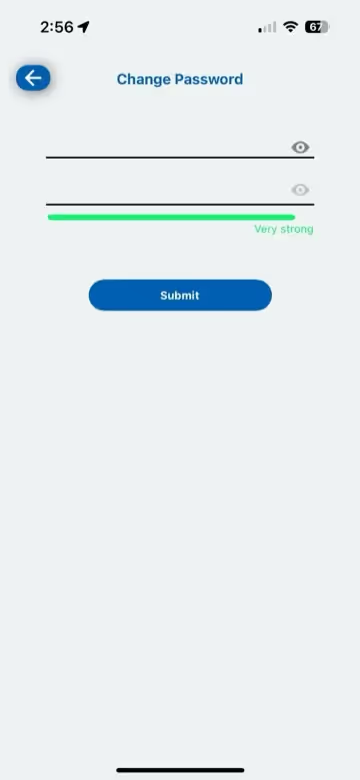
To change password, scroll to bottom and click "Update Password".
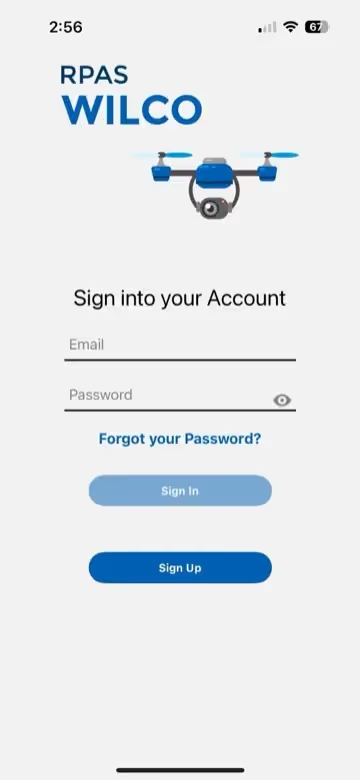
Note: After changing your password, you will be logged out and must sign in again.
Mobile Report Accidents (Air Safety Reports)
Report Accidents (Air Safety Reports)
File incident reports, maintenance requests, and memos.
- 1
Open sidebar > "Missions" > find the relevant mission > tap "Checklist".
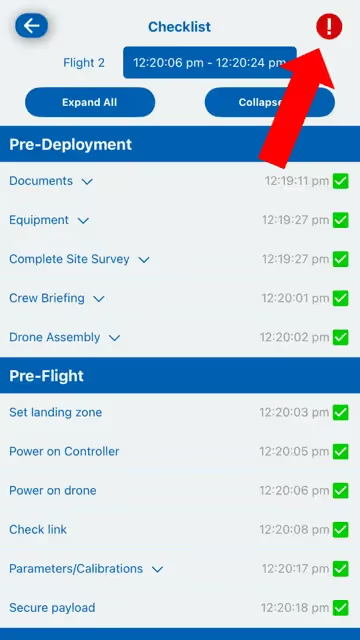
- 2
Tap the red exclamation mark (!) in the top right corner.
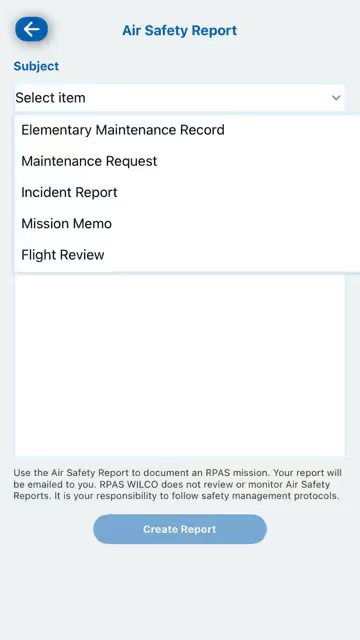
- 3
Select report type (Incident Report, Maintenance Request, etc.), add photos if applicable, enter description.
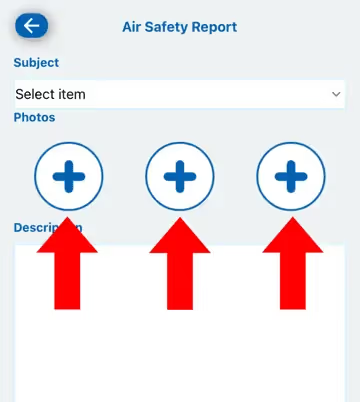
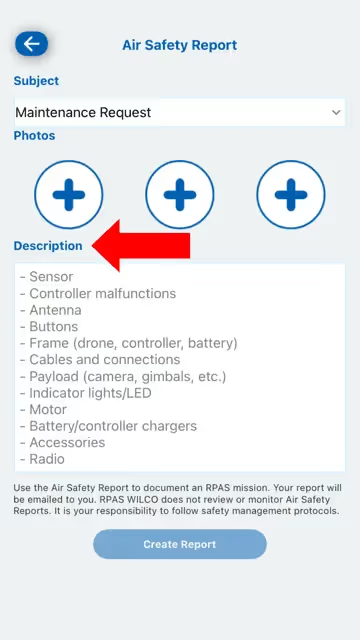
- 4
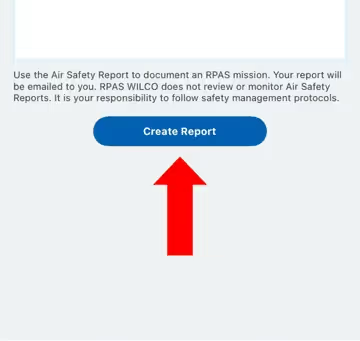
Tap "Create Report" to submit. A copy will be emailed to you.
Note: Check your spam folder if you don't see the email.
Mobile Use Offline Mode
Use Offline Mode
Continue missions without an internet connection.
- 1
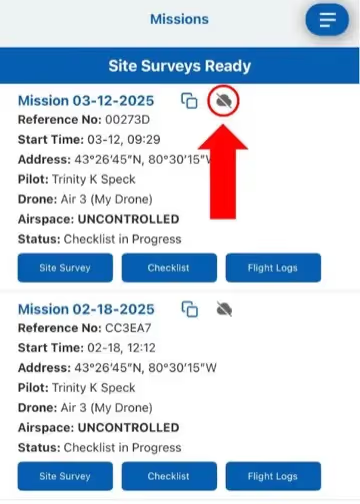
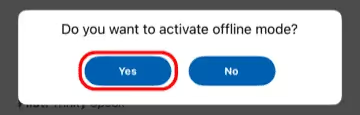
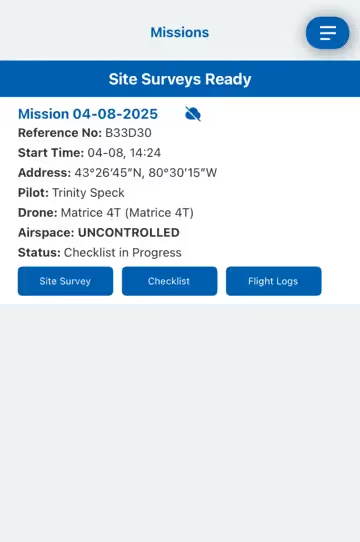
Open sidebar > "Missions". Click the cloud icon next to the mission. Confirm "Yes".
Note: Only the pilot assigned to the mission can enable offline mode.
- 2
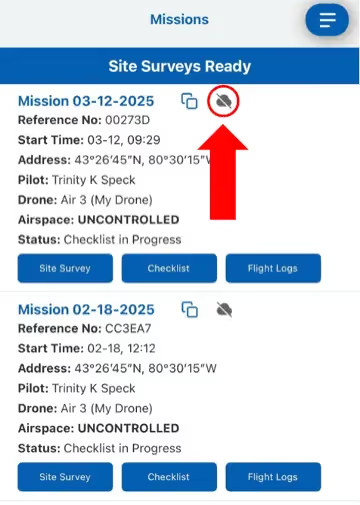
Continue your mission as usual without internet — checklists and details remain accessible.
- 3
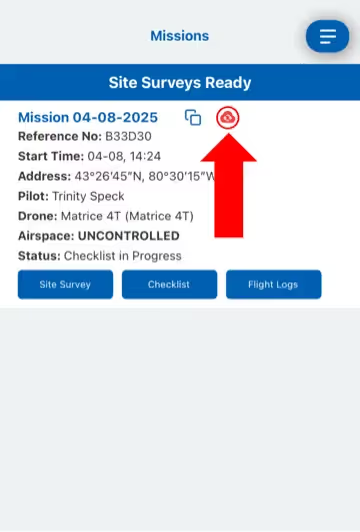
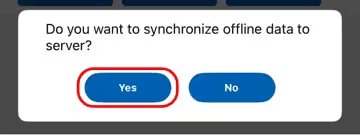
When reconnected, tap the red cloud icon and confirm "Yes" to sync data back to the server.
Web Browser
Guides for the web application at dashboard.rpaswilco.com.
Web Create an Account / Sign Up
Create an Account / Sign Up
Register for RPAS WILCO through the web browser.
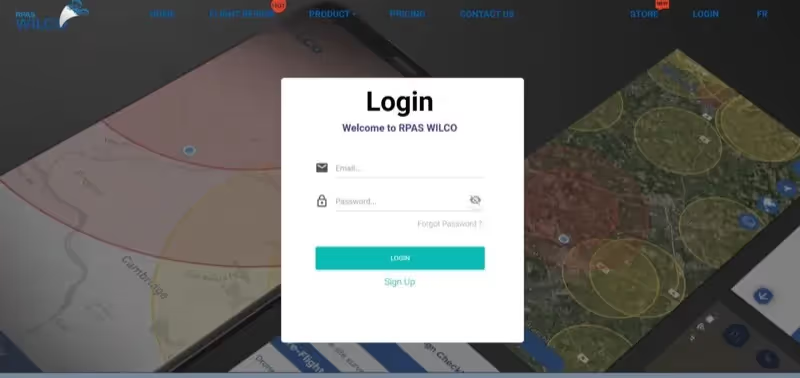
- 1
Click the "Login" button in the top right, then "Signup" at the bottom.
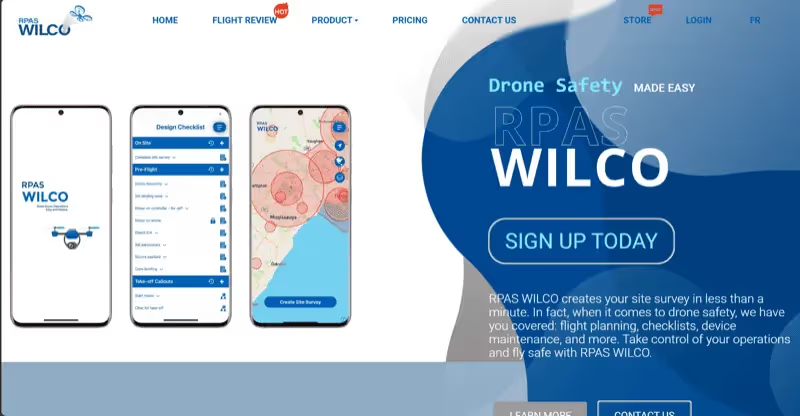
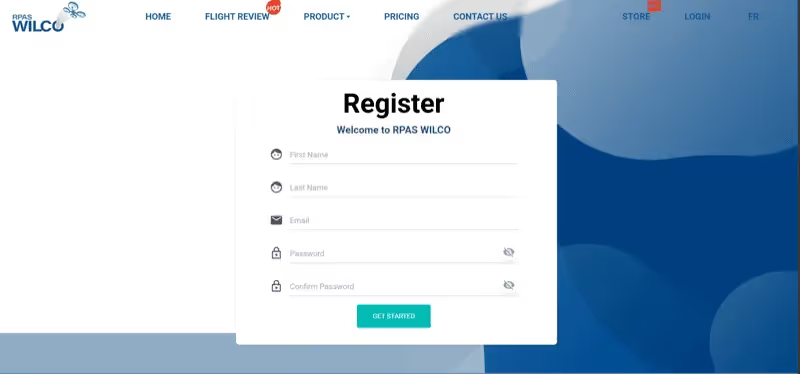
- 2
Fill in: Full Name, Email Address, Phone Number, and Password (at least 8 characters).
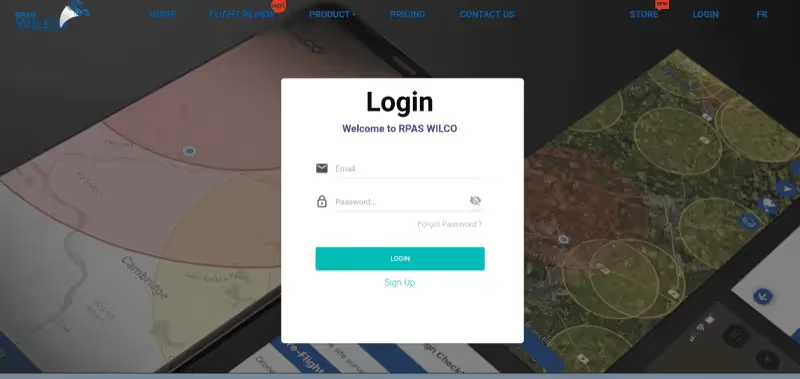
- 3
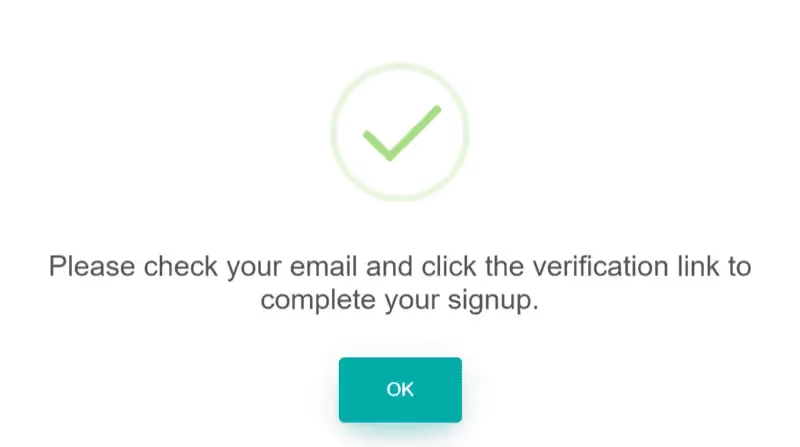
Verify your email address, then log in to your new account.
Web Add a Drone
Add a Drone
Register a new drone through the web dashboard.
- 1
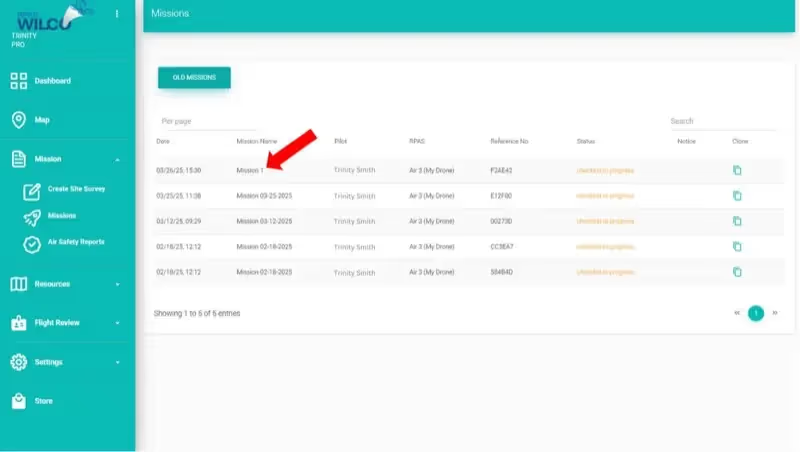
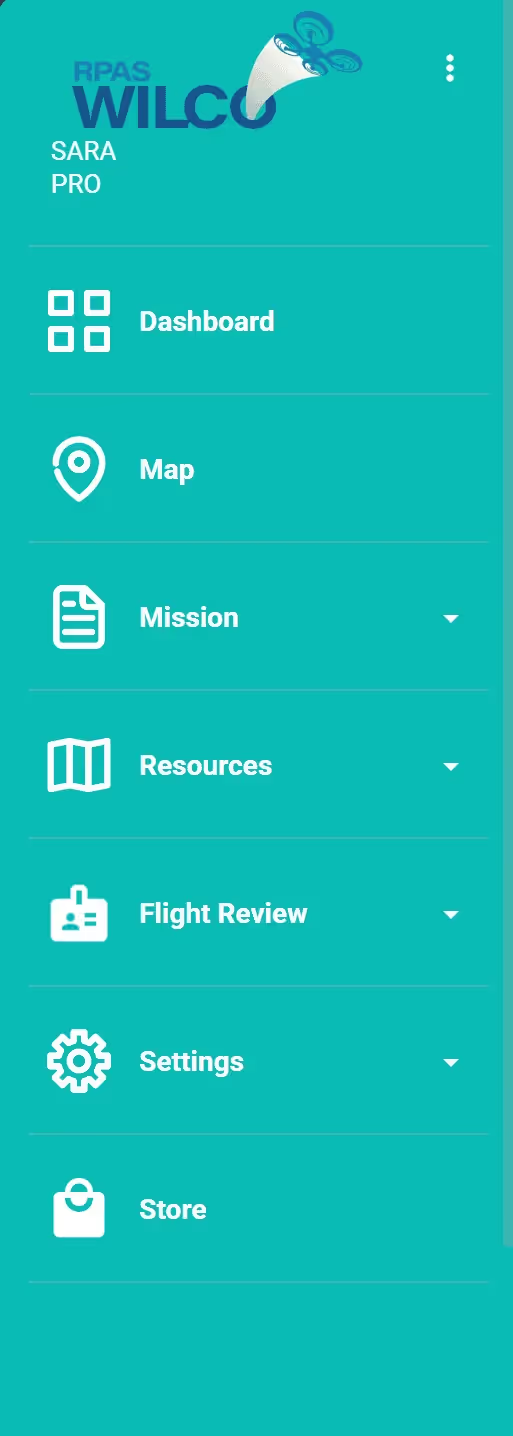
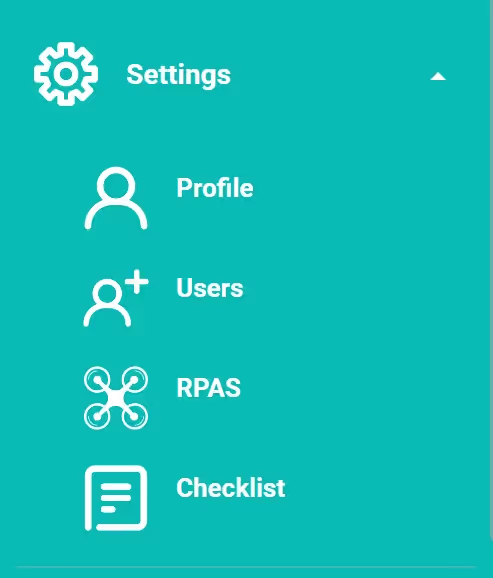
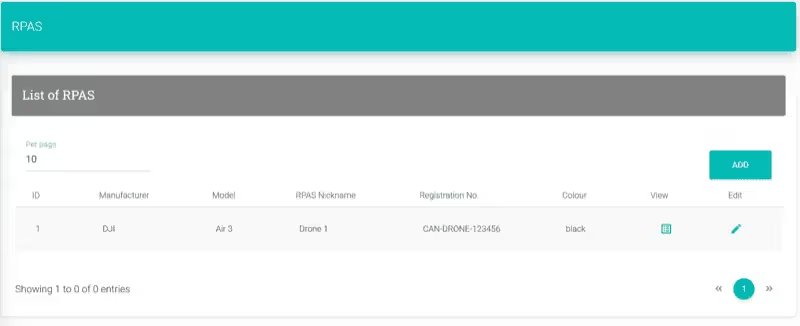
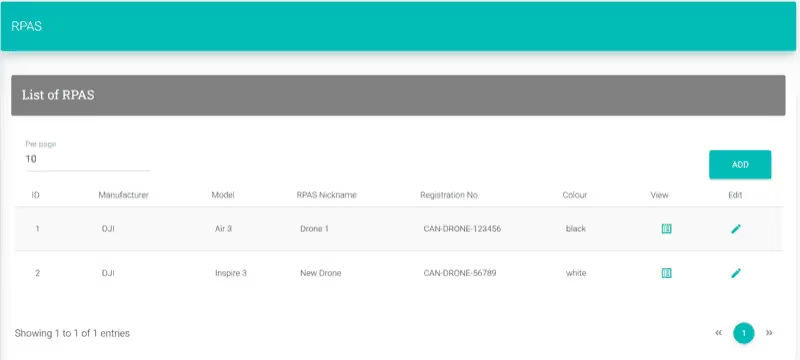
Go to Settings > RPAS tab. Click "Add" in the top-right corner.
- 2
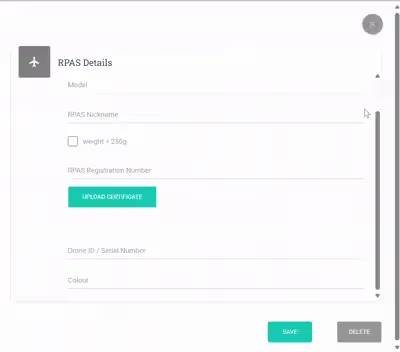
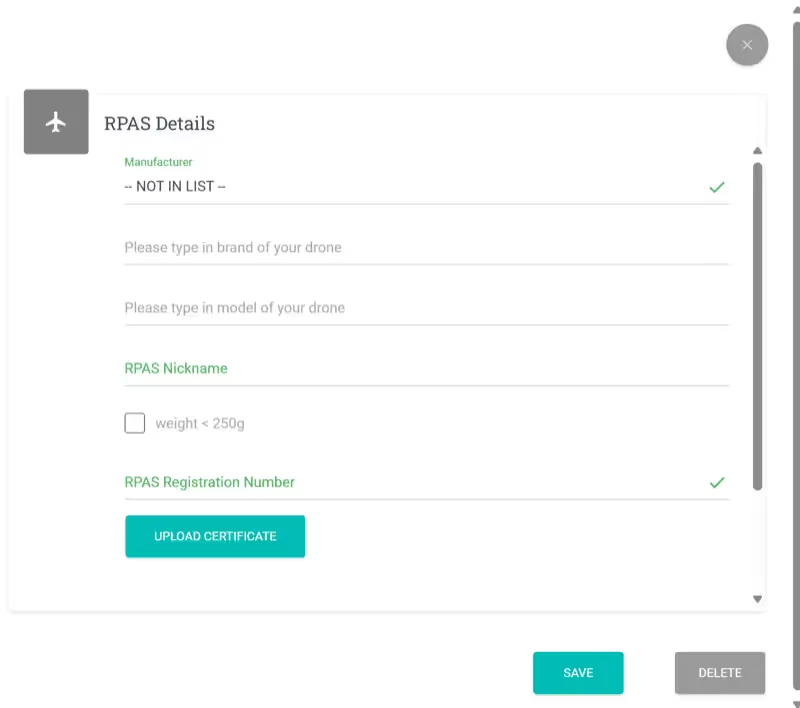
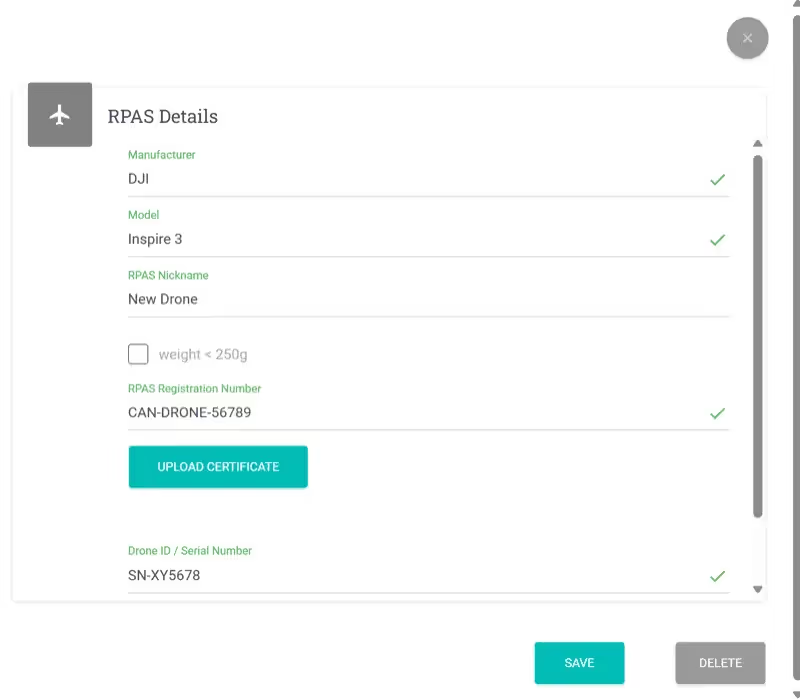
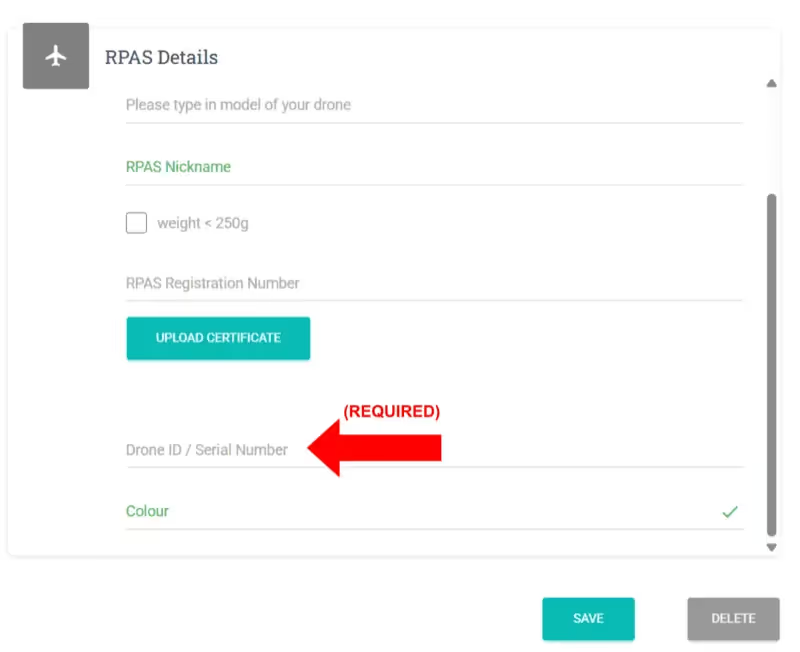
Enter details: Manufacturer, Model, Nickname, Registration Number, Transport Canada Certificate, Drone ID/Serial Number, Colour.
Note: If not listed, select "Not in List" to enter custom details.
- 3
Click "Save" to confirm.
Web Delete a Drone
Delete a Drone
Remove a drone from your account via the web.
- 1
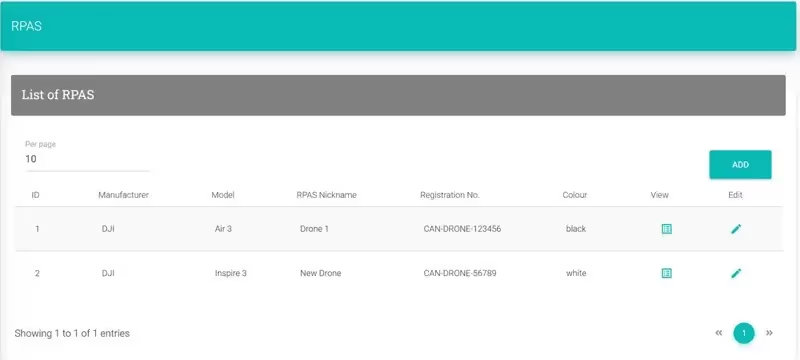
Go to Settings > RPAS tab.
- 2
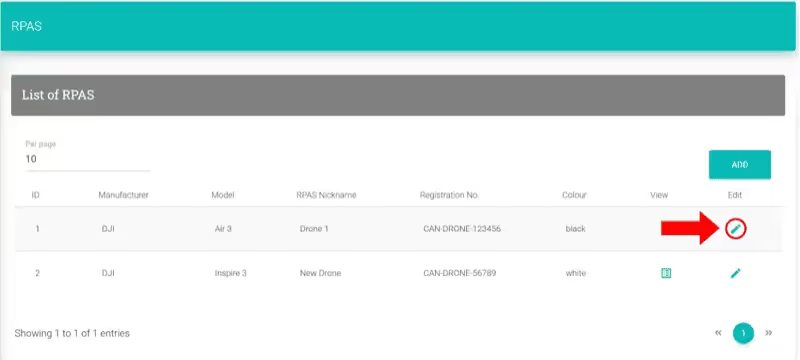
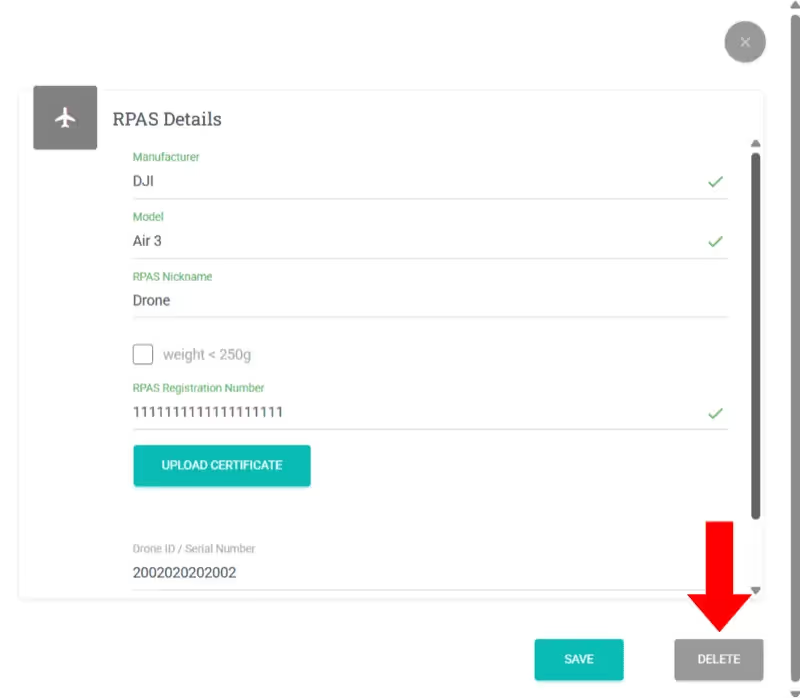
Click the edit (pencil) icon next to the drone, then click "Delete".
Web Video Add Team Members
Add Team Members
Add pilots, observers, and payload operators.
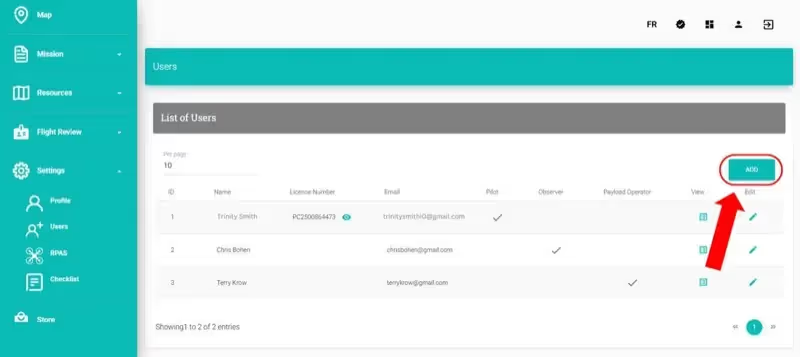
- 1
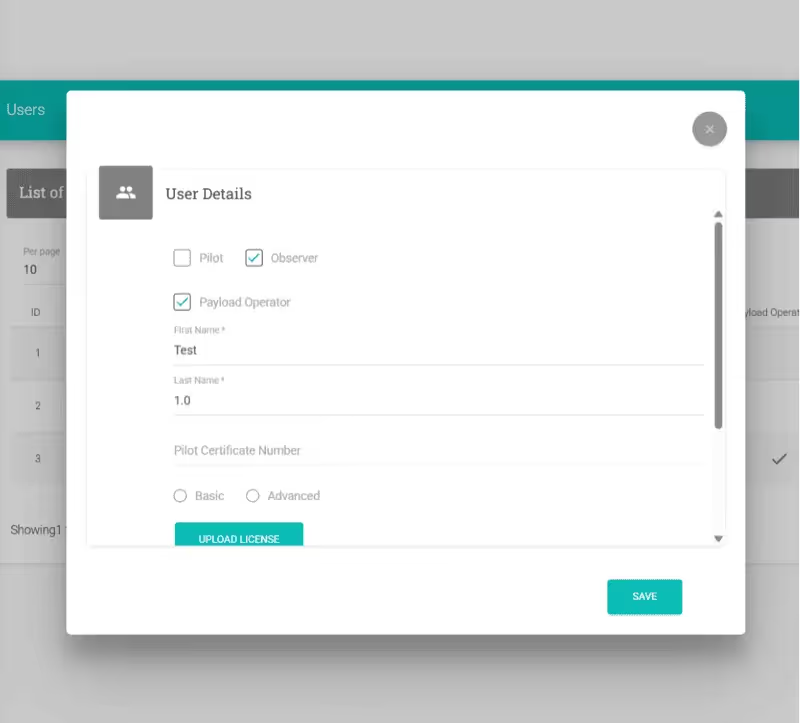
Go to Settings > Users. Click "Add".
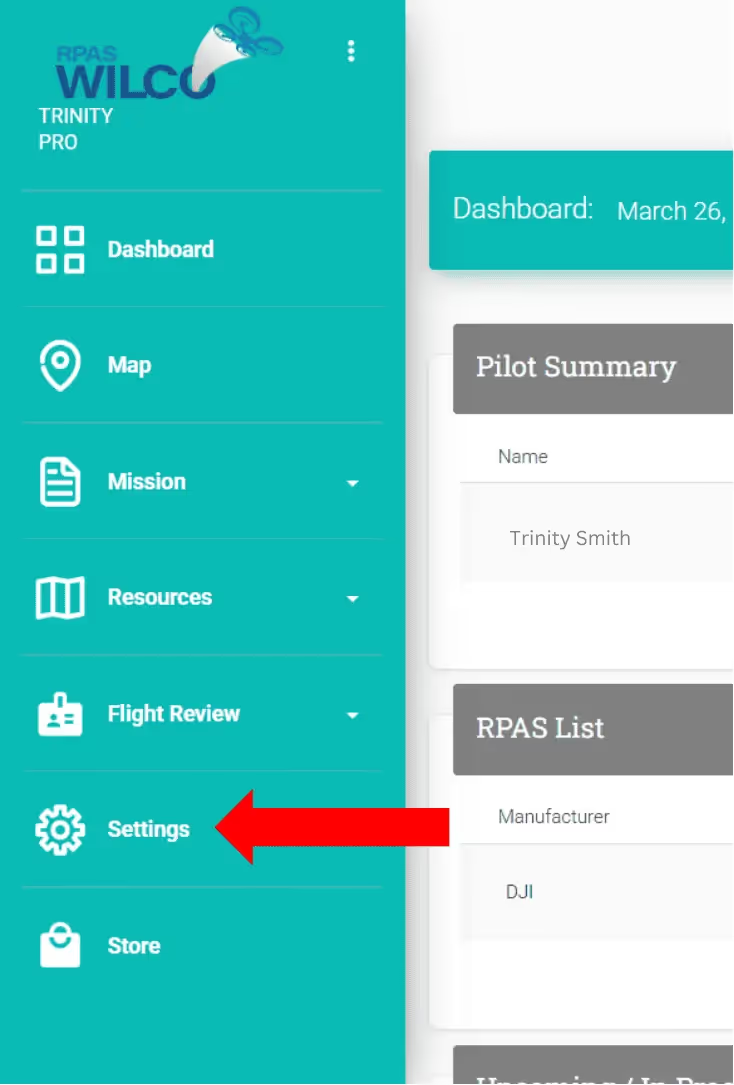
- 2
Select role (Pilot, Observer, or Payload Operator). Enter name, email, phone, and license details.
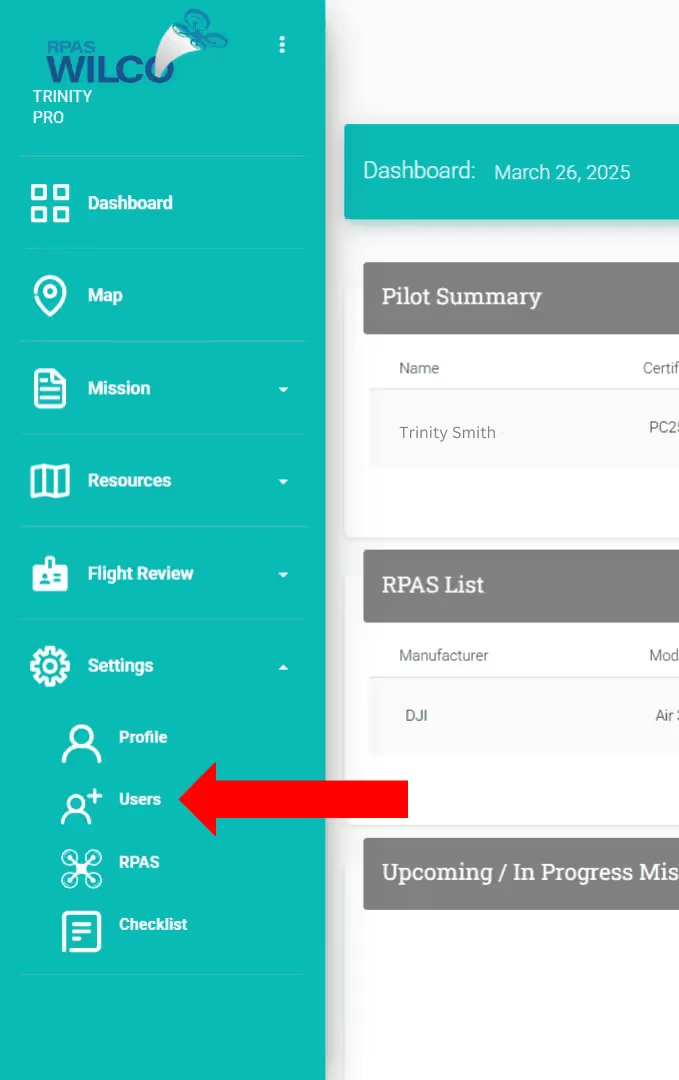
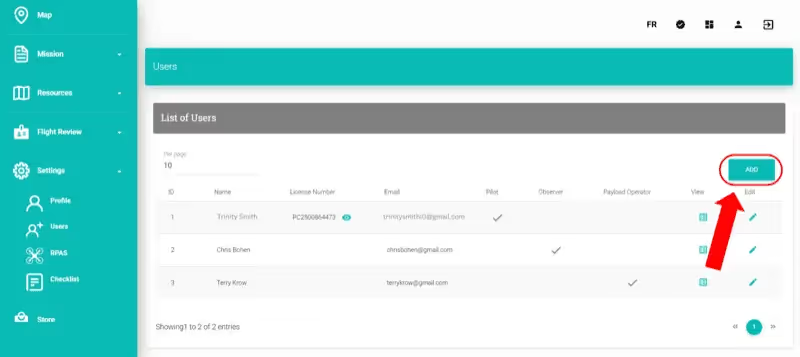
- 3
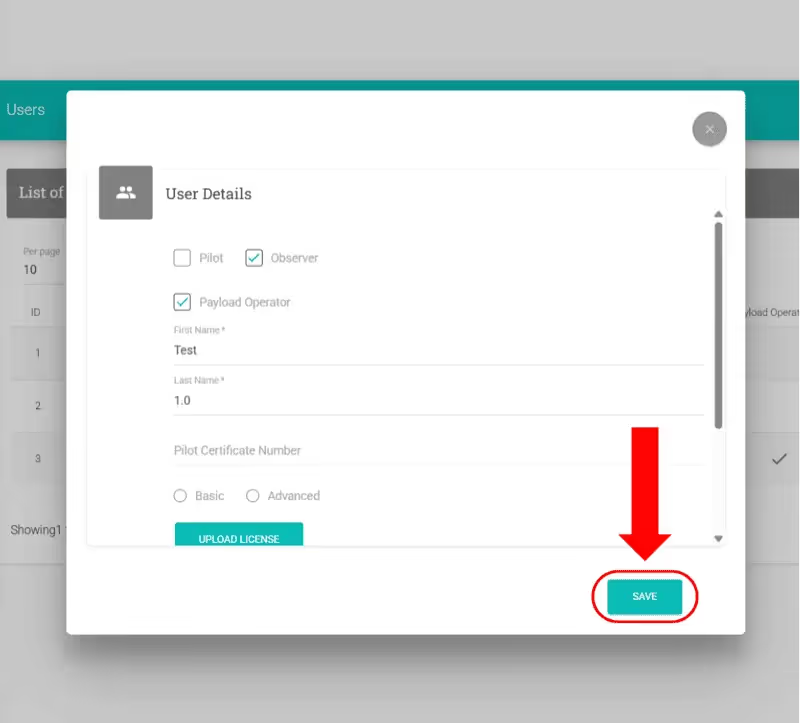
Click "Save".
Web Edit or Delete Team Members
Edit or Delete Team Members
Modify or remove team member records.
- 1
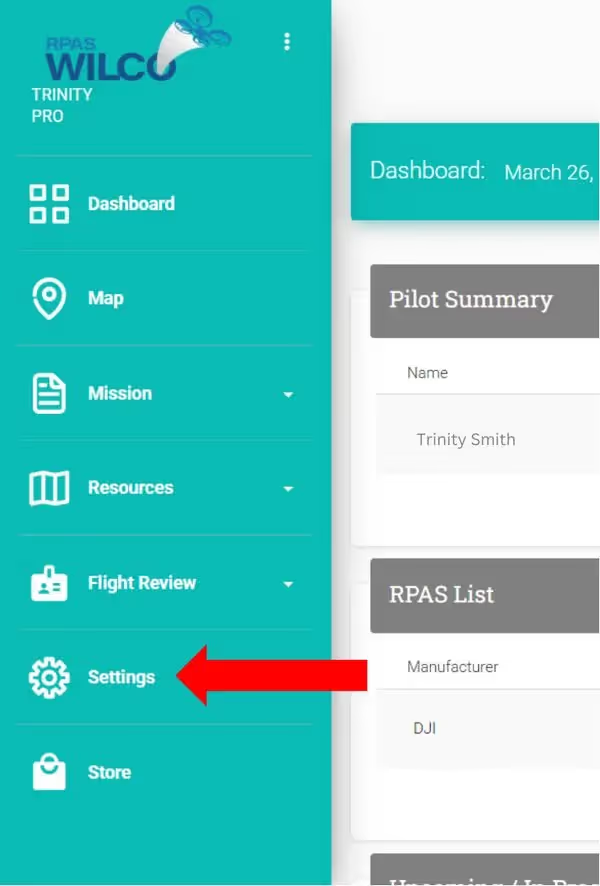
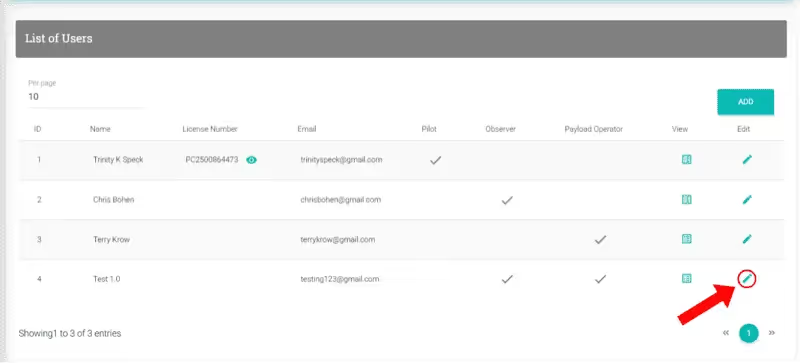
Go to Settings > Users. Click the pencil icon next to the user.
- 2
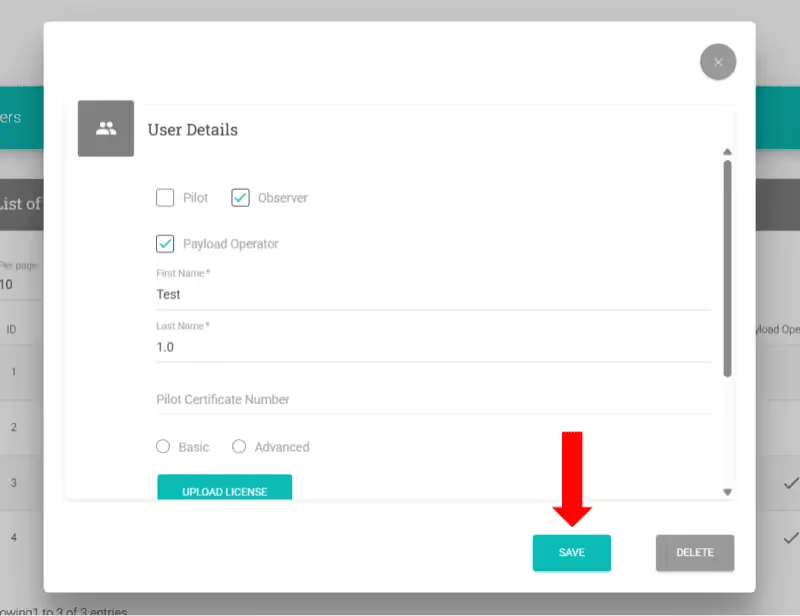
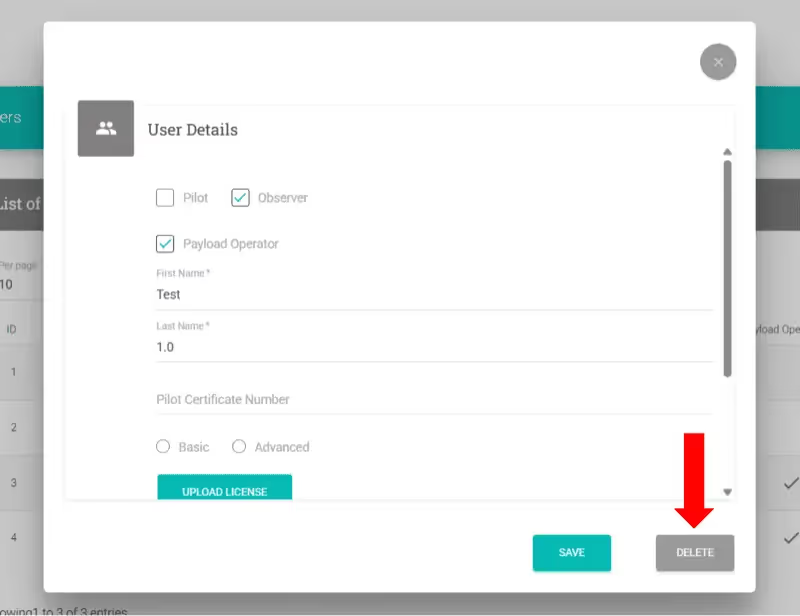
Edit fields and click "Save", or click "Delete" to remove.
Web Pro Video Create a Site Survey / Start a Mission
Create a Site Survey / Start a Mission
Build and submit a site survey through the web.
- 1
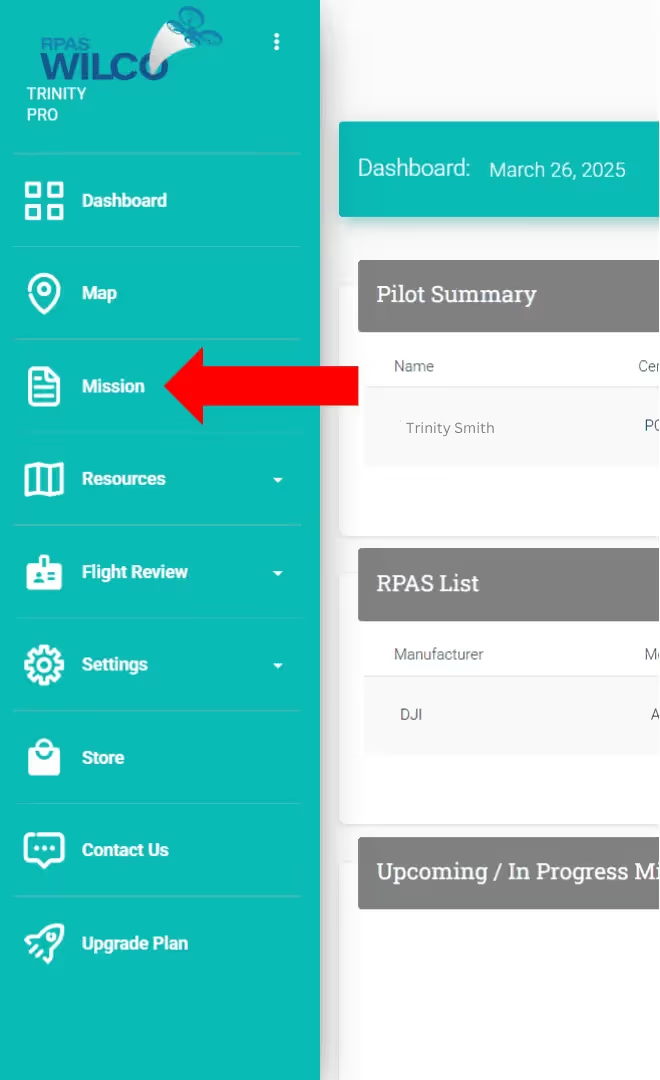
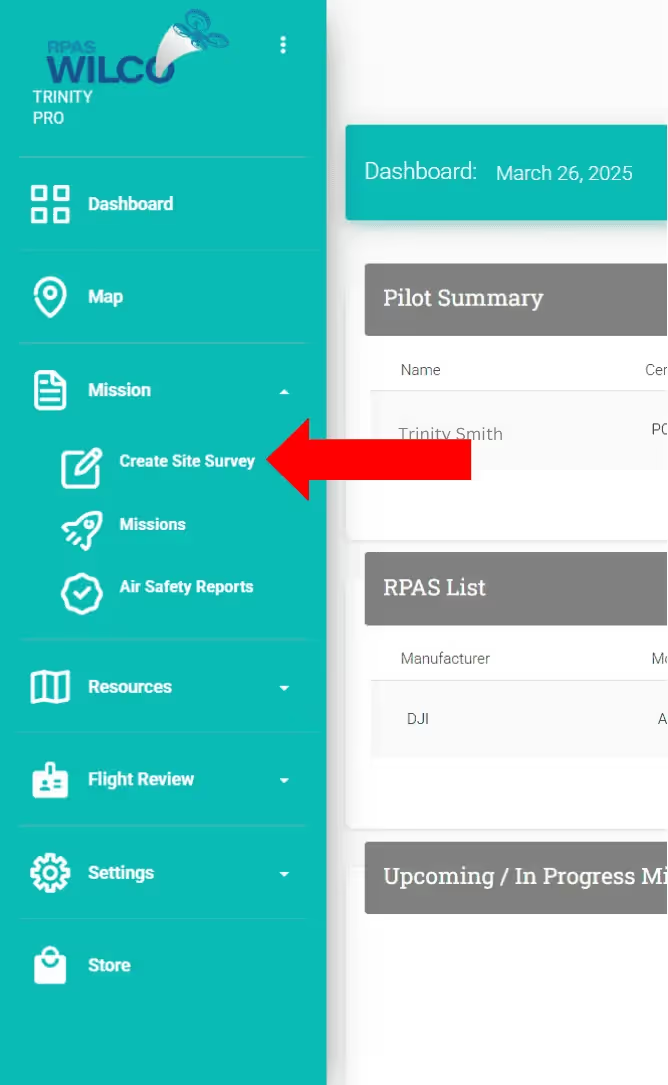
Go to Mission > Create Site Survey.
Note: Only Pro and Enterprise users can create site surveys on the web.
- 2
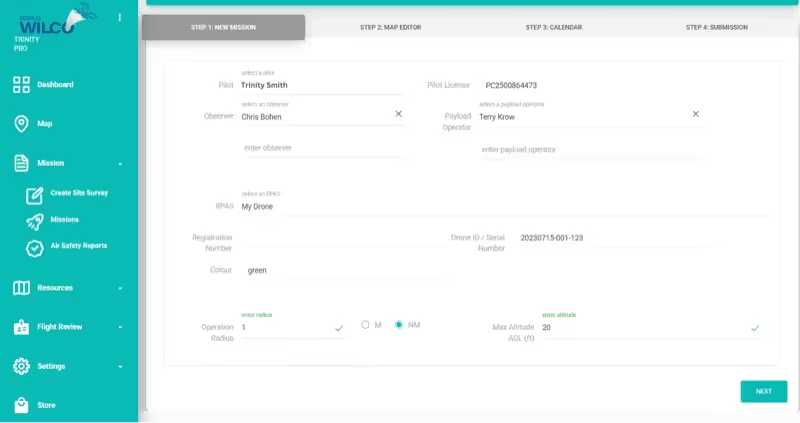
Fill in: Pilot, Observer, Payload Operator, RPAS, Operation Radius (0.054-1.080), Max Altitude (10-700 ft). Click "Next".
- 3
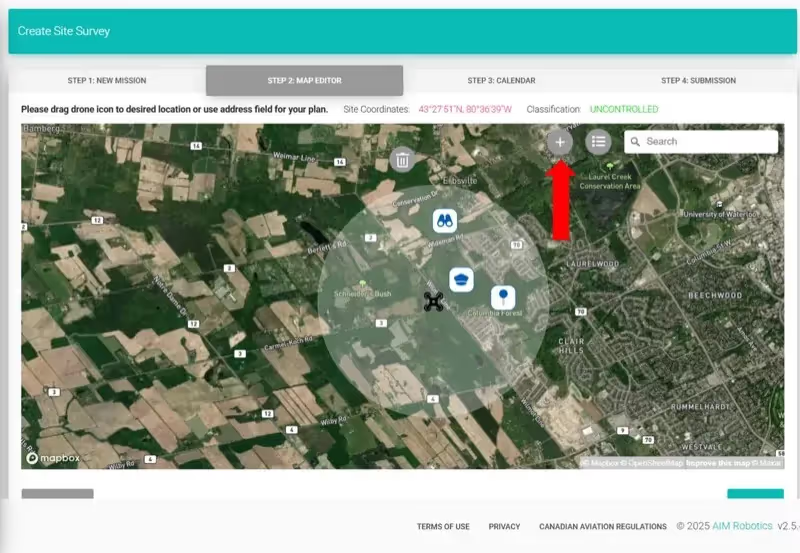
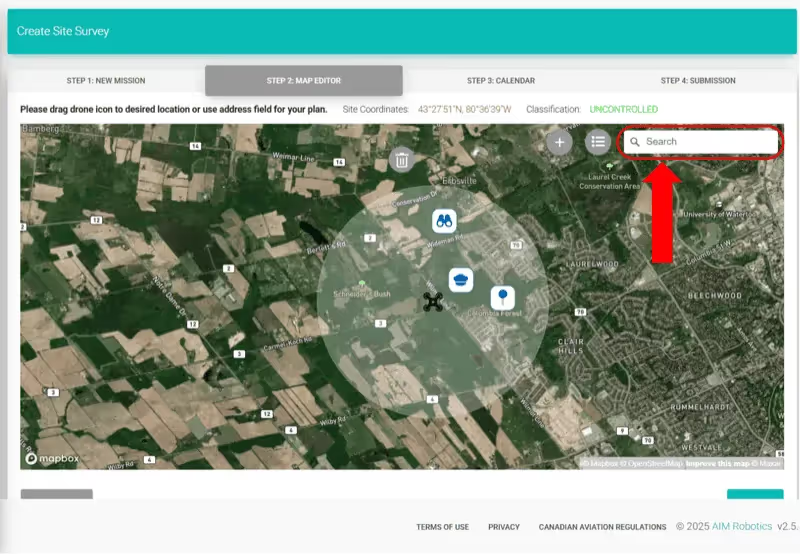
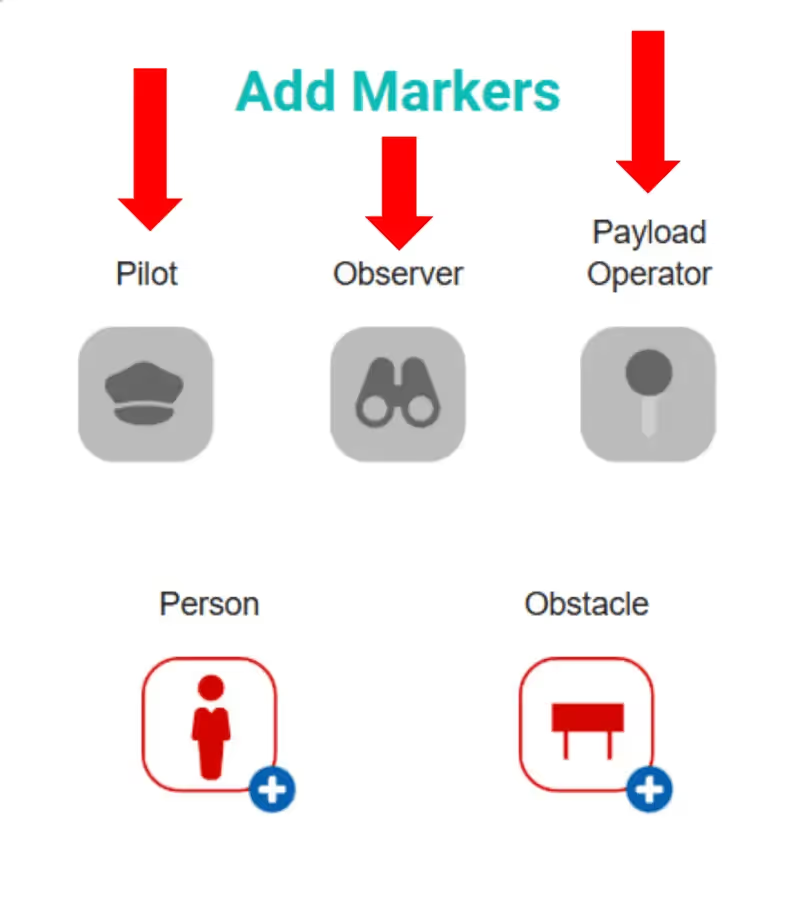
Use the map editor to place flight location, team members, and obstacles. Click "Next".
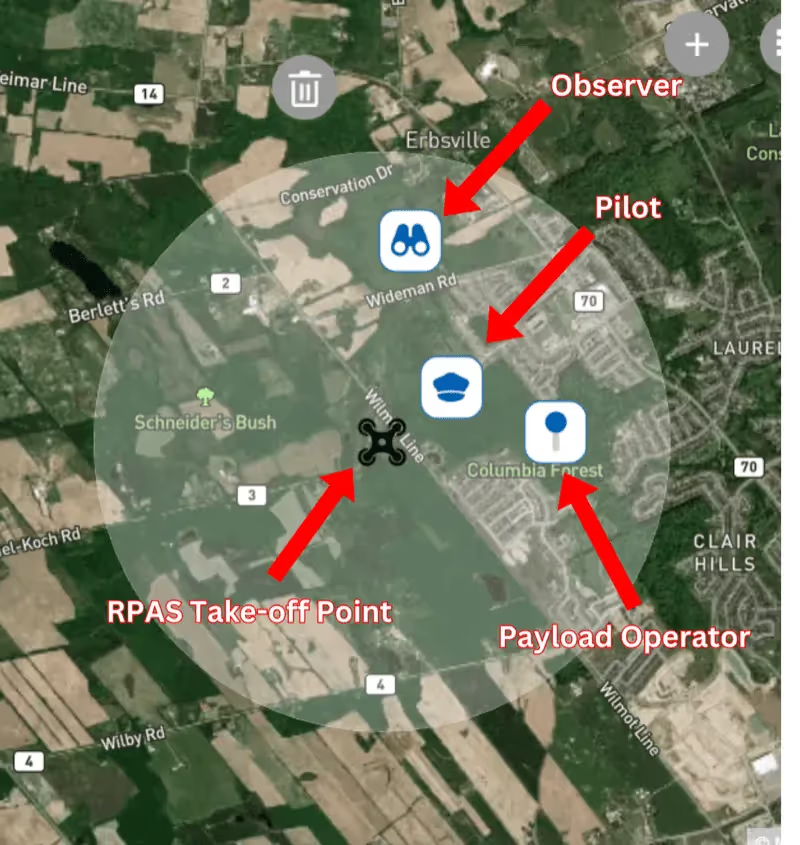
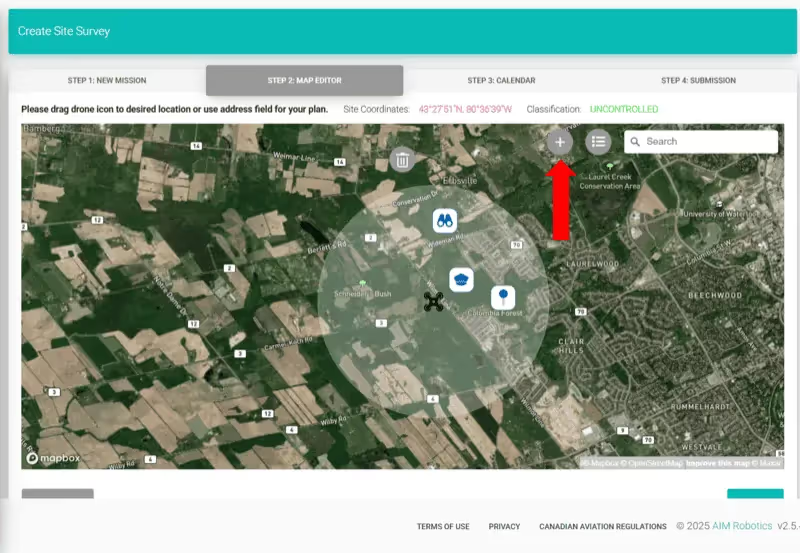
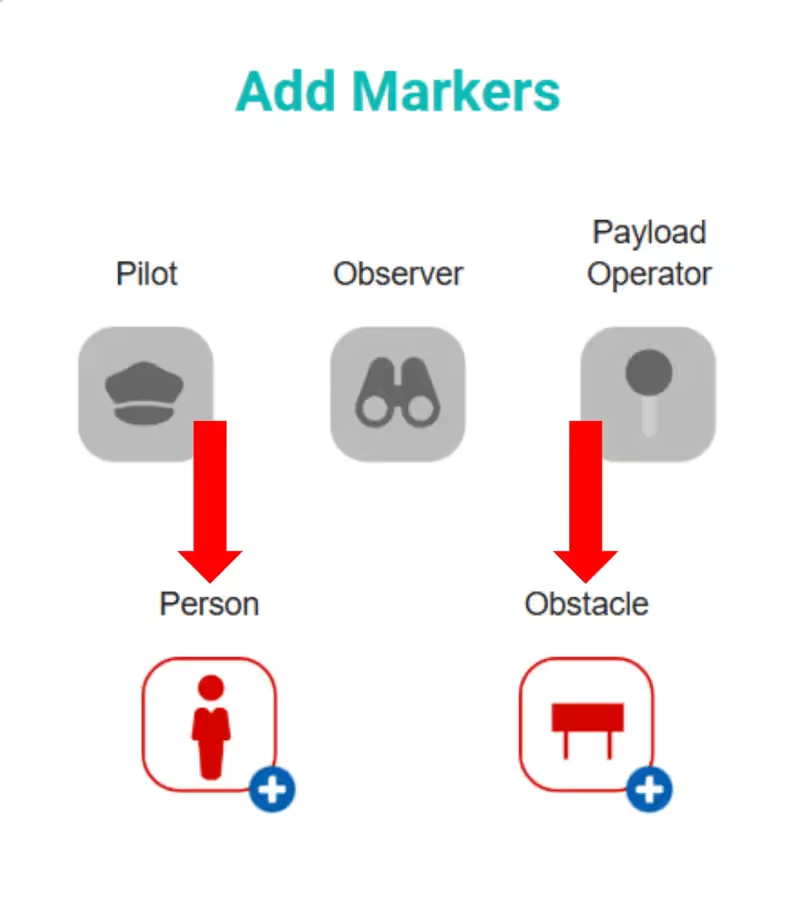
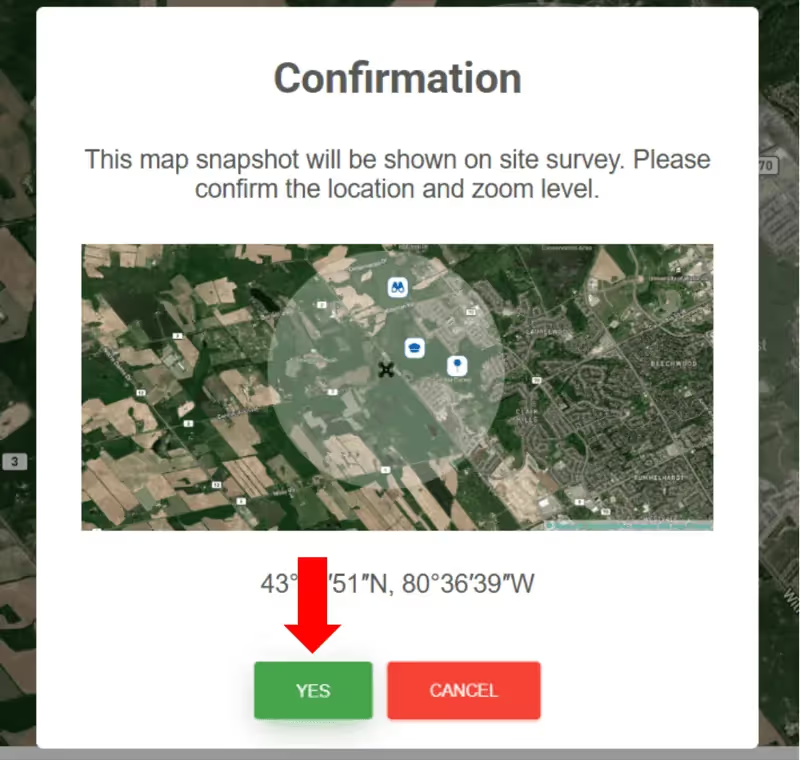
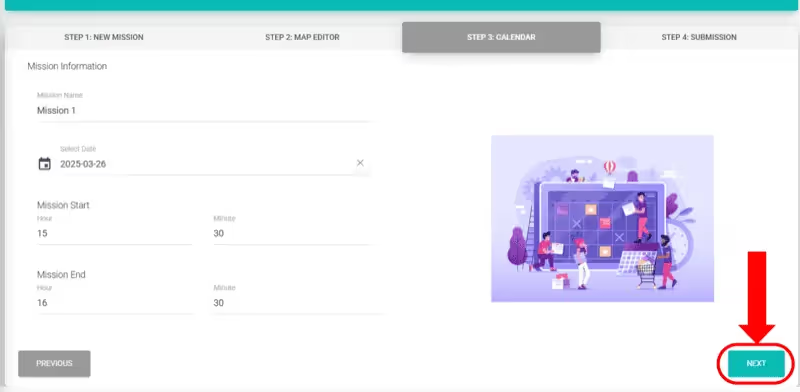
- 4
Confirm the map snapshot, enter Mission Name/Date/Time, accept Terms & Conditions, then click "Submit".
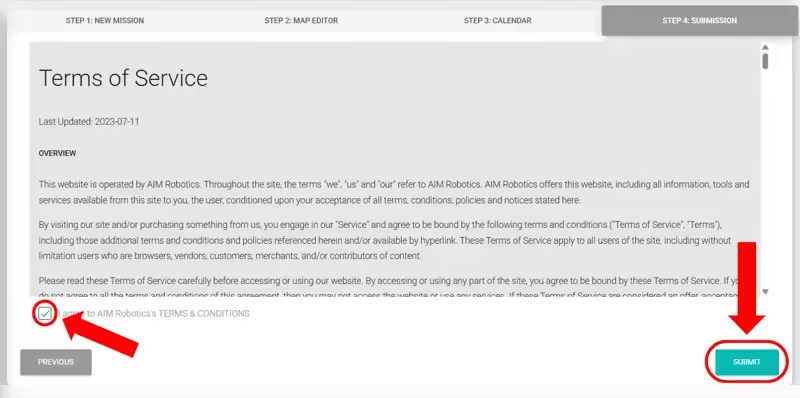
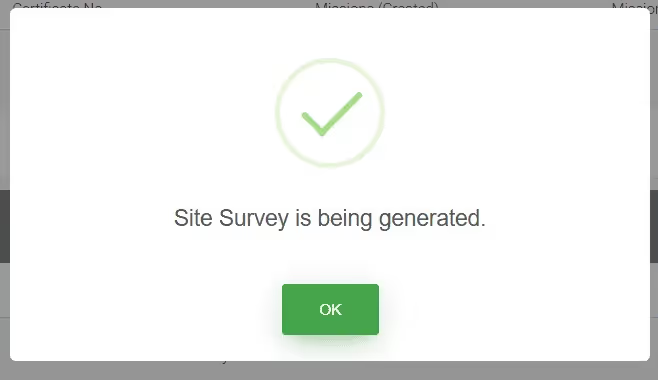
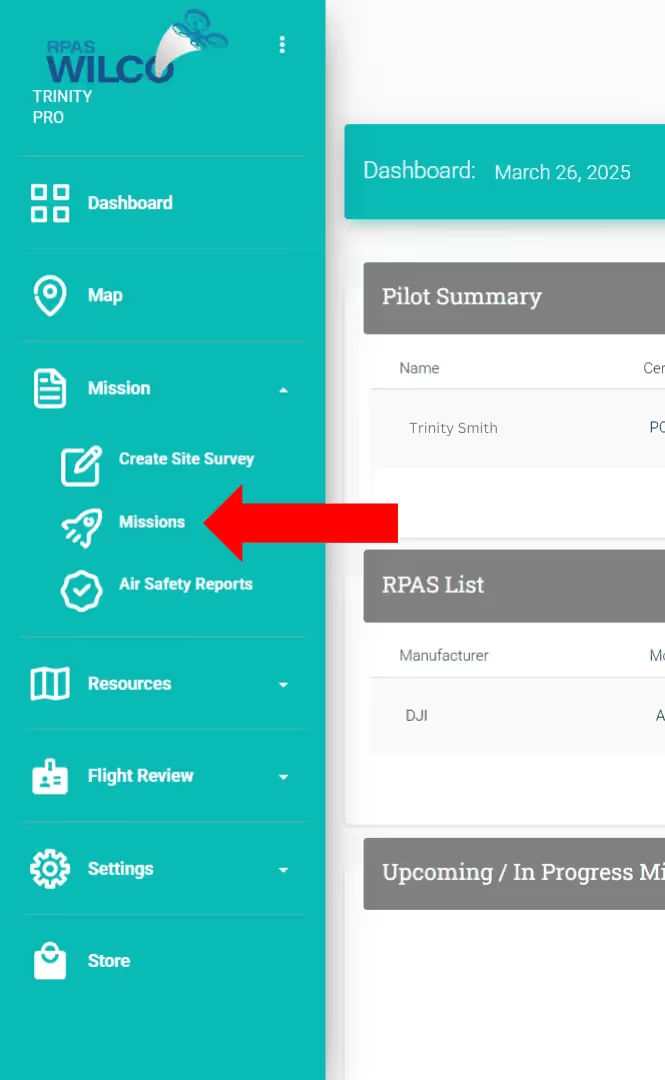
- 5
Wait ~1 minute for generation. View under Mission > Missions > "View PDF".
Note: You'll receive an email confirmation when the survey is ready.
Web View Past Missions
View Past Missions
Access site surveys, flight logs, and checklists from previous missions.
- 1
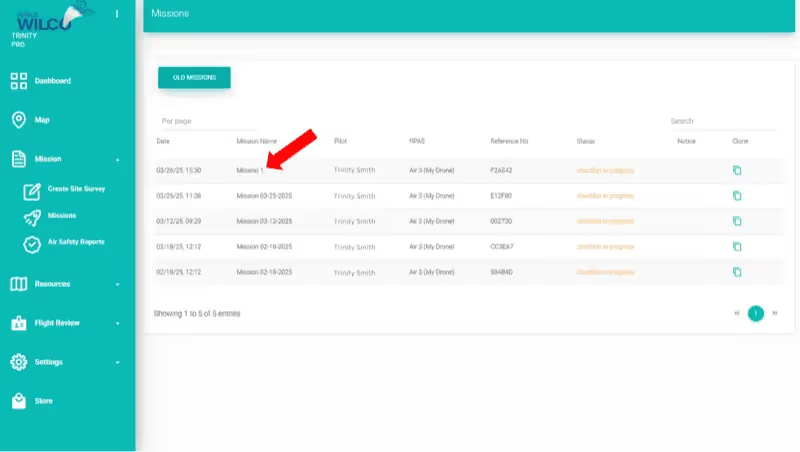
Go to Mission > Missions. Click on the mission you want to view.
- 2
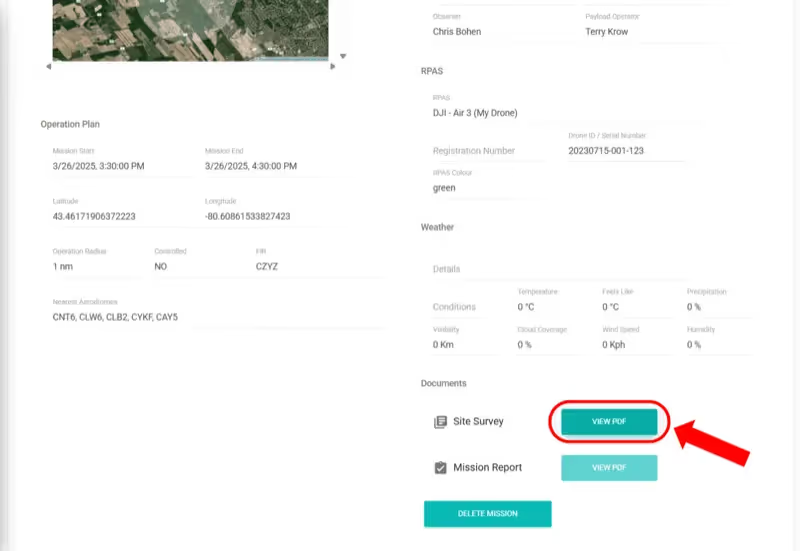
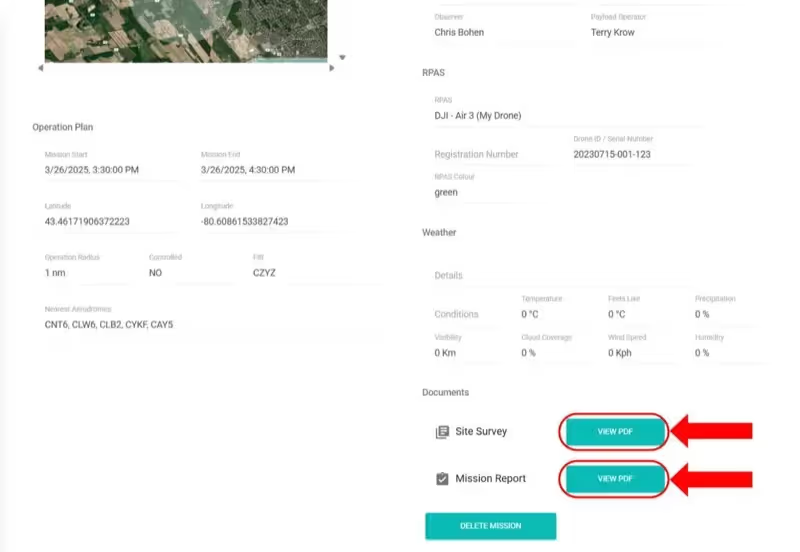
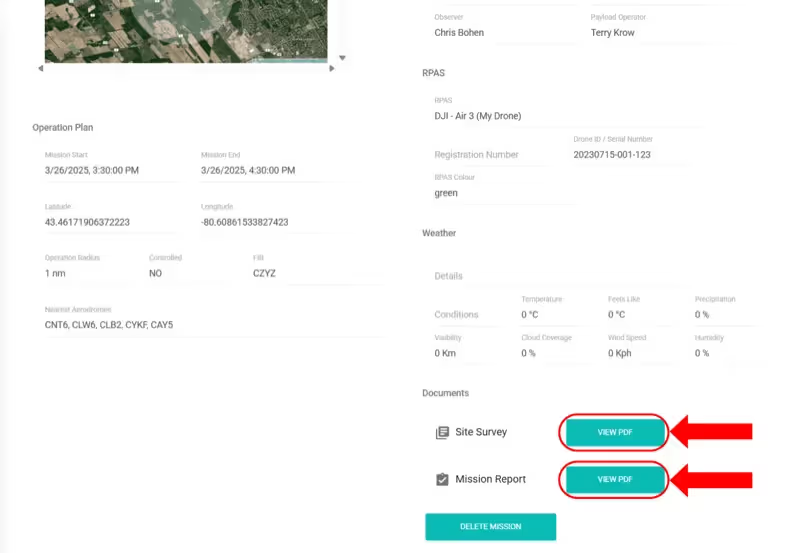
Click "View PDF" for Site Survey or Mission Report.
Note: Free users: last 7 days only. Pro and Enterprise: unlimited access.
Web Pro View CFS Charts
View CFS Charts
Access Canada Flight Supplement charts.
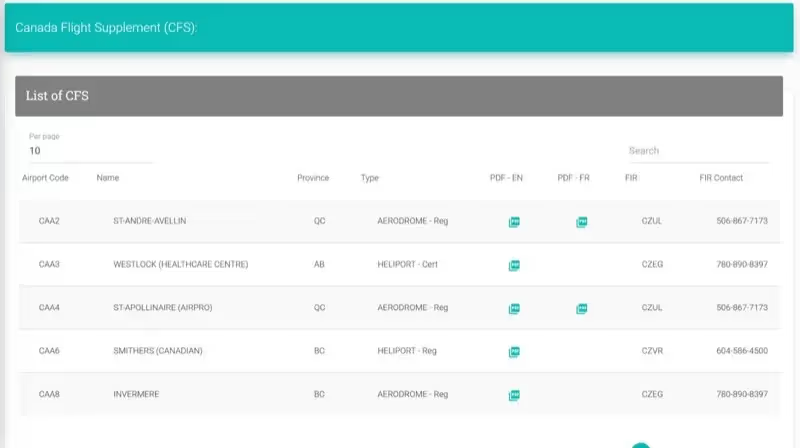
- 1
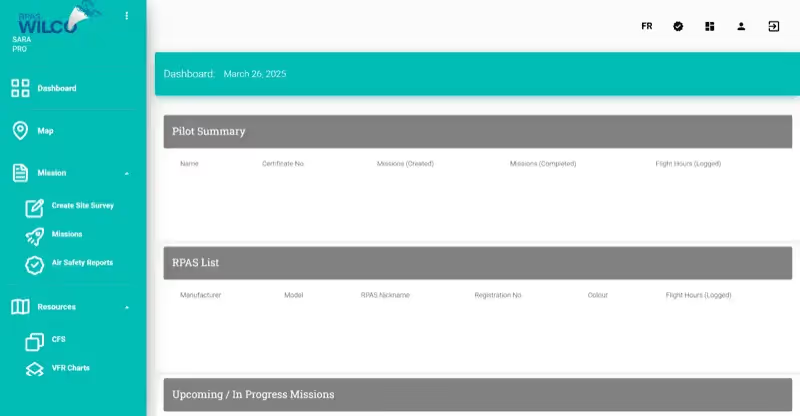
Open the "Resources" tab > "CFS Chart" tab.
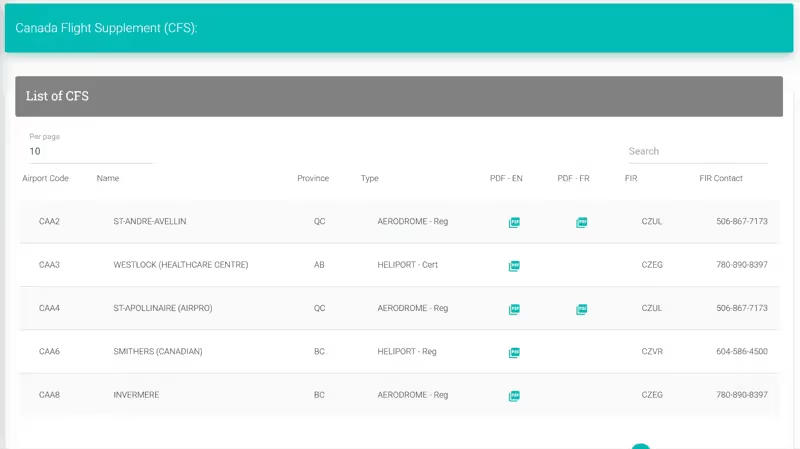
- 2
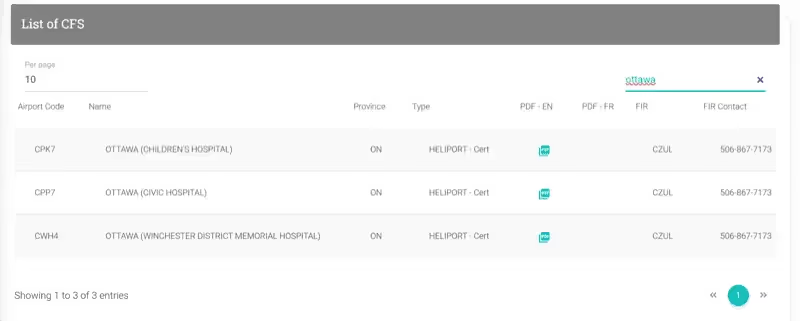
Search for an airport, then click the PDF button to view.
Web Pro View VFR Charts
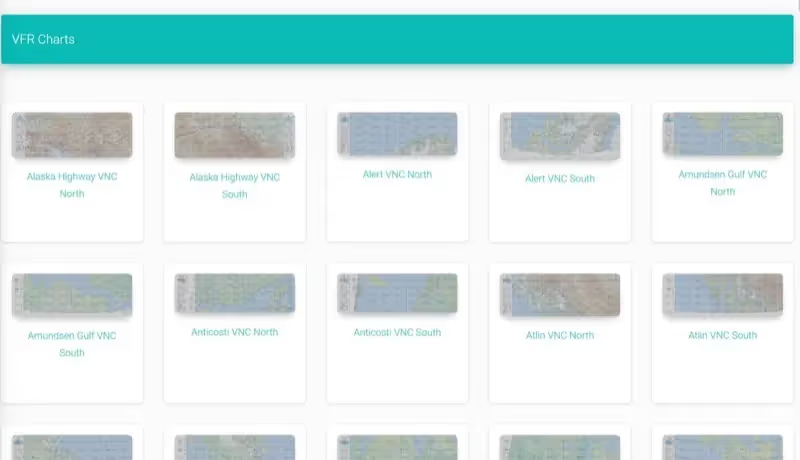
View VFR Charts
Access Visual Flight Rules charts.
- 1
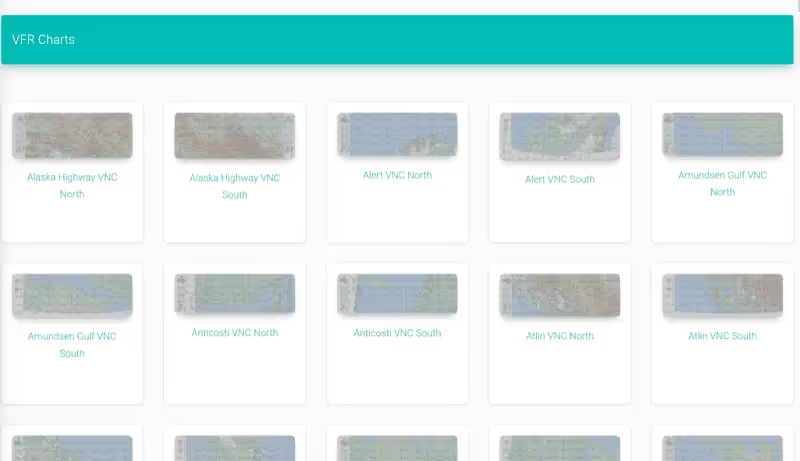
Open the "Resources" tab > "VFR Charts" tab.
- 2
Scroll or search for the chart you need.
Web Edit Profile Information
Edit Profile Information
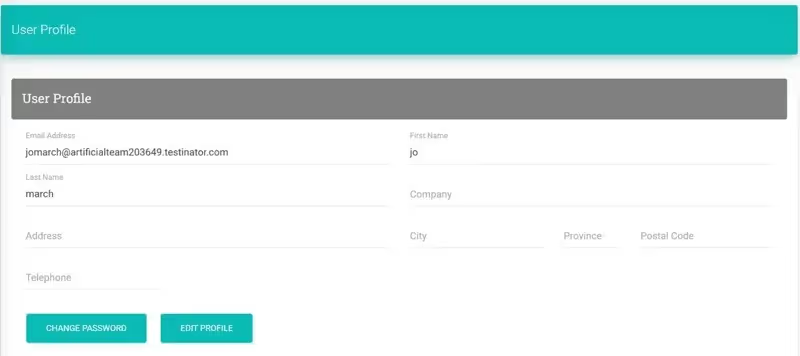
Update your account details.
- 1
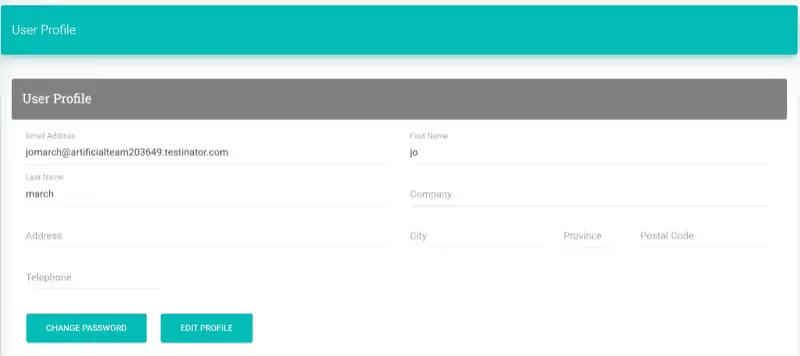
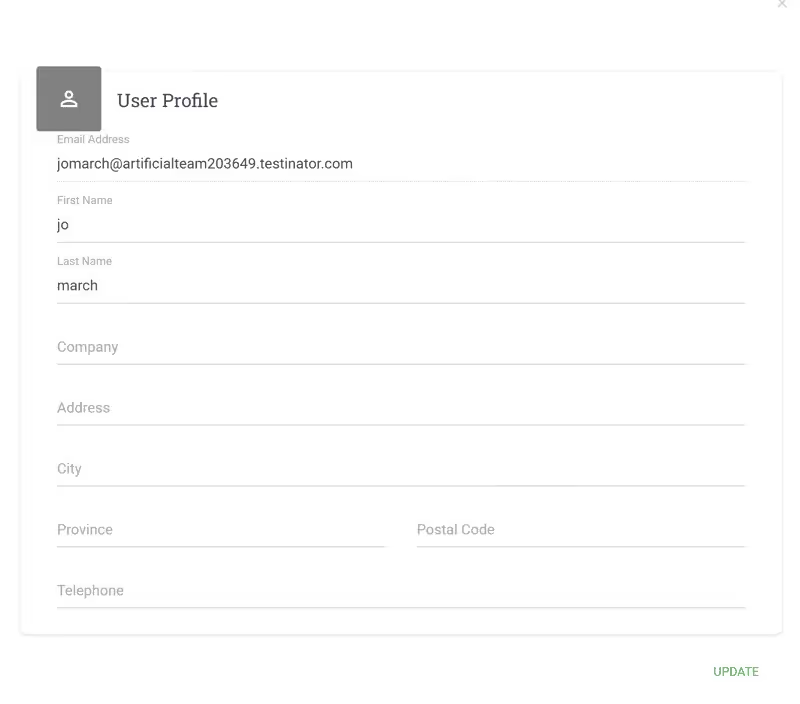
Go to Settings > Profile. Click "Edit Profile".
- 2
Update your information and click "Update".
Web Use the Interactive Airspace Map
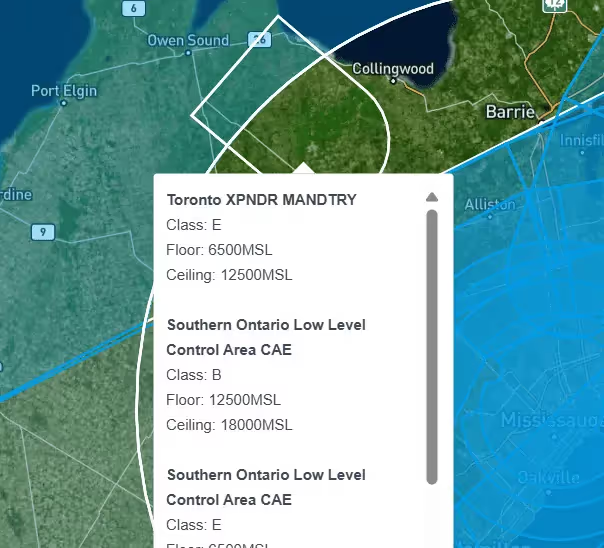
Use the Interactive Airspace Map
Navigate the web-based airspace map.
- 1
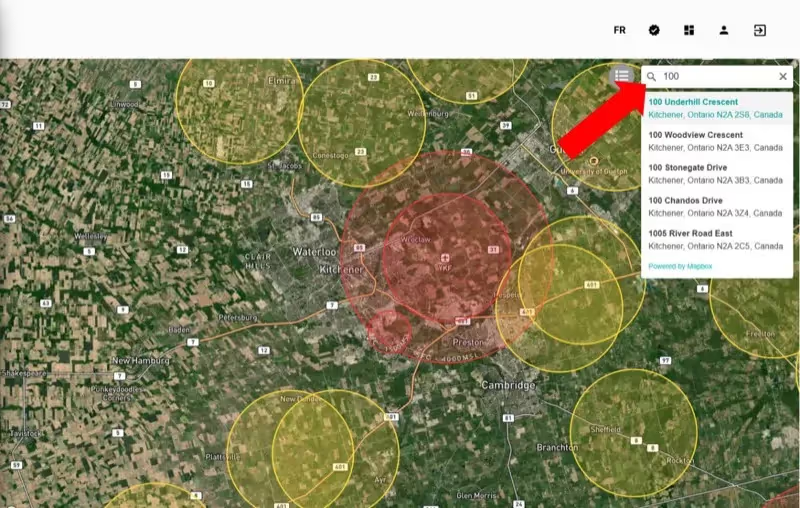
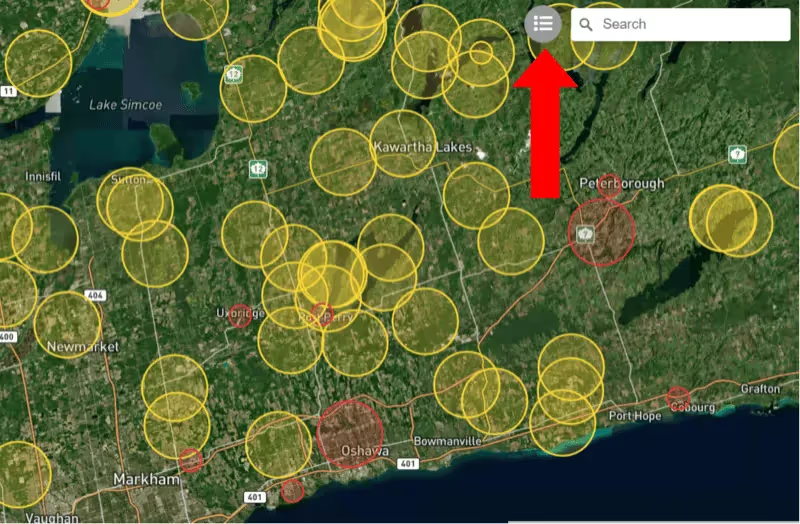
Click "Map" on the left sidebar.
- 2
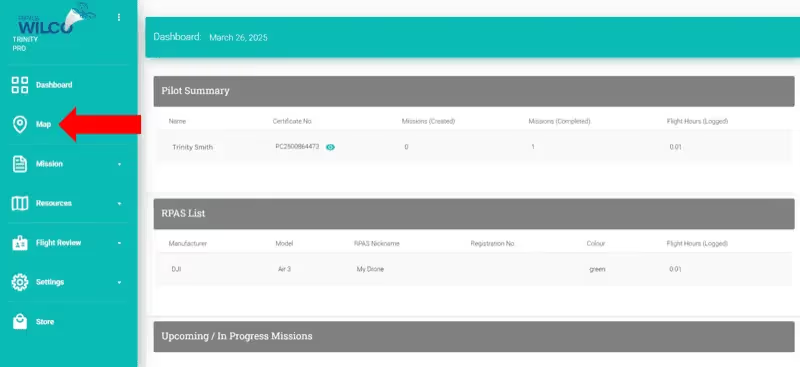
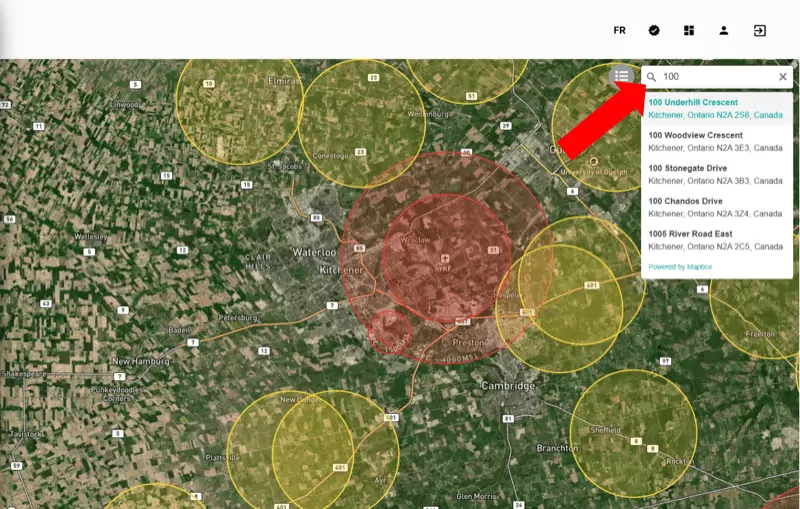
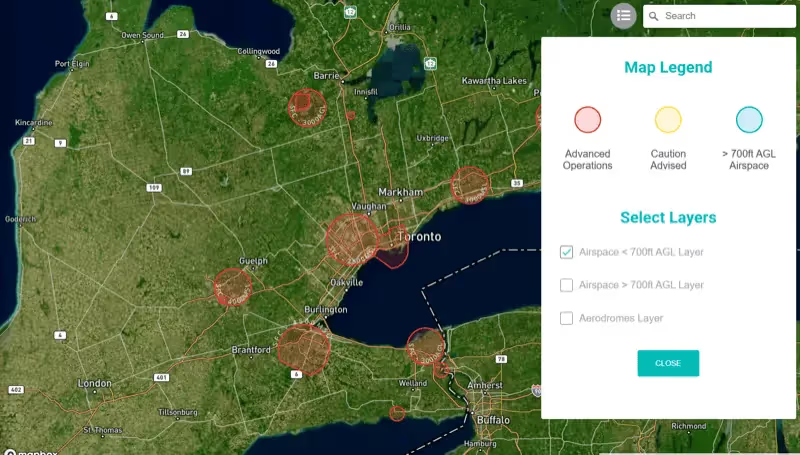
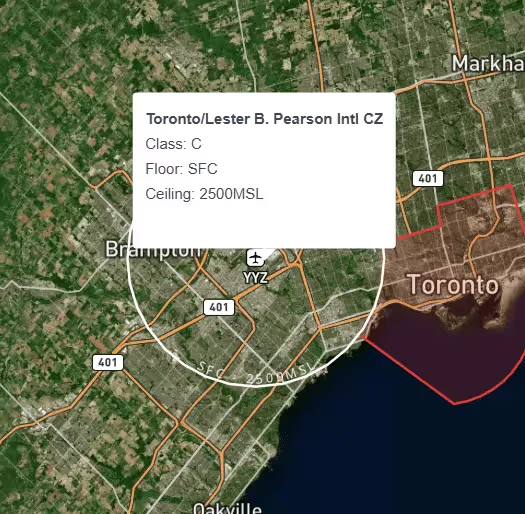
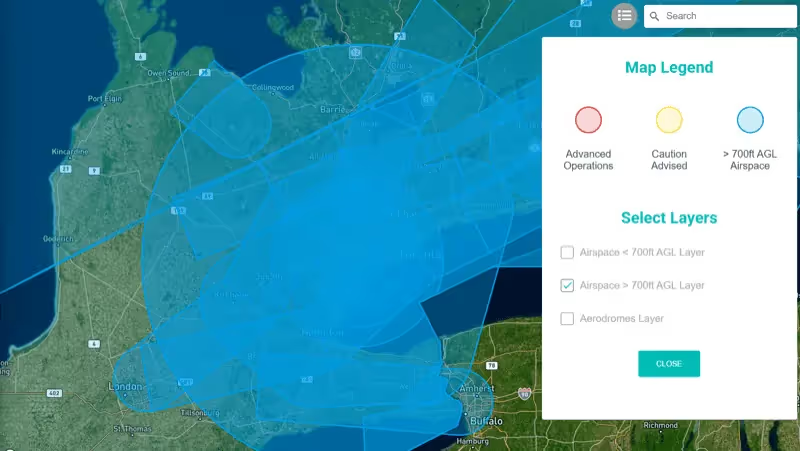
Use "Search" to jump to an address. Click the legend icon to toggle layers: Airspace < 700 ft AGL, > 700 ft AGL, and Aerodromes.
Web Upgrade Your Subscription
Upgrade Your Subscription
Upgrade from Free to Pro or Enterprise.
- 1
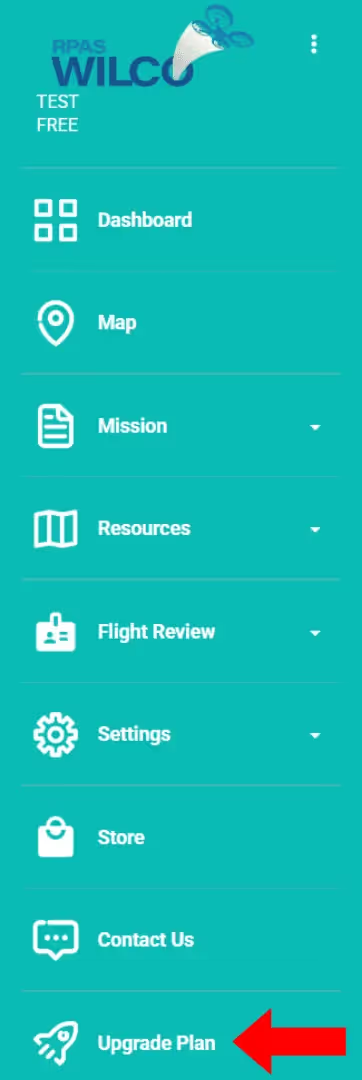
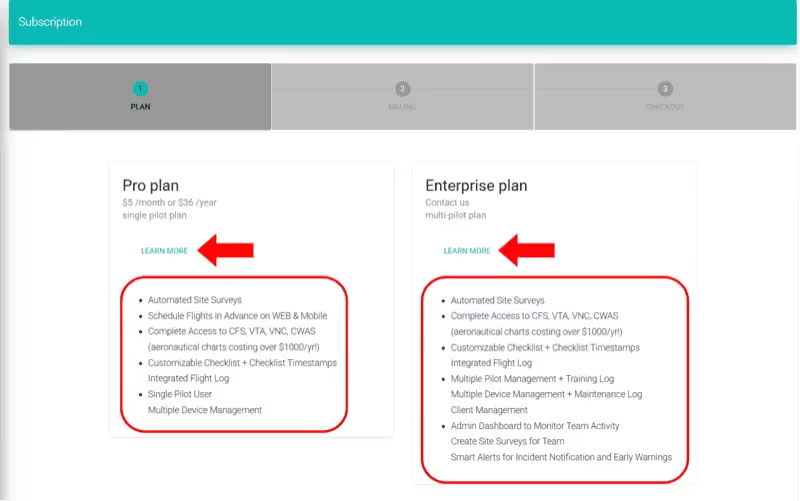
Click "Upgrade Plan" on the left sidebar. Review Pro and Enterprise plans.
- 2
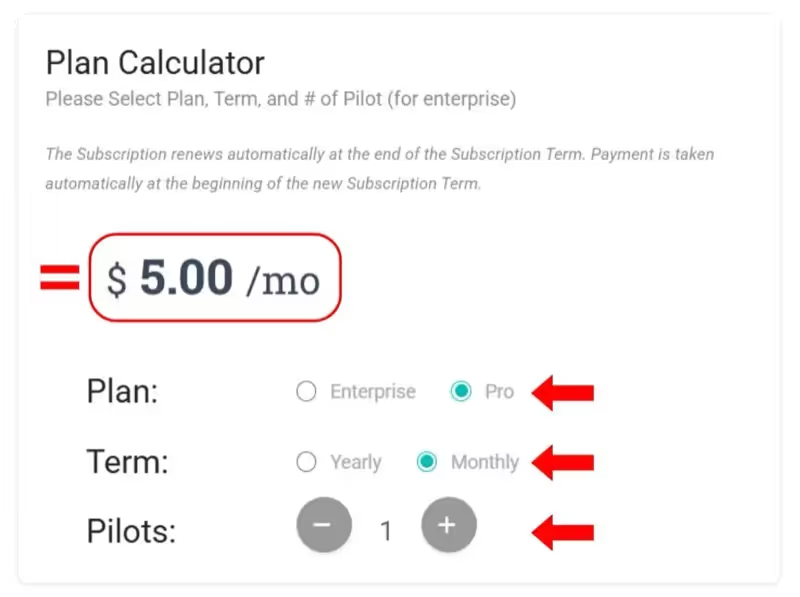
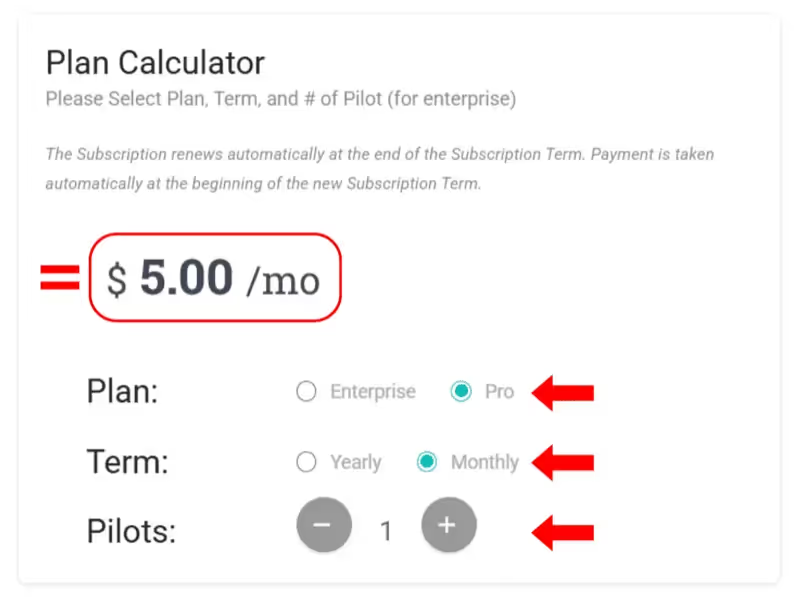
Use the Plan Calculator: select plan, billing term (monthly/yearly), and number of pilots. Click "Next".
Note: Enterprise plans require a custom pricing quote.
- 3
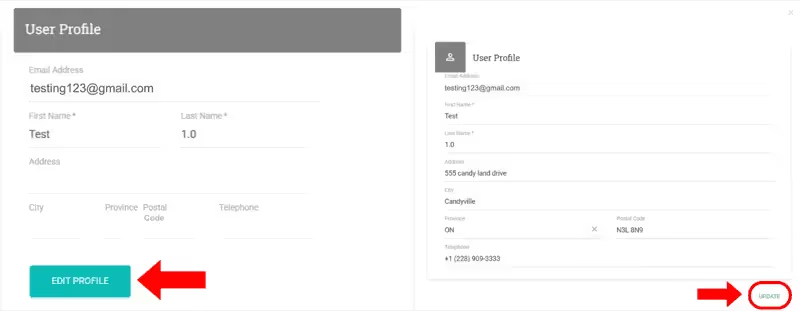
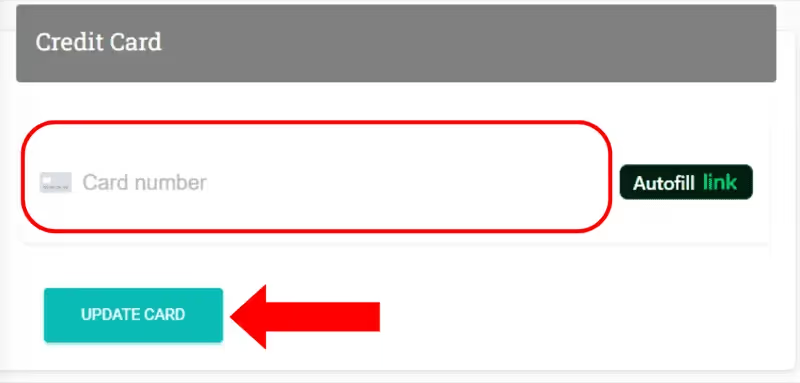
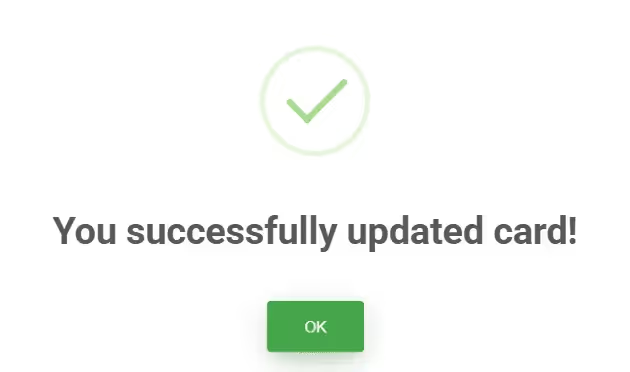
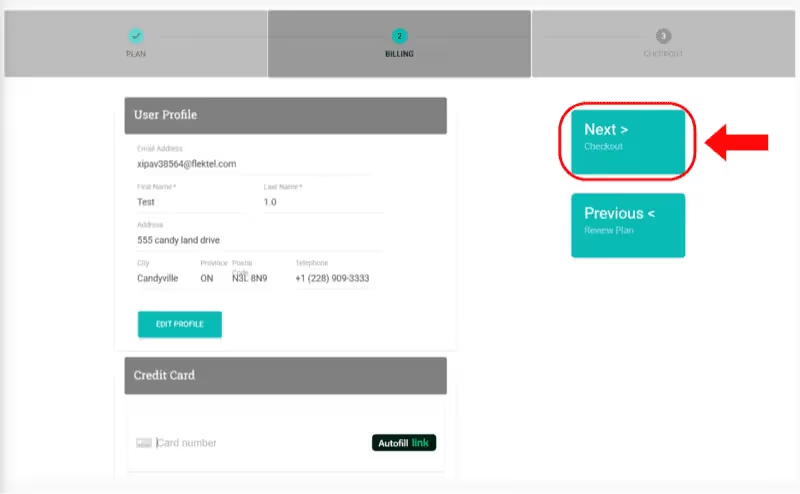
Enter profile and payment details (card number, expiry MM/YY, CVC). Click "Update Card".
- 4
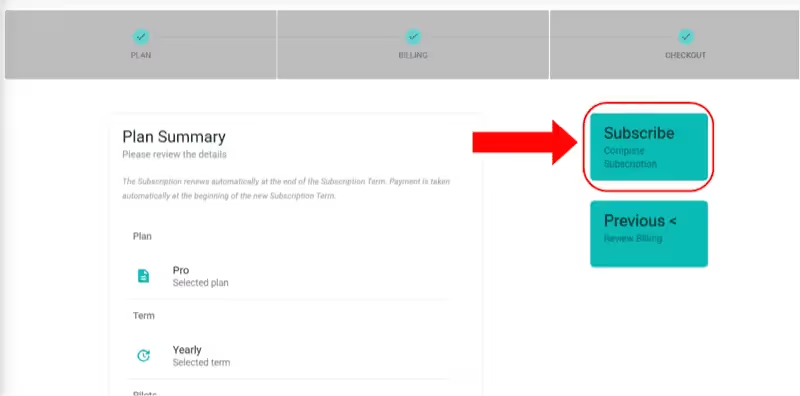
Review the Plan Summary and click "Subscribe". Confirm with "Yes".
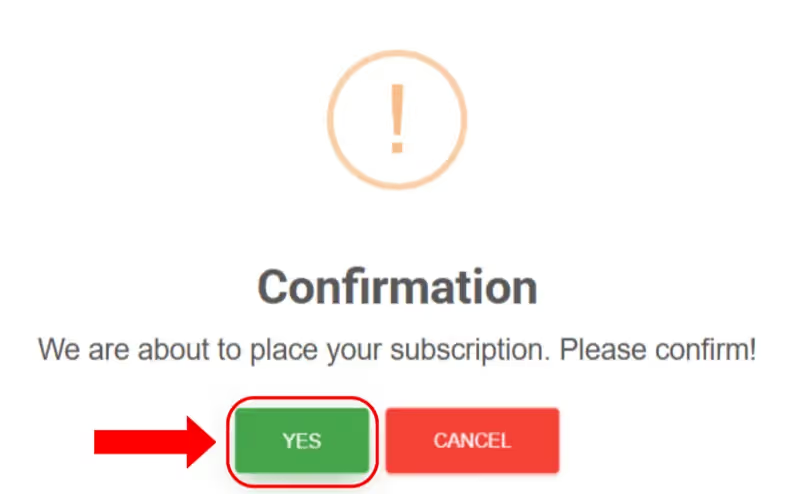
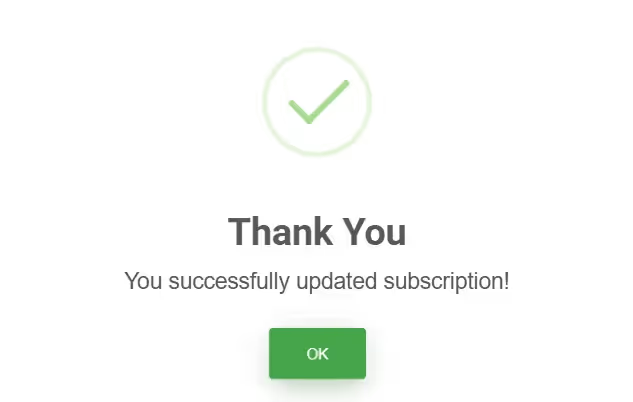
Web Cancel Your Subscription
Cancel Your Subscription
Cancel your Pro or Enterprise subscription.
- 1
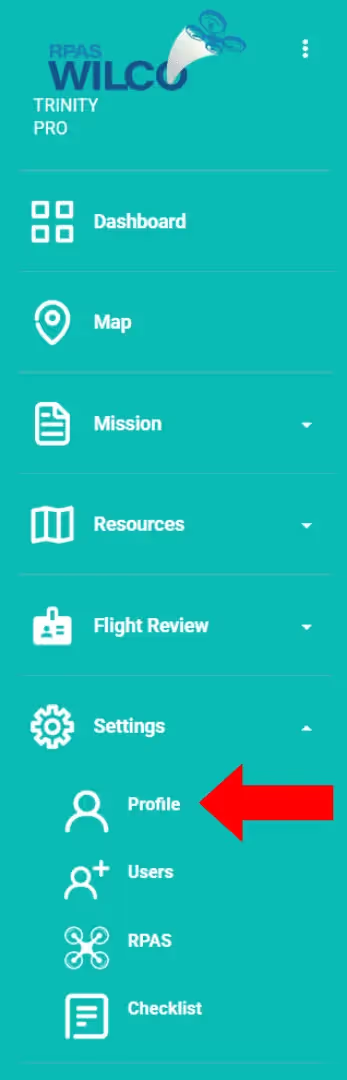
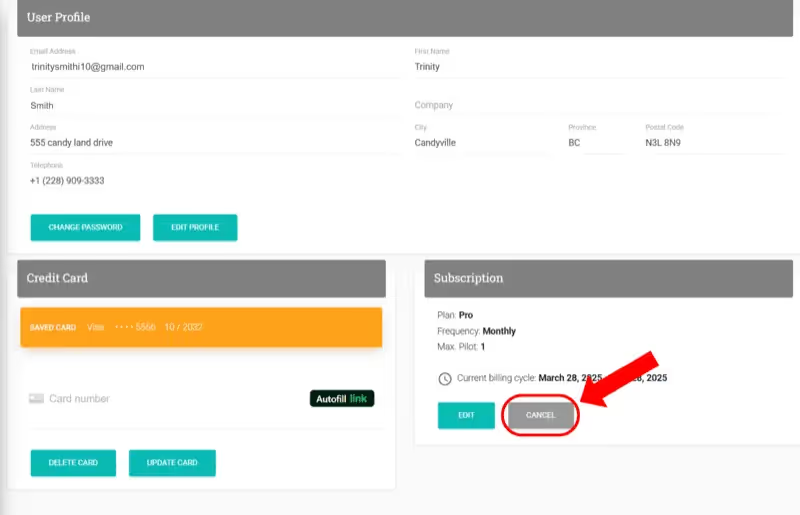
Go to Settings > Profile. Find the Subscription section at the bottom right.
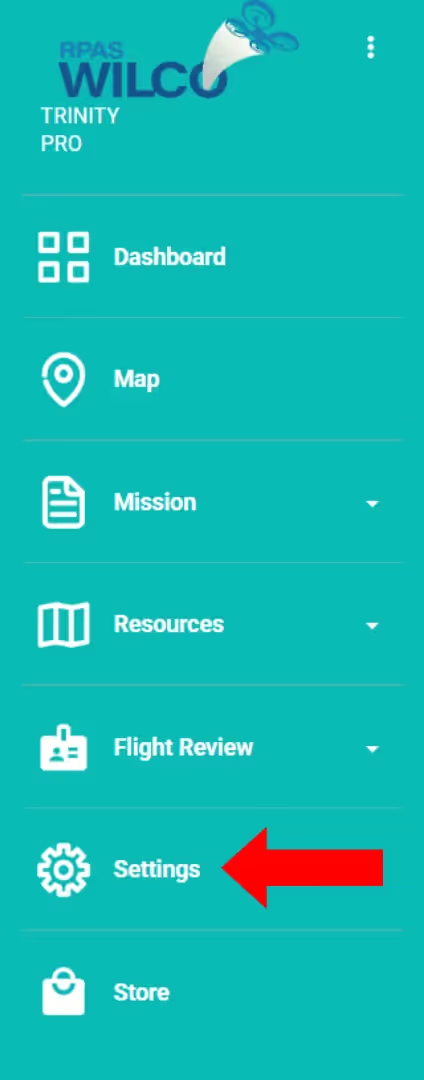
- 2
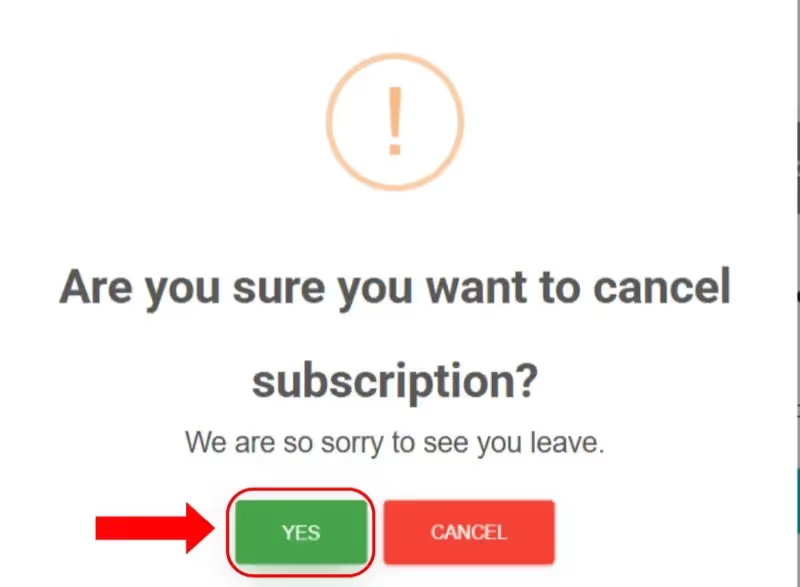
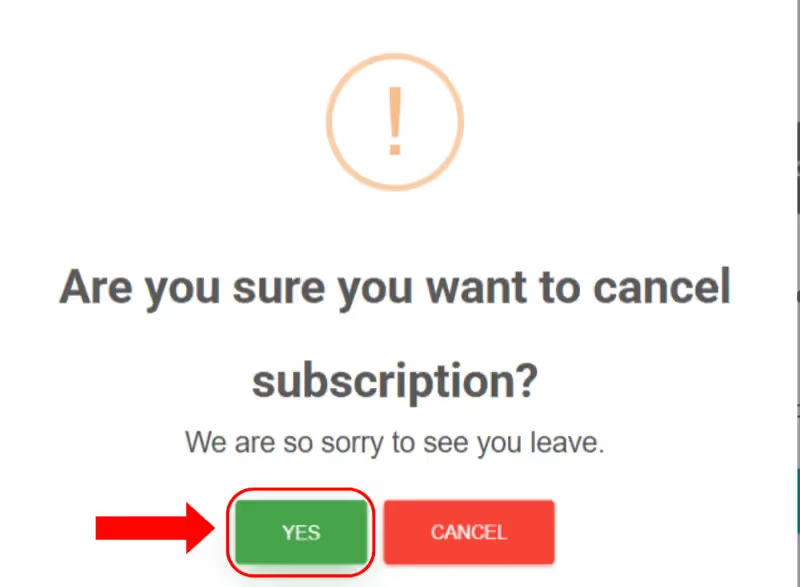
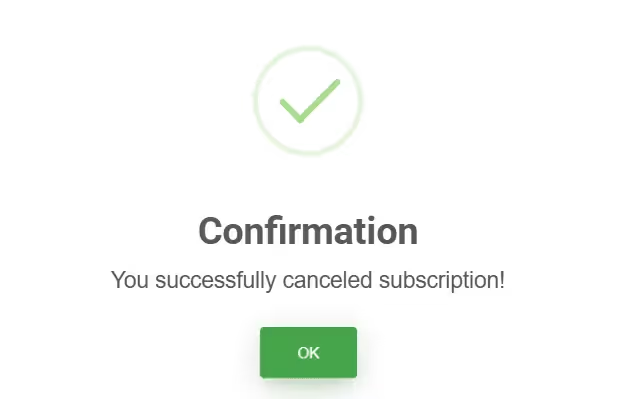
Click "Cancel" and confirm with "Yes".
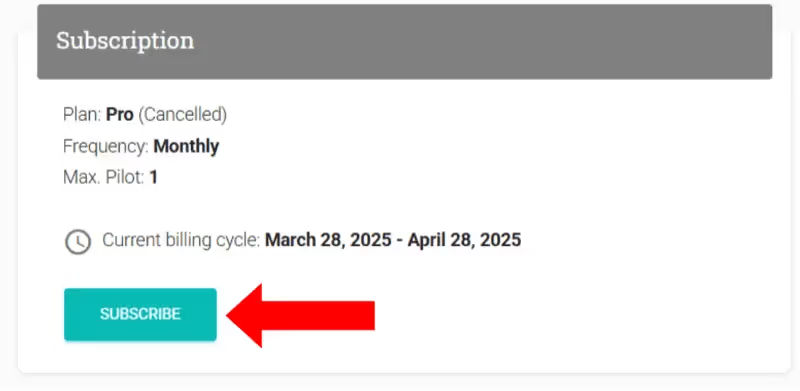
Note: You can re-subscribe at any time by clicking "Subscribe".
Web Add or Update Payment Methods
Add or Update Payment Methods
Add or edit credit/debit card information.
- 1
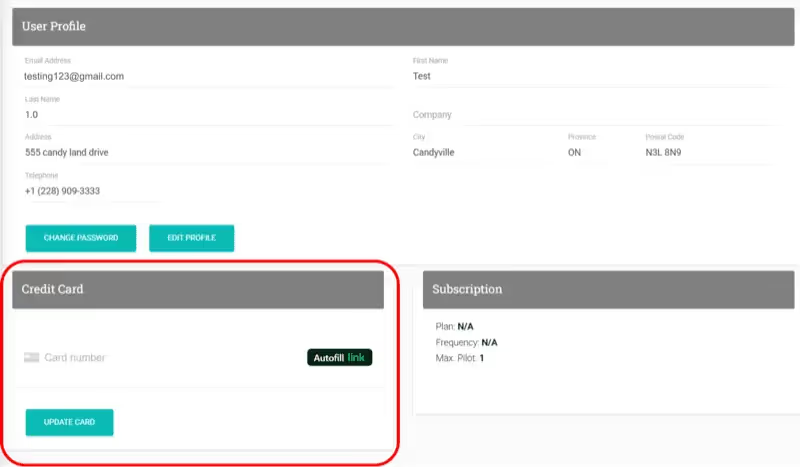
Go to Settings > Profile > Card Information section at the bottom left.
- 2
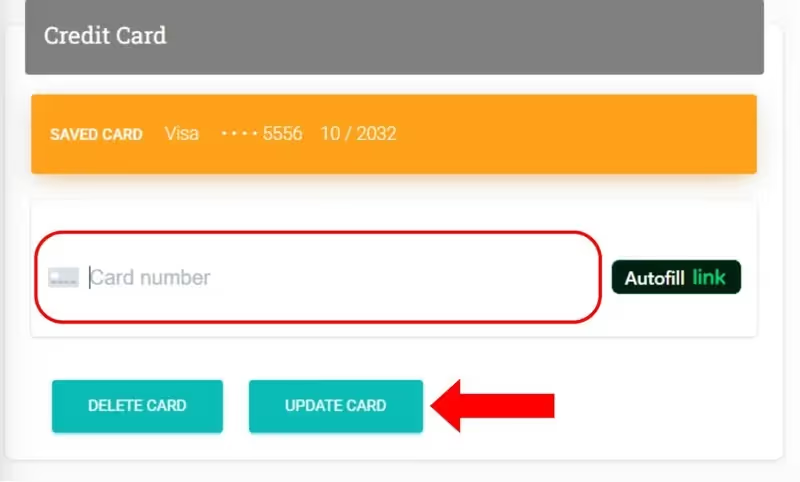
Enter Card Number, Expiry Date (MM/YY), CVC. Click "Update Card".
Web Delete a Payment Method
Delete a Payment Method
Remove a saved card from your account.
- 1
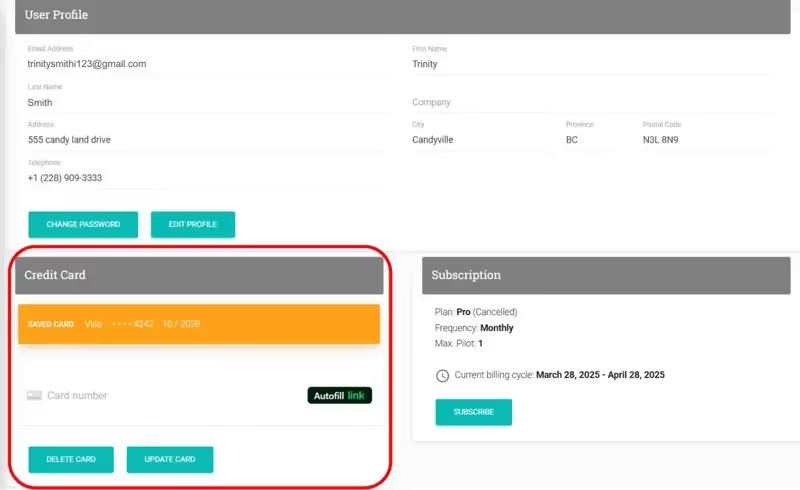
Go to Settings > Profile > Card Information section.
- 2
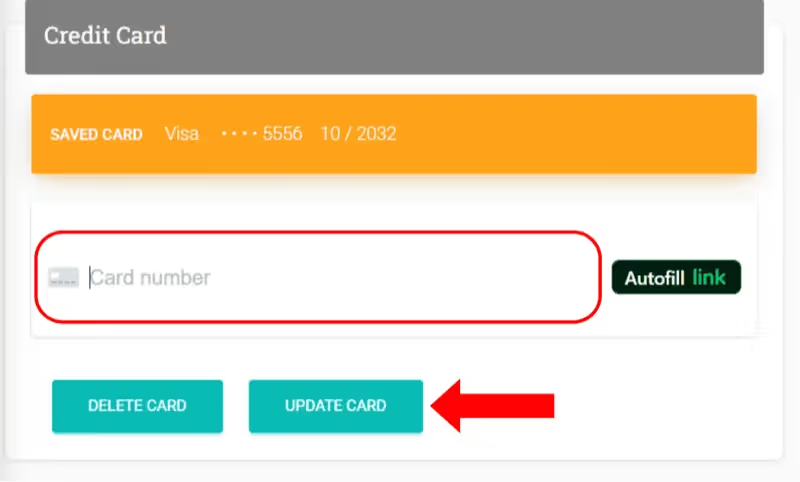
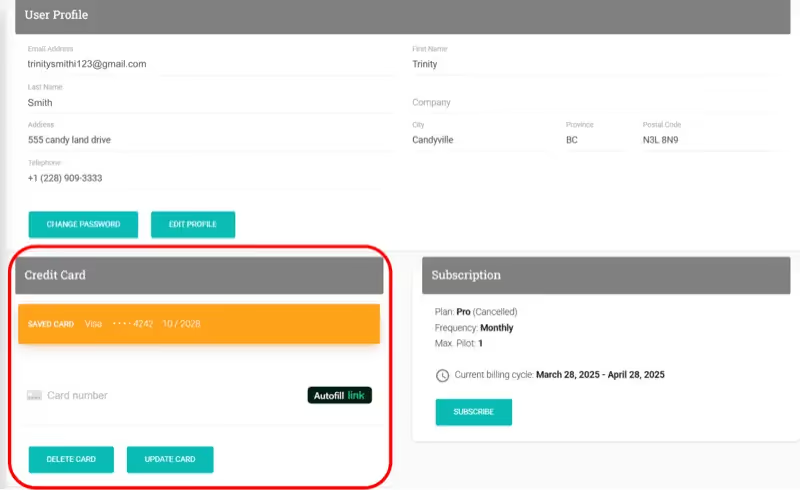
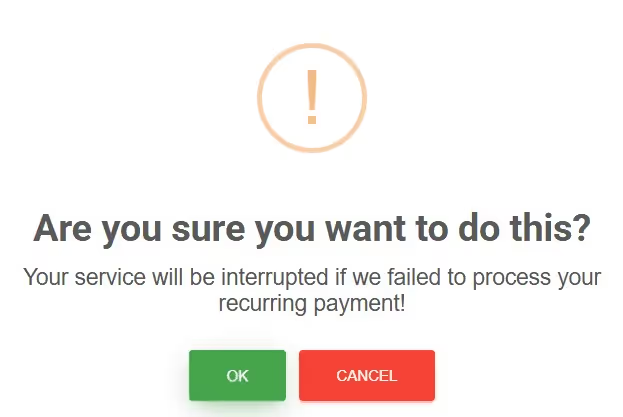
Click "Delete Card" and confirm.
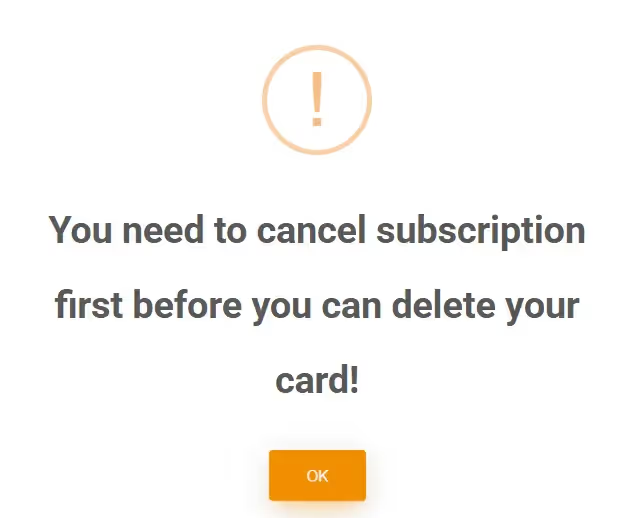
Note: You must cancel your subscription before deleting a card.
Web Pro Video Design a Custom Checklist
Design a Custom Checklist
Create and customize checklists for operations.
- 1
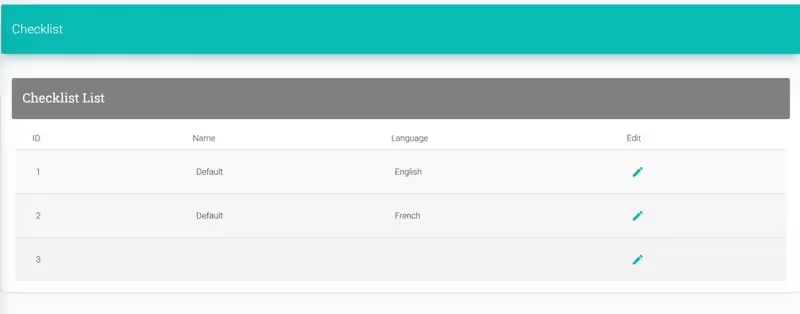
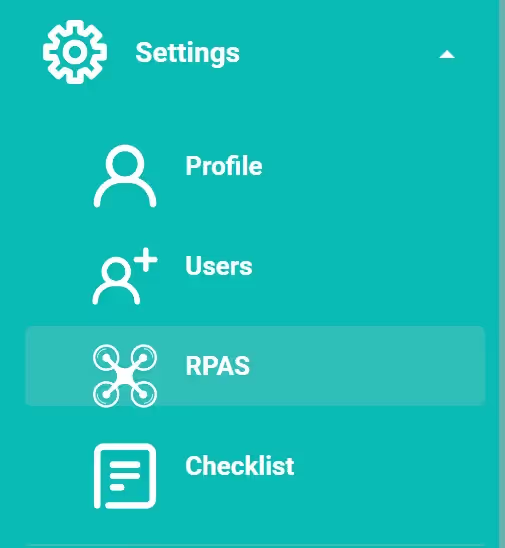
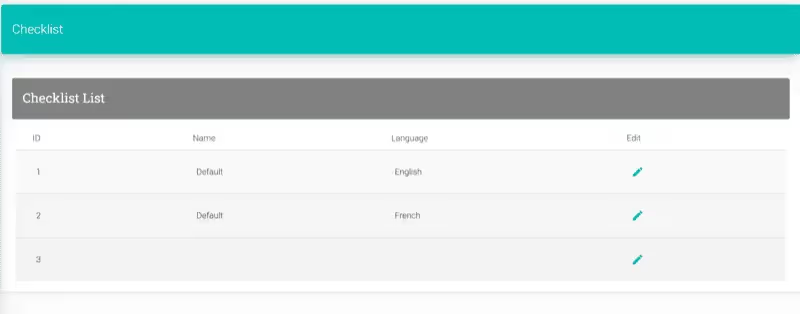
Go to Settings > Checklist. Click the pencil icon next to a checklist to customize.
- 2
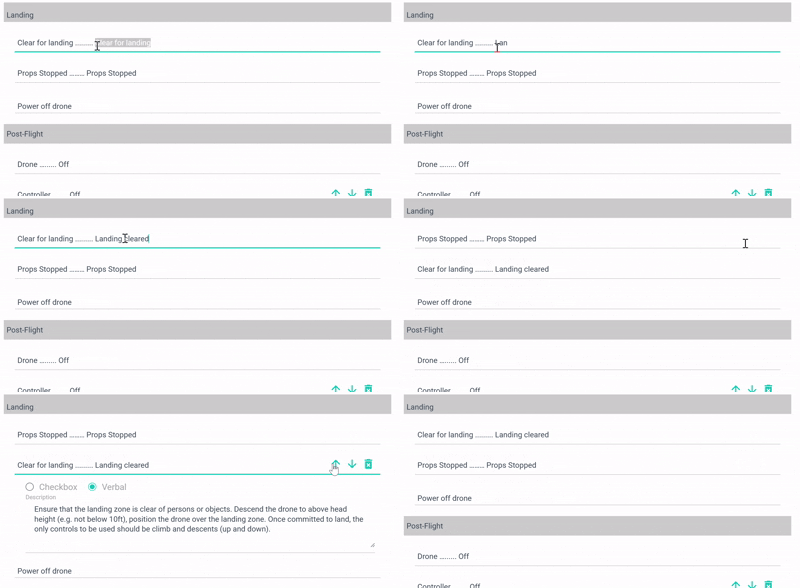
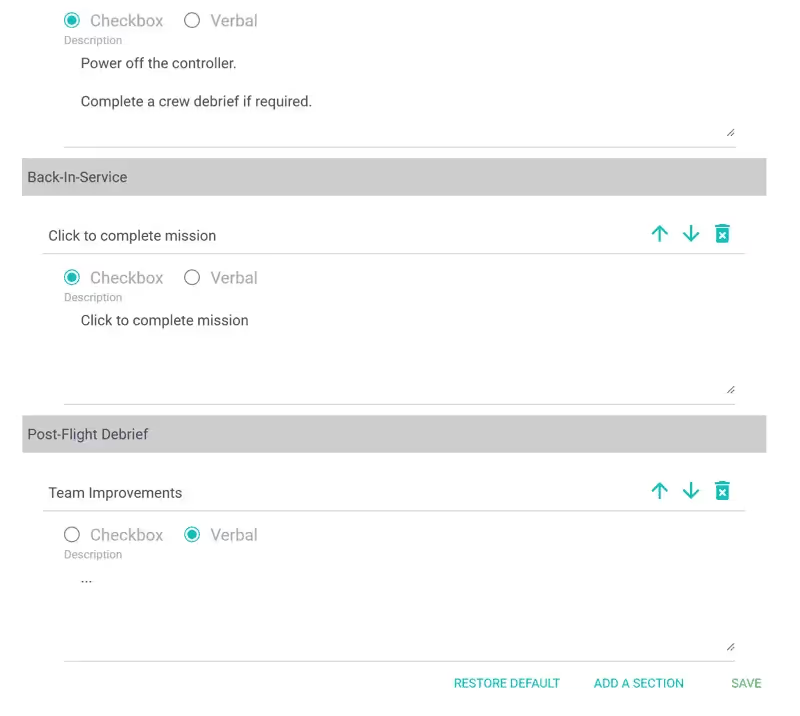
Edit section titles, reorder, delete, or add new sections. Click "Save".
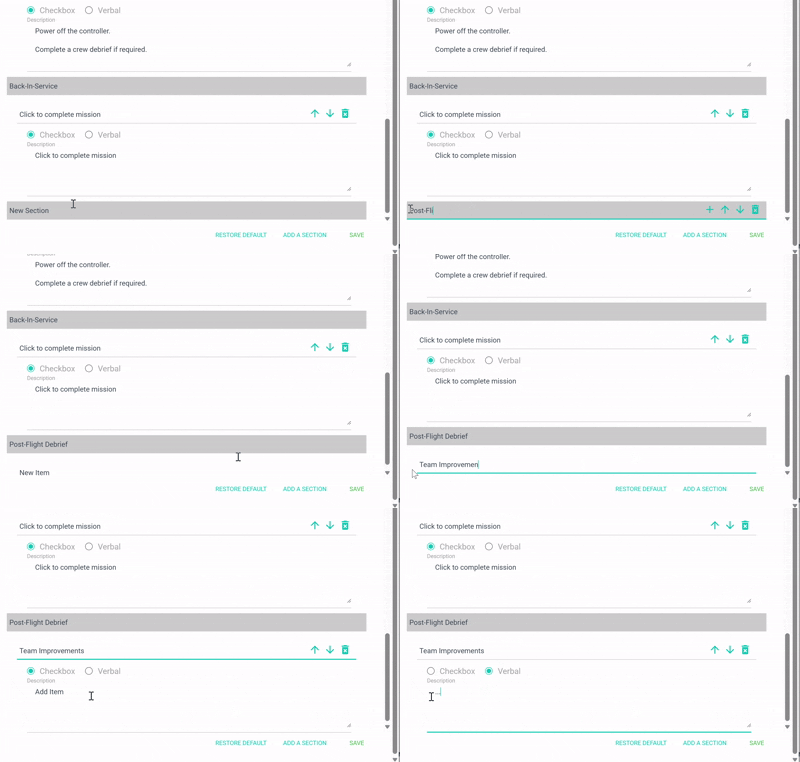
- 3
Your custom checklist will be available in the mobile app for site surveys.
Web Acknowledge NAV CANADA Approval
Acknowledge NAV CANADA Approval
Confirm authorization for controlled airspace operations.
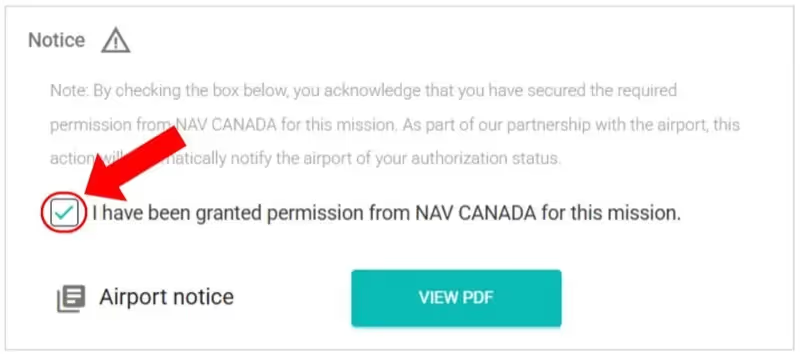
- 1
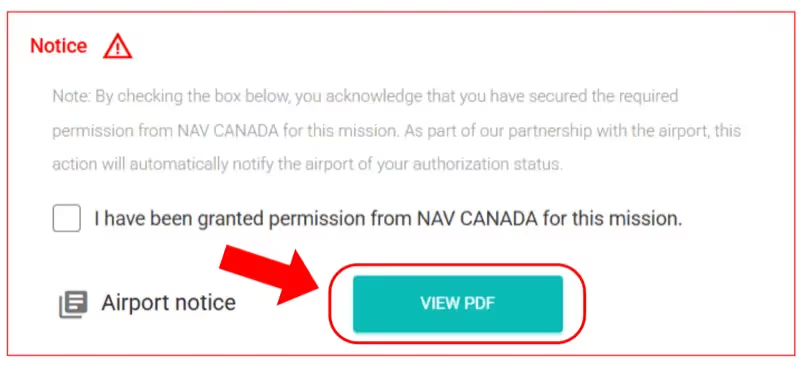
Go to Mission > Missions. Find the mission with a red airplane icon under "Notice".
- 2
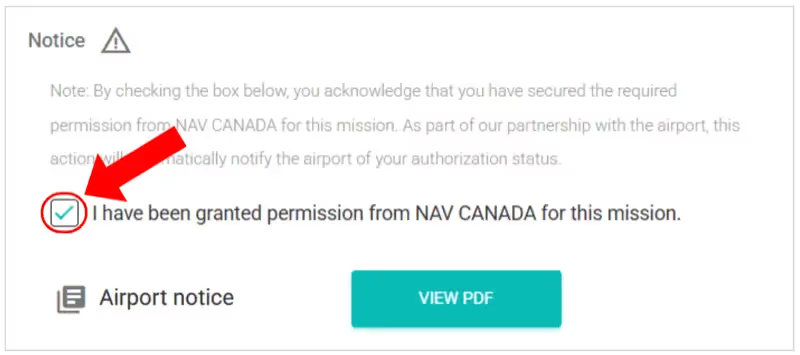
Click "View PDF" to review the airport notice. Check the confirmation box if you have NAV CANADA permission.
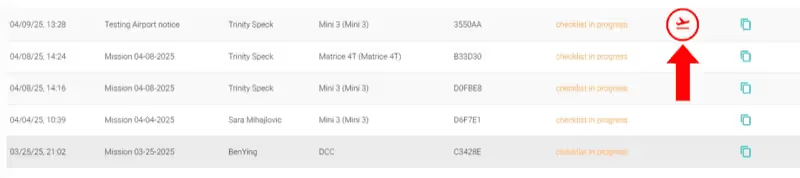
- 3
The airplane icon turns blue — authorization is acknowledged and the airport is notified.


Enterprise App
Guides for the RPAS WILCO Fly Enterprise App.
Mobile Download RPAS WILCO Fly — Android
Download RPAS WILCO Fly — Android
Install RPAS WILCO Fly on your Android device.
- 1
Open your browser and go to rpaswilco.com/products/rpas-wilco-fly.
- 2
Tap the "Android APK" download button.
- 3
If prompted, allow your browser to install apps from unknown sources.
Note: On most Android devices, go to Settings → Apps → Special access → Install unknown apps, and enable it for your browser.
- 4
Open the downloaded APK file and tap "Install".
- 5
Open the app and sign in with your RPAS WILCO account.
Flight Reviewer Network
Find and book flight reviewers through the RPAS WILCO network.
Web Video Find and Book a Flight Reviewer
Find and Book a Flight Reviewer
Search for reviewers and schedule a session.
- 1
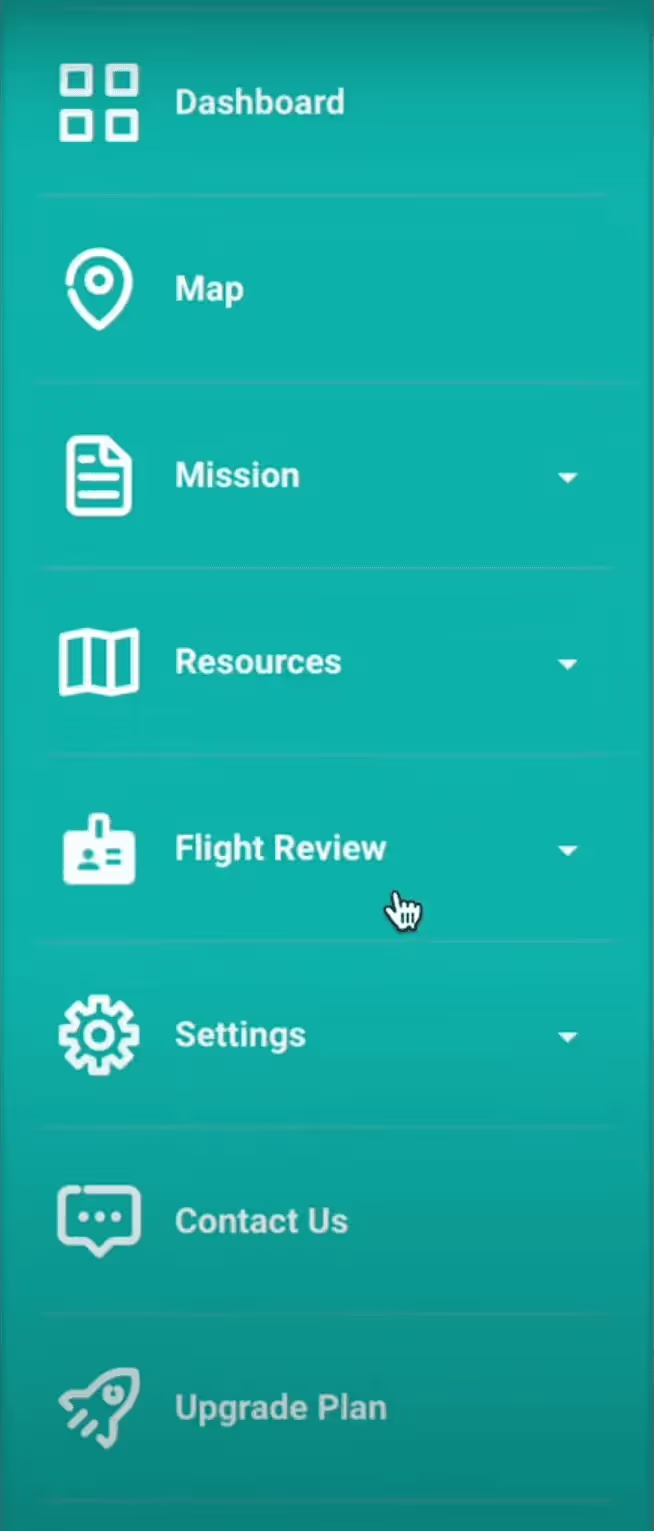
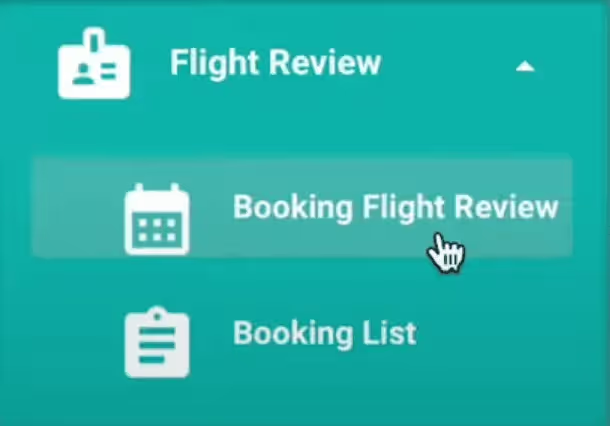
Go to the "Flight Review" tab. Select "Booking Flight Review".
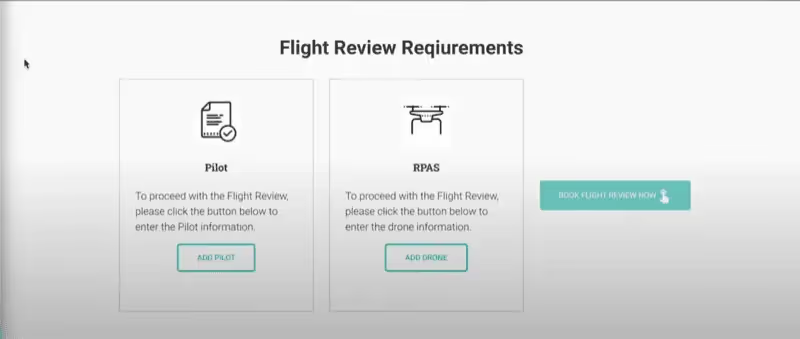
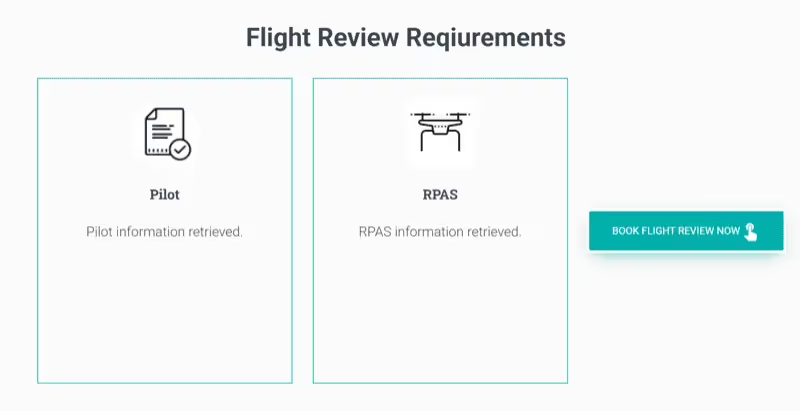
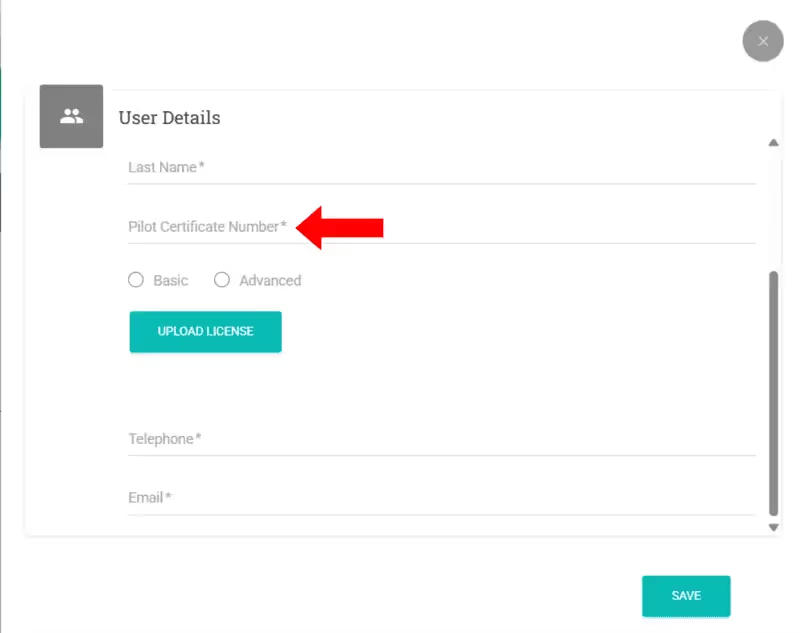
Note: You must have a drone and pilot added to your account before booking.
- 2
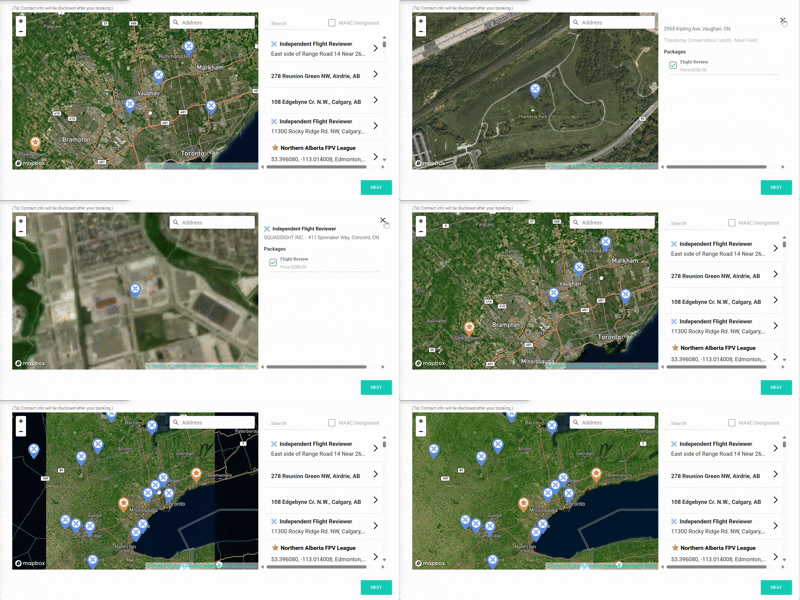
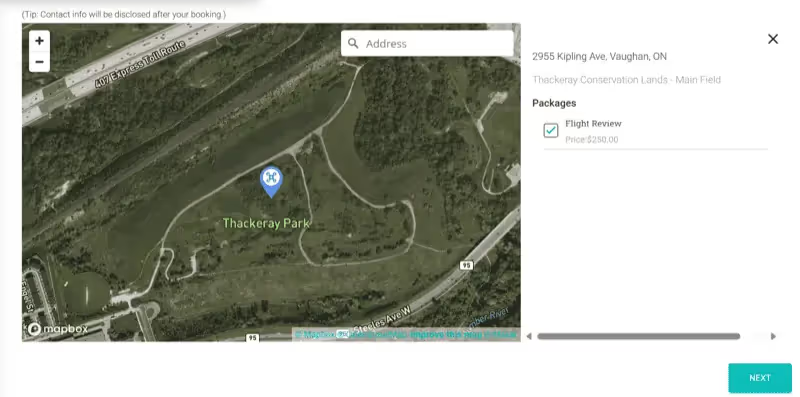
Click "Book Flight Review Now" to access the map showing available reviewers near you.
- 3
Browse by price and location. Select a reviewer and click "Next".
- 4
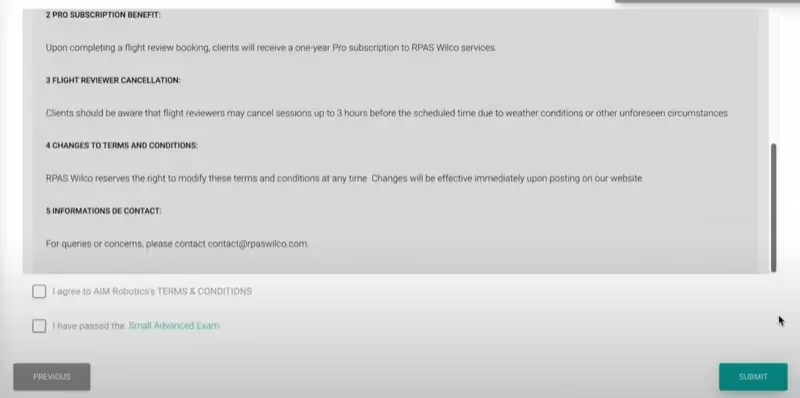
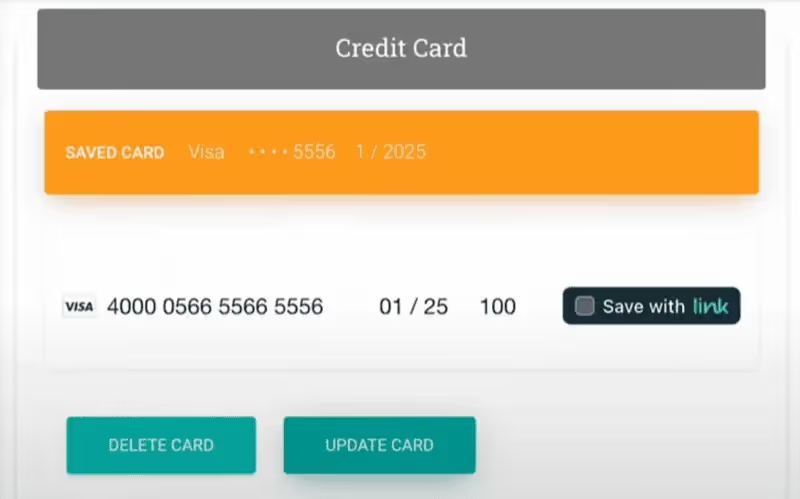
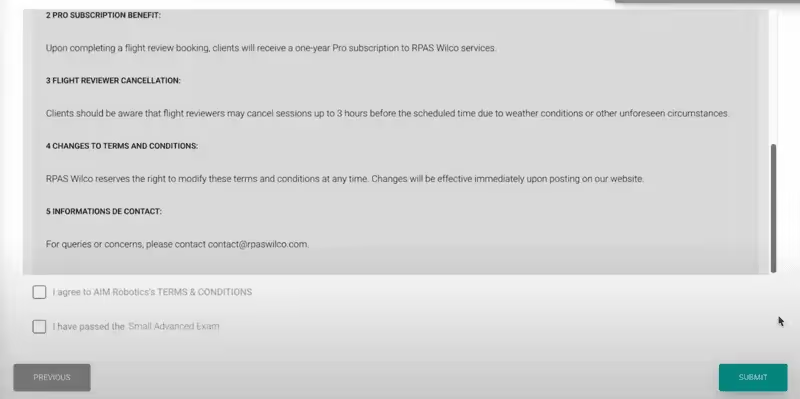
Complete payment, review Terms and Conditions, then confirm.

- 5
View bookings in the "Booking List" section.
Web Reschedule a Flight Review
Reschedule a Flight Review
Change the date or time of a booking.
- 1
Go to "Booking List" on your dashboard.
- 2
Find the booking to modify, select a new date/time, and confirm.
Web Video Become a Flight Reviewer
Become a Flight Reviewer
Set up a flight reviewer account on RPAS WILCO.
- 1
Apply to become a flight reviewer through the RPAS WILCO platform.
- 2
Set up your flight reviewer account and configure your availability.
- 3
Watch the video tutorial for the full walkthrough.
Web Video Complete a Flight Review
Complete a Flight Review
How to conduct and submit a flight review.
- 1
Navigate to your scheduled flight review session.
- 2
Complete the review following the RPAS WILCO rubric and guidelines.
- 3
Submit the flight review results through the platform.
Subscription Plans
Compare features and pricing across Free, Pro, and Enterprise.
Starter Plan — Free
Starter Plan — Free
Access airspace data, plan flights, and learn the ropes — no credit card required.
- Interactive airspace map
- NOTAMs & TFR alerts
- Basic flight planning
- Up to 5 missions/month
- Community support
Pro Pro Plan — $149/yr
Pro Plan — $149/yr
Full compliance toolkit for commercial pilots — site surveys, flight logs, fleet management, and the RPAS WILCO Fly mobile app.
- Everything in Starter
- Unlimited missions
- Site survey generator
- Flight logging & records
- Fleet management
- RPAS WILCO Fly mobile app
- Priority email support
Enterprise Video Enterprise Plan — $299/seat/yr
Enterprise Plan — $299/seat/yr
Multi-pilot operations with team management, role-based access, and a dedicated account manager.
- Everything in Pro
- Team management
- Role-based access control
- Operations dashboard
- Custom reporting
- API access
- Dedicated account manager
- Volume discounts available
Drone Detection
AIM Robotics drone detection systems for airspace security.
What is a Drone Detection System?
What is a Drone Detection System?
Overview of drone detection technology.
A Drone Detection System detects and tracks RPAS operating nearby, enhancing situational awareness and airspace security.
AIM Robotics' system monitors drone activity in real time, identifies unauthorized drones, and provides instant alerts.
Suitable for commercial, industrial, and security applications.
Detection System Features
Detection System Features
Compare Portable, Handheld, and Stationary systems.
Portable — Ideal for trunk operations, range up to 5 km.
Handheld — Compact with rechargeable lithium battery.
Stationary — Fixed installation for continuous monitoring.
All include: Advanced Positioning, Trajectory Tracking (up to 11 drones + 5 remotes), Detection for DJI and Wi-Fi drones, Intelligent Intrusion Detection.
How to Buy a Detection System
How to Buy a Detection System
Steps to purchase through AIM Robotics.
Visit the AIM Robotics website to explore solutions.
Choose: Portable, Handheld, or Stationary system.
Contact RPAS WILCO for pricing and selection assistance.
Documentation
Platform documentation, technical references, and integration guides.
Platform Overview
Platform Overview
Architecture and core modules of the RPAS WILCO platform.
- 1
RPAS WILCO is built around four core modules: Flight Planning, Airspace Intelligence, Fleet Management, and Compliance Automation.
- 2
Flight Planning handles site surveys, mission scheduling, and pre-flight checklists with automatic NOTAM and METAR integration.
- 3
Airspace Intelligence provides real-time Canadian airspace data sourced from NAV CANADA, including controlled zones, restricted areas, and temporary flight restrictions.
- 4
Fleet Management tracks drones, pilots, visual observers, and payload operators across your organization.
- 5
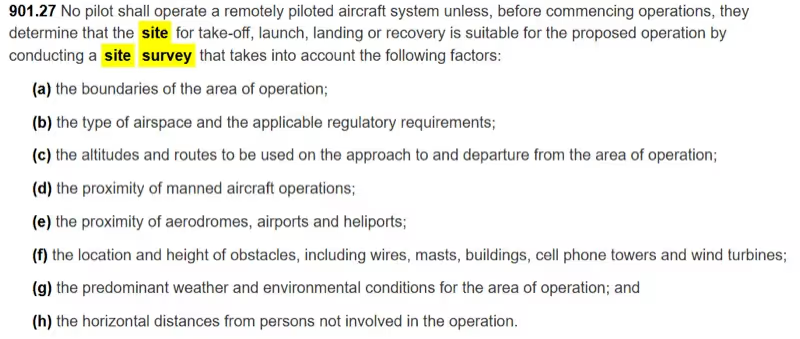
Compliance Automation generates CARs 901.27-compliant site surveys, flight logs, and incident reports.
Airspace Data Sources
Airspace Data Sources
How RPAS WILCO ingests and displays Canadian airspace data.
- 1
Airspace boundaries, controlled zones, and restricted areas are sourced from NAV CANADA's Designated Airspace Handbook (DAH).
- 2
NOTAMs (Notices to Airmen) are ingested in real time and overlaid on the interactive map, alerting pilots to temporary restrictions or hazards.
- 3
METARs and TAFs provide current and forecasted weather conditions at aerodromes, displayed alongside mission planning tools.
- 4
CFS (Canada Flight Supplement) charts for aerodromes are available to Pro and Enterprise subscribers.
Site Survey Specification
Site Survey Specification
What a generated site survey contains and how it meets CARs 901.27.
- 1
Each site survey PDF includes: mission parameters (pilot, drone, observers), operation area map with markers, airspace classification, active NOTAMs, weather data (METAR/TAF), and a risk assessment.
- 2
The map snapshot captures the operation radius, team positions, and any obstacle markers placed during planning.
- 3
Surveys automatically pull airspace data for the selected location, including proximity to aerodromes and controlled zones.
- 4
All generated surveys are stored in your mission history and can be exported as PDF for regulatory or insurance purposes.
Checklist System
Checklist System
Pre-flight, in-flight, and post-flight checklist architecture.
- 1
The default checklist covers pre-flight (drone inspection, battery, propellers, firmware), in-flight (airspace monitoring, communication), and post-flight (landing, power-off, log) phases.
- 2
Pro and Enterprise users can design custom checklists via the web dashboard, adding, removing, or reordering sections to match their SOPs.
- 3
Checklist timestamps are recorded automatically — "Power on Drone" starts the flight timer, "Power Off Drone" stops it and logs the duration.
- 4
Completed checklists are attached to the mission record and can be reviewed alongside site surveys and flight logs.
Flight Log System
Flight Log System
Automatic and manual flight logging.
- 1
Automatic flight logs are generated when using the checklist — flight time is tracked from drone power-on to power-off.
- 2
Manual flight logs can be created for flights conducted outside of RPAS WILCO, preserving a complete pilot logbook.
- 3
All flight logs record: date, duration, pilot, drone, and associated mission. Enterprise accounts also log the client and project.
- 4
Flight hours are aggregated per pilot and per drone, accessible from the dashboard for reporting and compliance.
User Roles & Permissions
User Roles & Permissions
Account roles, team structure, and access levels.
- 1
Account Owner — full access to all settings, billing, team management, and missions.
- 2
Pilot — can create and conduct missions, complete checklists, and log flights. Free and Pro accounts support one pilot; Enterprise supports multiple.
- 3
Visual Observer (VO) — assigned to missions as a crew member. Cannot create missions independently.
- 4
Payload Operator (PO) — assigned to missions involving specialized payloads. Cannot create missions independently.
- 5
Enterprise Super User — has administrative access across the organization, including team-wide mission creation and reporting.
FAQ
Frequently asked questions about RPAS WILCO.
What's the difference between subscription plans?
What's the difference between subscription plans?
Free, Pro, and Enterprise comparison.
Three levels: Free (solo flyers), Pro (advanced pilots), and Enterprise (businesses). MAAC club members get a FREE Pro membership.
Do I need a Transport Canada drone license?
Do I need a Transport Canada drone license?
License requirements for RPAS WILCO.
A Basic or Advanced Drone License is required to fly any drone over 250g in Canada. To add a pilot, you must enter their Pilot Certificate Number. Having proper certification is your responsibility.
Do I need a registered drone?
Do I need a registered drone?
Drone registration requirements.
Drones between 250g and 25kg must be registered with Transport Canada. RPAS Wilco requires the Drone ID/Serial Number when adding a drone. Register at Transport Canada's Drone Management Portal.
Why do I need a site survey?
Why do I need a site survey?
Legal and practical reasons.
Under CARs 901.27, a site survey is mandatory. Benefits: Regulatory Compliance, Risk Management, Operational Planning, Documentation (legal/insurance), and Efficiency.
Requirements to use RPAS Wilco?
Requirements to use RPAS Wilco?
What you need to get started.
You need both a drone and a pilot entered into your account to access site surveys, flight logs, and checklists.
Mobile vs. Web — what's different?
Mobile vs. Web — what's different?
Feature comparison between platforms.
Mobile: Create site surveys, complete checklists, air safety reports, advanced map. Web: Custom checklists (Pro), manage subscriptions/payments, Flight Reviewer Network, site surveys (Pro/Enterprise).
Video What is RPAS WILCO?
What is RPAS WILCO?
Platform overview and key features.
A drone compliance platform by RPAS experts. Features: Interactive Airspace Map, Automated Site Surveys (NOTAMs/METARs), Flight Scheduling, Automated Flight Logs, and NAV CANADA Aeronautical Data Access.
Where can I purchase a drone?
Where can I purchase a drone?
Recommended retailers and bundled offers.
AIM Robotics — every purchase includes a FREE Pro or Enterprise RPAS Wilco subscription. DJI drones from Mini 4 Pro to Matrice 350 RTK, plus accessories and detection tools.
RPAS Wilco vs. RPAS Centre?
RPAS Wilco vs. RPAS Centre?
Platform vs training courses.
RPAS Wilco is a drone compliance platform. RPAS Centre provides FREE training courses for RPAS pilots. Both support safe, compliant flying.
Can't Find What You're Looking For?
Our support team is here to help. Reach out and we'll get back to you within 24 hours.
RPAS WILCO Mobile App
Trusted by 50,000+ drone pilots across Canada · Official NAV CANADA Data Distributor